00197500-04_IM_Material_Manager_2.1_EN.pdf - 第13页
Installing the MaterialManager Installation Manual SIPLACE Material ManagerV2.1 13 WebApplication (mandatory) The WebAp plication is the cent ral GUI of th e Material M anager. T he WebApplic ation is hosted on the Micr…
Installing the MaterialManager
12 Installation Manual SIPLACE Material ManagerV2.1
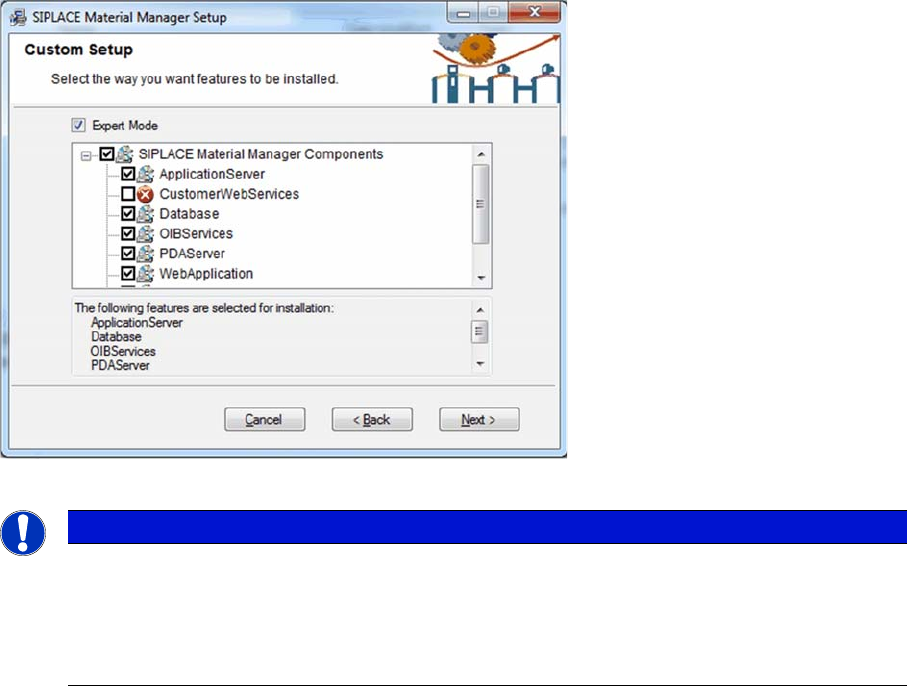
Selecting components in Expert Mode
► Select the components that you want to install.
► Click on Next to finish the selection and continue with the installation program.
Description of the Single Components
ApplicationServer (mandatory)
The Material Manager ApplicationServer is a Microsoft COM+ application. As central component of the
system it controls all Material Manager operations and events. Usually, the ApplicationServer will be in
-
stalled on the central Material Manager server or on another server. Once installed, the ApplicationServ
-
er can be administered via the Control Panel of the operating system.
CustomerWebServices (optional)
The CustomerWebServices integrate the Material Manager into your system landscape and are hosted
on the Microsoft Internet Information Server (IIS). If they are available and administered, the Material
Manager calls these Web services within defined workflow modes.
Database (mandatory)
The Material Manager database contains all required tables and views. The database will be installed
on a Microsoft SQL.
OIBServices (mandatory)
The OIBServices integrate the Material Manager for working with other SIPLACE software products (e.g.
SIPLACE Setup Center) via the public OIB interface. The OIBServices are hosted on the Microsoft In
-
ternet Information Server (IIS).
PDAServer (mandatory)
The PDA server is required to operate the mobile PDA devices. The PDA server controls the communi
-
cation between the single PDA devices and the central ApplicationServer and will usually be installed on
the central Material Manager server.
NOTICE
Complete installation recommended
To make sure that the Material Manager runs correctly, it is recommended to install all compo
-
nents that are enabled for installation in the presettings because most of them are mandatory
to use the Material Manager.
If necessary, non-selected components can be installed later.
Installing the MaterialManager
Installation Manual SIPLACE Material ManagerV2.1 13
WebApplication (mandatory)
The WebApplication is the central GUI of the Material Manager. The WebApplication is hosted on the
Microsoft Internet Information Server (IIS) and starts over a compatible Web browser (e.g. Internet Ex
-
plorer). The WebApplication runs as HTML application completely within the browser, so there is no
need to install it on a client computer.
WebServices (optional)
The WebServices form the public interface of the SIPLACE Material Manager. The WebServices obey
the official ISA-95 and B2MML standard. E.g., the material master file or packaging units can be main
-
tained or retrieved via these WebServices. The WebServices are hosted on the Microsoft Internet Infor
-
mation Server (IIS).
WebServicesClient (optional)
Data that has been created outside of the Material Manager (e.g. material or master data) can be im
-
ported into the Material Manager database with the WebServicesClient.
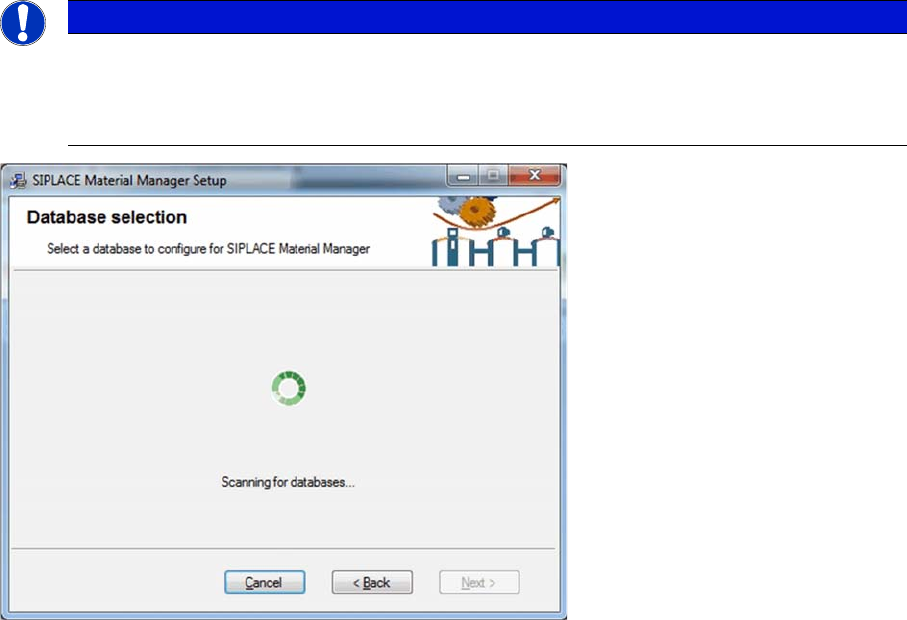
Searching for available SQL servers
The installation program searchs for already existing SQL servers in your network. Each detected SQL
server can be used as host for the Material Manager database later.
The search for SQL servers may take some minutes in a large network.
NOTICE
Optional components
The CustomerWebService, WebServices and WebServicesClient components are only re
-
quired if they have to be integrated in the system landscape of the customer. Registration over
the 3rd party portal is required.
Installing the MaterialManager
14 Installation Manual SIPLACE Material ManagerV2.1
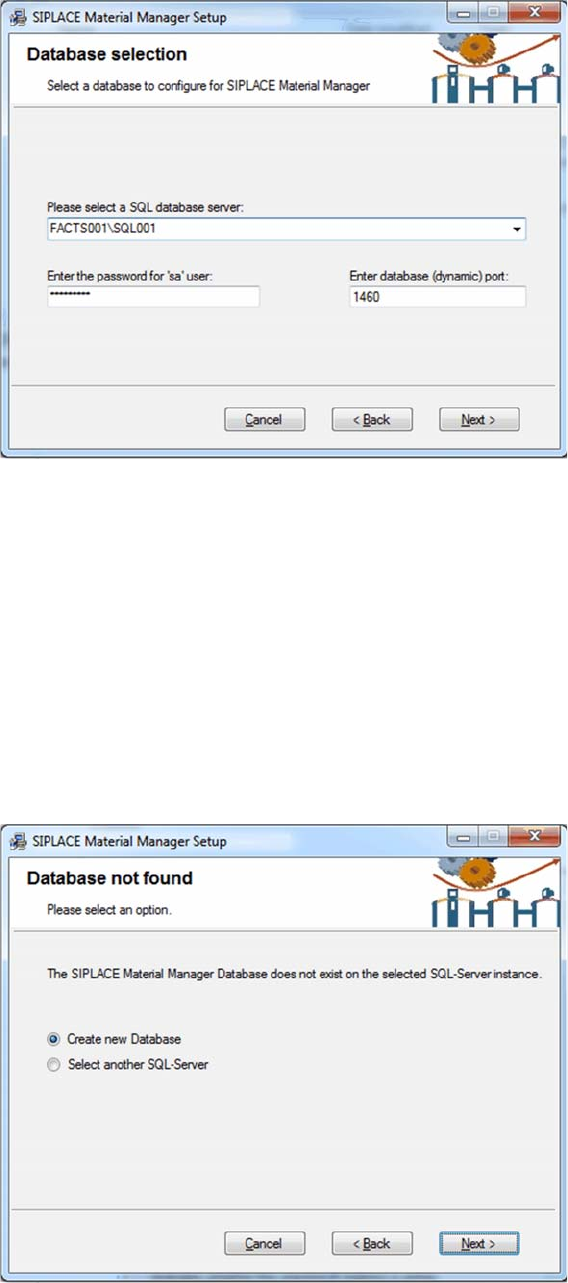
Selecting SQL server
► Select the server that you want to use as host for the Material Manager database from the drop-down
list.
► Enter the password for the SA user (administrator).
► Enter the port number for the database. Either you receive the port number from your system admin
-
istrator or you will find it in the Configuration Manager of the SQL server.
► Click on Next.
The installation program tries to establish a connection to the defined SQL server.
If a connection has been successfully established, the installation program checks if a Material Manager
database already exists on this SQL server. In this case, the database will be updated to the current state
(if necessary).
If no Material Manager database is available on the defined SQL server, a new one will be created.
Creating a new database
► Select the Create new Database option.
► Click on Next.