00197500-04_IM_Material_Manager_2.1_EN.pdf - 第34页
Installing the MaterialManager 34 Installation Manual SIPLACE Material ManagerV2.1 Installing components The installation runs and a pr ogress bar displays the current i nstallation state. Installation successfully fini…
Installing the MaterialManager
Installation Manual SIPLACE Material ManagerV2.1 33
Action
Here you set the processing behavior for a specific message type.
▪ Process
The message will be processed in the Material Manager, gets the Processed state und remains in
the database.
If the message cannot be processed, it gets the Failed state and remains in the database.
▪ Delete
The message will NOT be processed and is deleted in the database.
▪ Ignore
The message will NOT be processed, gets the Ignored state and remains in the database.
Material Definition ID Converter
With the following settings you synchronize the usage of part numbers and article numbers for process
-
ing material data. This makes sure that the transferred data is used with the same meaning in the com
-
munication between the Material Manager and the external Setup Center and SIPLACE Pro systems.
Communication to the line level
Communication / data export from the Material Manager to Setup Center.
Under Use, set if the Material Manager shall send the part number or the article number to Setup Center
to be processed.
Communication from the line level
Communication / data import from Setup Center or SIPLACE Pro to the Material Manager.
Under Use, set if the Material Manager shall interpret the information to be processed sent by Setup
Center or SIPLACE Pro as part number or article number.
Use
▪ Material Definition ID (part number)
Alias material name for the commercial usage. Usually, the entry is identical to the part number but
an alias name may be defined.
▪ ArticleNumber (article number)
Internal material number for technical usage, e.g. in SIPLACE Pro and Setup Center. This number
agrees with the component number of the material as used in SIPLACE Pro.
Displaying settings
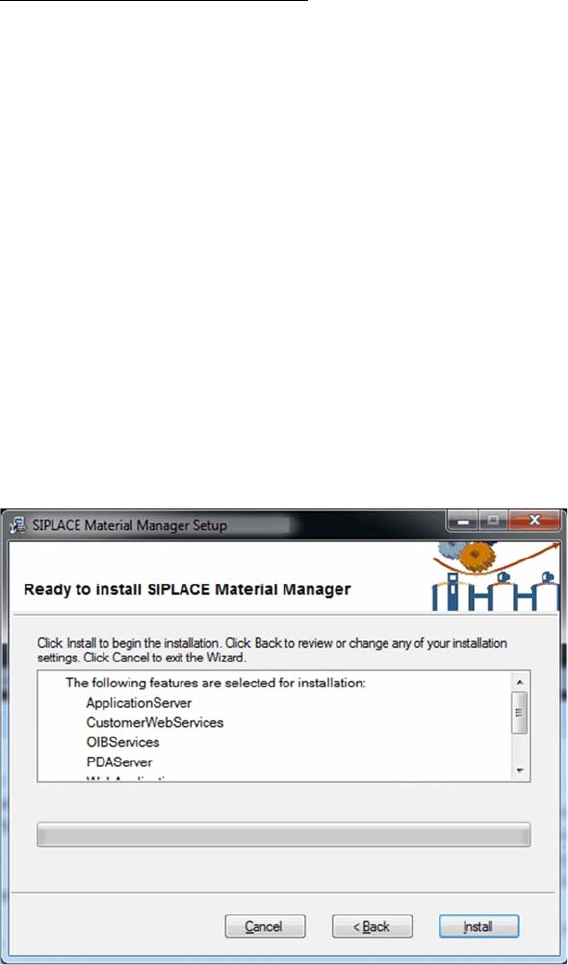
The settings you have made are displayed for checking.
► Click on Back to correct your settings.
► Click on Install to perform the installation with your settings.
► Click on Cancel to cancel the installation.
Installing the MaterialManager
34 Installation Manual SIPLACE Material ManagerV2.1
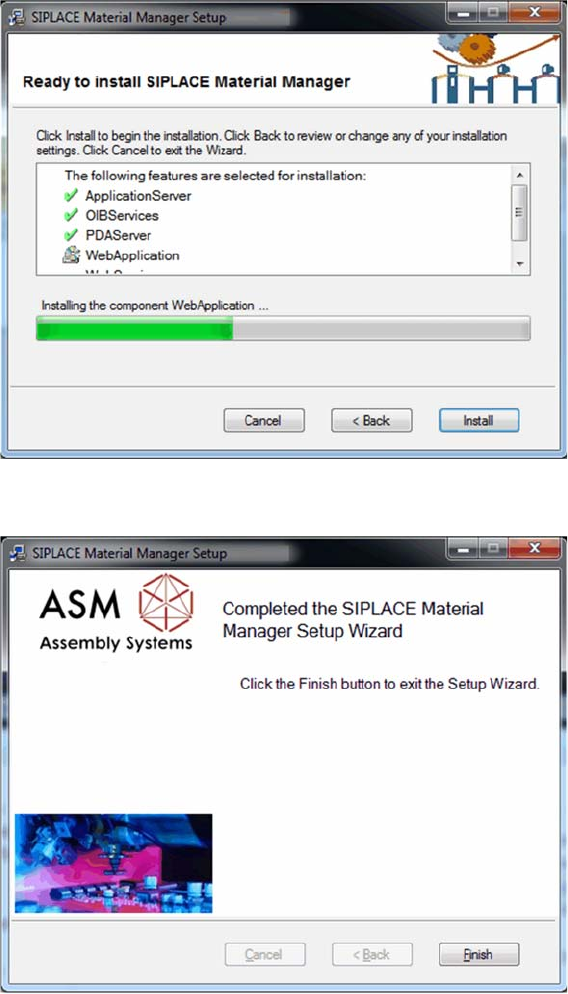
Installing components
The installation runs and a progress bar displays the current installation state.
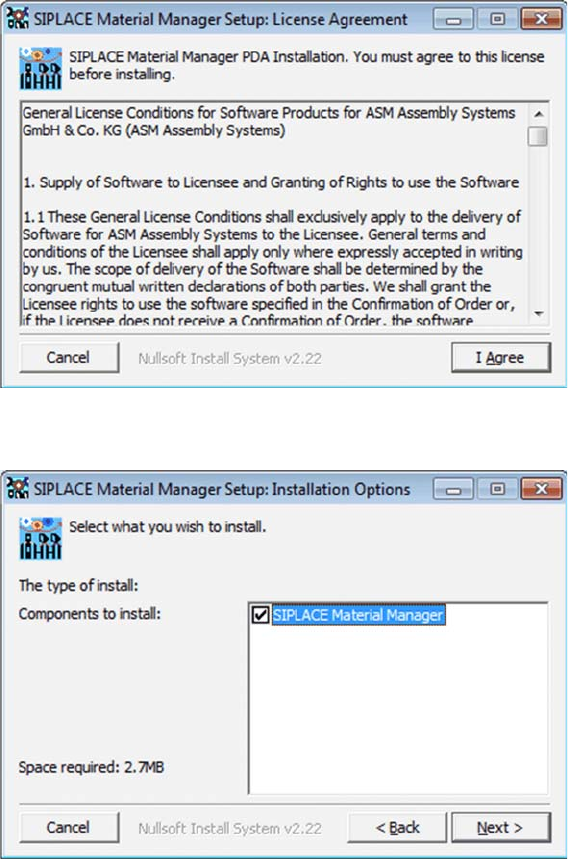
Installation successfully finished
After the Material Manager has been successfully installed, the dialog box to finish the installation pro
-
gram is displayed.
► Click on Finish to terminate the installation program.
Setting Up a PC for the PDA and the 2D Scanner
Installing the PDA Client
Installation Manual SIPLACE Material ManagerV2.1 35
4
4 Setting Up a PC for the PDA and the 2D Scanner
Setting Up a PC for the PDA and the 2D Scanner
An additional PC is required to install the software, configure and administer the PDA and the 2D scan
-
ner. This PC should not be the server on which the Material Manager is installed.
Prepare the PC with the Support Media DVD as follows:
► Install the Mobile Scanner Prerequisites for the PDA and follow the instructions of Support Media.
► Install the ALADDIN software for the 2D scanner by double-clicking on the
*.exe
setup file in the UP
-
DATES\FIRMWARE\DATALOGIC ALADDIN folder and follow the instructions of Support Media.
4.1
4.1 Installing the PDA Client
Installing the PDA Client
► Insert the installation CD into the CD drive of the PC.
► Click on the /Install/PDA-Client/SiMMSetup.exe file to start the installation.
The dialog box with the license agreements is displayed.
► Click on I Agree.
The dialog box to set the installation options is displayed.
► Click on Next.