00197500-04_IM_Material_Manager_2.1_EN.pdf - 第37页
Setting Up a PC for the PDA and the 2D Scanner Installing the PDA Client Installation Manual SIPLACE Material ManagerV2.1 37 A progress bar display s the curr ent state during t he installati on. As soon as this message …
Setting Up a PC for the PDA and the 2D Scanner
Installing the PDA Client
36 Installation Manual SIPLACE Material ManagerV2.1
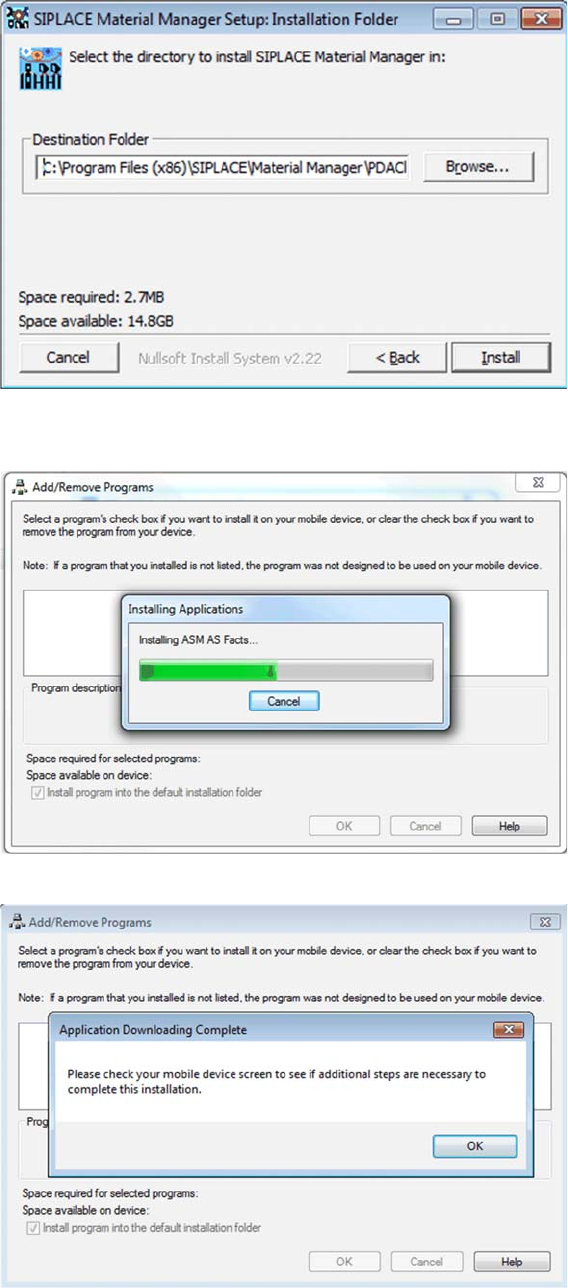
The dialog box to set the installation path is displayed.
► Click on Install.
The installation starts and a progress bar displays the current installation state.
As soon as the transmission of the application data to the PDA has been completed, this message will
be displayed.
► Check if a message is displayed on your PDA.
► If applicable, follow the instructions displayed on the PDA.
Setting Up a PC for the PDA and the 2D Scanner
Installing the PDA Client
Installation Manual SIPLACE Material ManagerV2.1 37
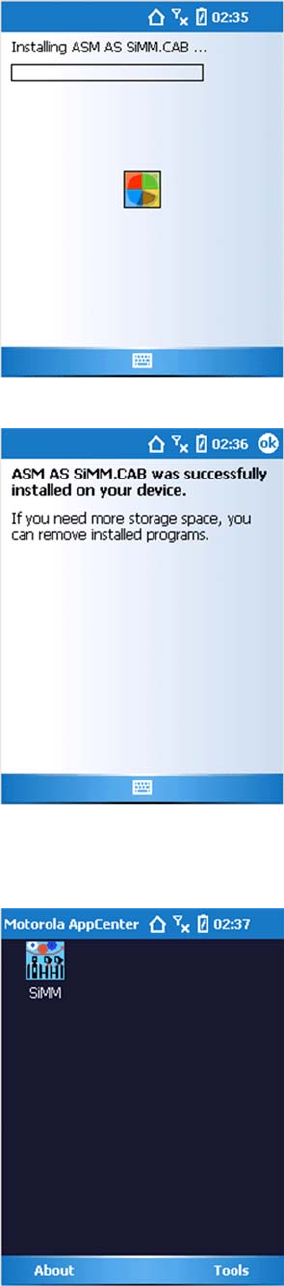
A progress bar displays the current state during the installation.
As soon as this message is displayed, the Material Manager applications have been successfully in
-
stalled.
Now, the PDA has to be restarted. After that, the following screen is displayed.
Now, the PDA has to be configured.
Setting Up a PC for the PDA and the 2D Scanner
Configuring the PDA
38 Installation Manual SIPLACE Material ManagerV2.1
4.2
4.2 Configuring the PDA
Configuring the PDA
After the PDA client has been installed on the PC, the PDA has to be configured.
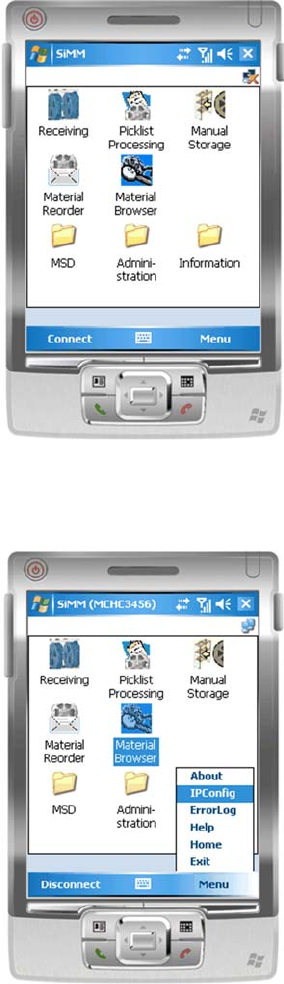
Start screen on the PDA
The start screen of the Material Manager is displayed.
► Click on Menu.
Displaying menu entries
The menu entries are displayed.
► Select the IPConfig menu entry.