00197500-04_IM_Material_Manager_2.1_EN.pdf - 第36页
Setting Up a PC for the PDA and the 2D Scan ner Installing the PDA Client 36 Installation Manual SIPLACE Material ManagerV2.1 The dialo g box to set the installat ion path is d isplayed. ► Click on Instal l . The install…
Setting Up a PC for the PDA and the 2D Scanner
Installing the PDA Client
Installation Manual SIPLACE Material ManagerV2.1 35
4
4 Setting Up a PC for the PDA and the 2D Scanner
Setting Up a PC for the PDA and the 2D Scanner
An additional PC is required to install the software, configure and administer the PDA and the 2D scan
-
ner. This PC should not be the server on which the Material Manager is installed.
Prepare the PC with the Support Media DVD as follows:
► Install the Mobile Scanner Prerequisites for the PDA and follow the instructions of Support Media.
► Install the ALADDIN software for the 2D scanner by double-clicking on the
*.exe
setup file in the UP
-
DATES\FIRMWARE\DATALOGIC ALADDIN folder and follow the instructions of Support Media.
4.1
4.1 Installing the PDA Client
Installing the PDA Client
► Insert the installation CD into the CD drive of the PC.
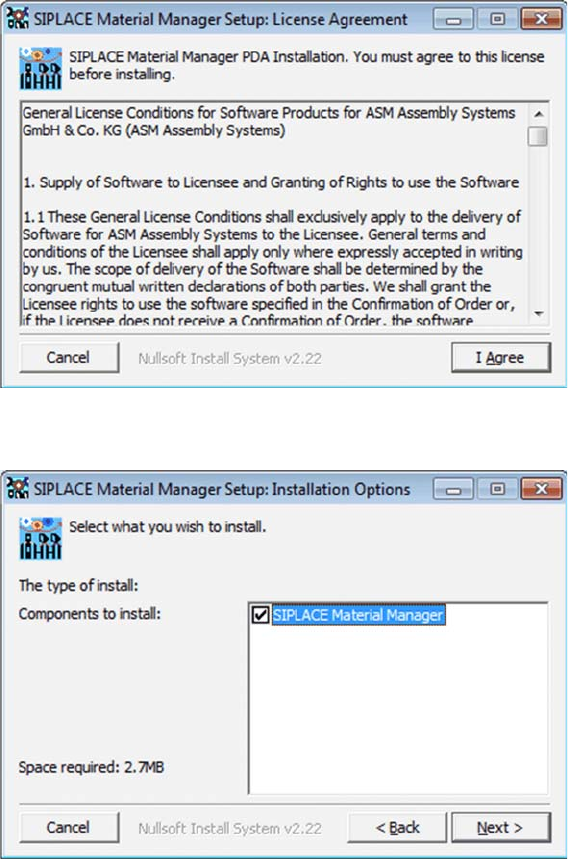
► Click on the /Install/PDA-Client/SiMMSetup.exe file to start the installation.
The dialog box with the license agreements is displayed.
► Click on I Agree.
The dialog box to set the installation options is displayed.
► Click on Next.
Setting Up a PC for the PDA and the 2D Scanner
Installing the PDA Client
36 Installation Manual SIPLACE Material ManagerV2.1
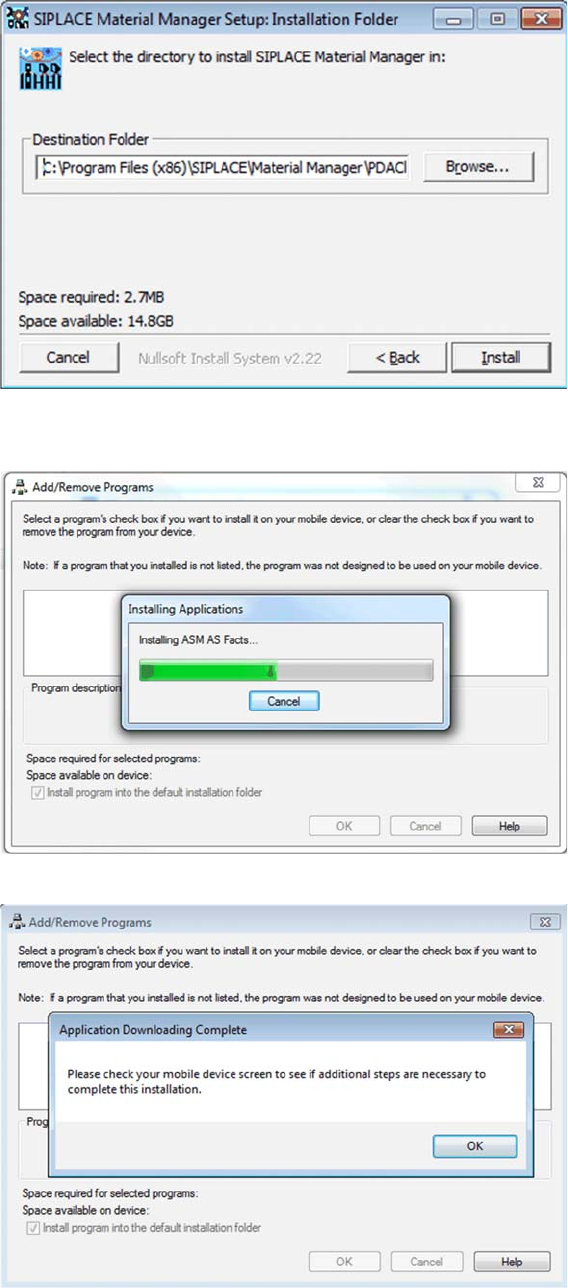
The dialog box to set the installation path is displayed.
► Click on Install.
The installation starts and a progress bar displays the current installation state.
As soon as the transmission of the application data to the PDA has been completed, this message will
be displayed.
► Check if a message is displayed on your PDA.
► If applicable, follow the instructions displayed on the PDA.
Setting Up a PC for the PDA and the 2D Scanner
Installing the PDA Client
Installation Manual SIPLACE Material ManagerV2.1 37
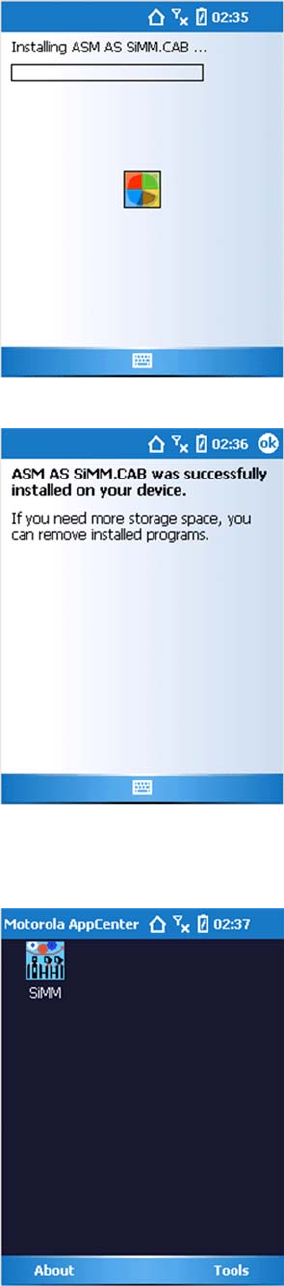
A progress bar displays the current state during the installation.
As soon as this message is displayed, the Material Manager applications have been successfully in
-
stalled.
Now, the PDA has to be restarted. After that, the following screen is displayed.
Now, the PDA has to be configured.