OM-1352-003_w.pdf - 第46页
5-5 Tg1357-ID-SO 0703-003 "Nozzle ID" Displayed is the nozzle type specified with the [T est ID] button. [Nozzle No.] Button When this button is pressed, the "Select ID >> Nozzle No." window open…
5-4
Tg1357-ID-SO
0703-003
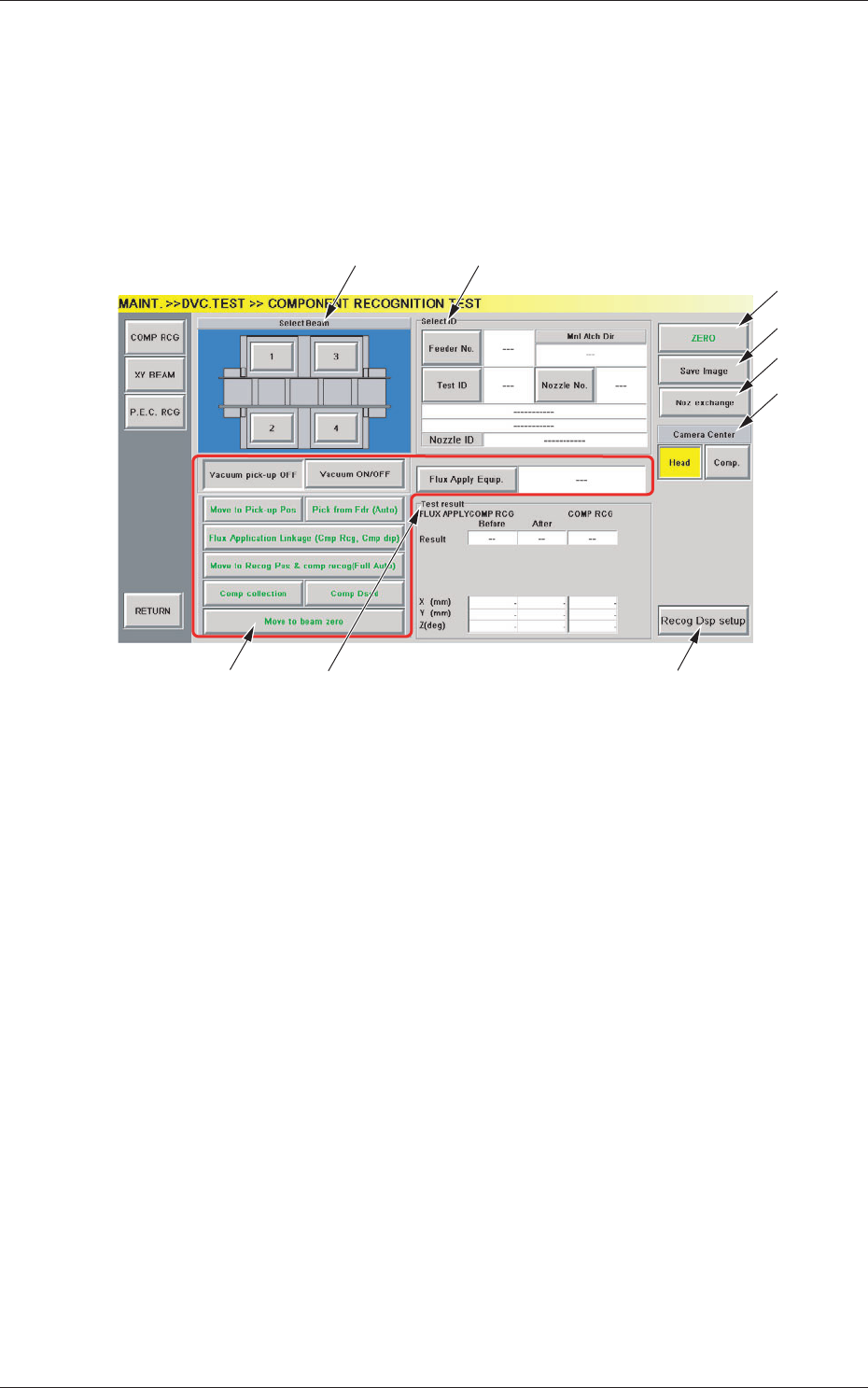
5.2 Component Recognition Test
This window enables you check whether or not the component designated
using a test ID can normally be recognized.
When the [COMP RCG] button on the "DVC. TEST" submenu bar is
pressed, the "COMPONENT RECOGNITION TEST" window opens.
[3]
[4]
[1] [2]
[9]
[5]
[6]
[7]
[8]
Fig.16 "COMPONENT RECOGNITION TEST" Window
[1] Beam Selection Buttons
Each X/Y beam in the graphic image of the machine is provided with a
button function.
Select the X/Y beam on which a component recognition test must be
performed.
[2] "Select ID" Group Box
The following buttons and text boxes are arranged and used to display
the specified values.
[Feeder No.] Button
When pressed, this button opens the "Feeder No." selection
window, enabling you to specify the feeder from which test
components should be picked up.
[Test ID] Button
When pressed, this button opens the "Test ID Selection
" window,
enabling you to specify the component ID for the recognition
test.
5.2 Component Recognition Test

5-5
Tg1357-ID-SO
0703-003
"Nozzle ID"
Displayed is the nozzle type specified with the [Test ID] button.
[Nozzle No.] Button
When this button is pressed, the "Select ID >> Nozzle No."
window opens, enabling you to set the nozzle No. to be used for
the recognition test.
Mnl Atch Dir
Displayed is the direction (reverse or same direction) of
component to be attached by hand.
Def Direct :
This indicates that a component will be attached
in the reverse direction in comparison with the
direction of the components supplied from each
feeder.
Same Direct :
This indicates that a component will be attached
in the same direction as that of the components
supplied from each feeder.
[3] Operation Buttons
[Vacuum ON/OFF] Button
This button can the used to trun on or off the vacuum for the
nozzle.
Either the [Vacuum pick-up OFF] or the [Vacuum pick-up ON]
button appears on the left side of the [Vacuum ON/OFF] button
according to the current vacuum condition.
[Move to Pick-up Pos] Button
This button can be used to manually attach a component.
When the [START] button on the operation panel is pressed in
ten seconds after this button is selected, the head on the X/Y
beam selected in [1] moves the center (zero) position and the
nozzle No. specified in [2] moves (rotates) toward the front side.
[
Pick from Fdr (Auto)] Button
This button can be used to automatically take out a component.
When the [START] button on the operation panel is pressed in
ten seconds after this button, the head on the X/Y beam selected
in [1] moves the feeder No. position specified in [2] and takes out
a component.
5.2 Component Recognition Test

5-6
Tg1357-ID-SO
0703-003
[Flux Application Linkage (Cmp Rcg. Cmp dip)] Button
This button is used when the flux is applied to the component.
When the [START] button on the operation panel is pressed in
ten seconds after this button, the head on the X/Y beam selected
in [1] moves the component recognition camera position and
implements component recognition test.
[Move to Recog Pos & comp recog (Full Auto)] Button
This button makes is possible for the machine to perform a
series of operations (full automatic operations) that cover all the
operational sequences between the movement to the recognition
position and the implementation of a recognition operation.
When the [START] button on th
e operation panel is pressed in
ten seconds after this button, the head on the X/Y beam selected
in [1] moves the component recognition camera position and
implements component recognition test.
[Move to Recog Pos] Button
When the [START] button on th
e operation panel is pressed in
ten seconds after this button, the head on the X/Y beam selected
in [1] moves the component recognition camera position.
[Recog component]
Button
When pressed, this button opens the "COMPONENT
RECOGNITION (MANUAL)" window that can be used for a
component recognition operation, rotational actions, etc.
[Comp collection] Button
When pressed, this button moves the head on the X/Y beam to
the center (zero) position.
Notice
After the component collection manually, press the
[Vacuum ON/OFF] button to set the vacuum valve to
"OFF".
[Comp Dscd] Button
When pressed, this button activates the component discarding
function according to the library data.
[Move to beam zero] Button
When pressed, this button zeroes the X/Y beam.
[Flux Apply Equip.] Button
Pressing this button displays the "Flux Dispensing Unit" window.
5.2 Component Recognition Test