00194574-01.pdf - 第15页
Installation manual SIPLACE Pro 4 Installati on of SIPLACE Pro and possible Setup Types Version 3.0 Edition 03/2005 US 15 4 Inst allation of SIPLACE Pro and possible Setup Ty p e s V arious setup types are available for …
3 Important preparations prior to installation (Software configuration) Installation manual SIPLACE Pro
Edition 03/2005 US Version 3.0
14

Installation manual SIPLACE Pro 4 Installation of SIPLACE Pro and possible Setup Types
Version 3.0 Edition 03/2005 US
15
4 Installation of SIPLACE Pro and possible Setup
Types
Various setup types are available for installation to enable you to install the system components
you want to have on the specific computer. To achieve this, various setup types have been defined
which install the required system components accordingly. 4
Note
After a new installation or reinitialization of the database, it is necessary to import the master data:
In SIPLACE Pro desk go to Tools-->Import-->Line Computer Import Wizard... 4
The following setup types are at your disposal: 4
(1) Custom
(2) SIPLACE Pro Complete System
(3) SIPLACE Pro Desk
(4) SIPLACE Pro Line Control GUI
(5) SIPLACE Pro Line Control Server
(6) SIPLACE Pro Programming System
(7) Siplace Pro Server.
Refer to Section 4.2 for details about the contents and installation procedure of the individual
setup types. 4
4.1 Starting installation – first steps
These steps are identical for all setup types. The subsequent steps only differ once you have
selected the setup type you require. 4
Æ Run through the following steps to start the installation and then refer to the relevant section
for your specific setup type.
4 Installation of SIPLACE Pro and possible Setup Types Installation manual SIPLACE Pro
Edition 03/2005 US Version 3.0
16
Step 1
Æ Insert the SIPLACE Pro installation CD into the CD-ROM drive. The installation routine starts
automatically.
You can also start the installation by running the Setup.exe program located in the root direc-
tory on the installation CD.
This starts the user-controlled installation of SIPLACE Pro; you are prompted to select the in-
stallation language. 4
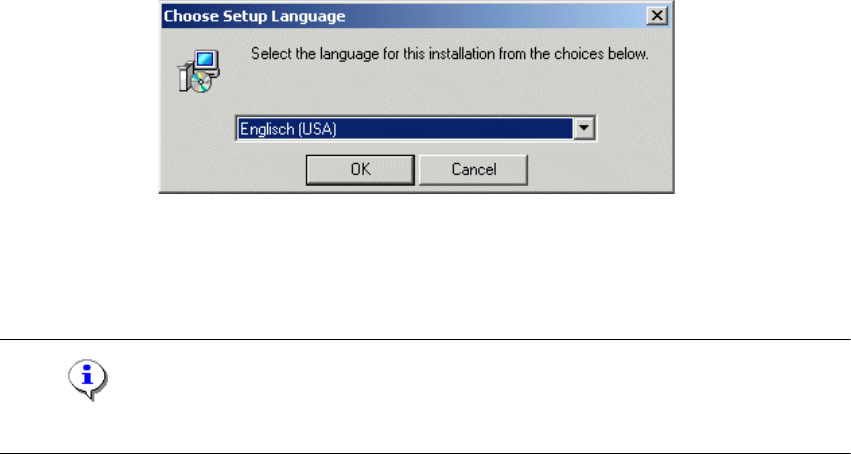
Fig. 4 - 1 "Choose Setup Language" dialog box
Æ Select the language you want.
Æ Click OK.
Note
This decision only relates to the language used during the installation routine! 4