00194574-01.pdf - 第30页
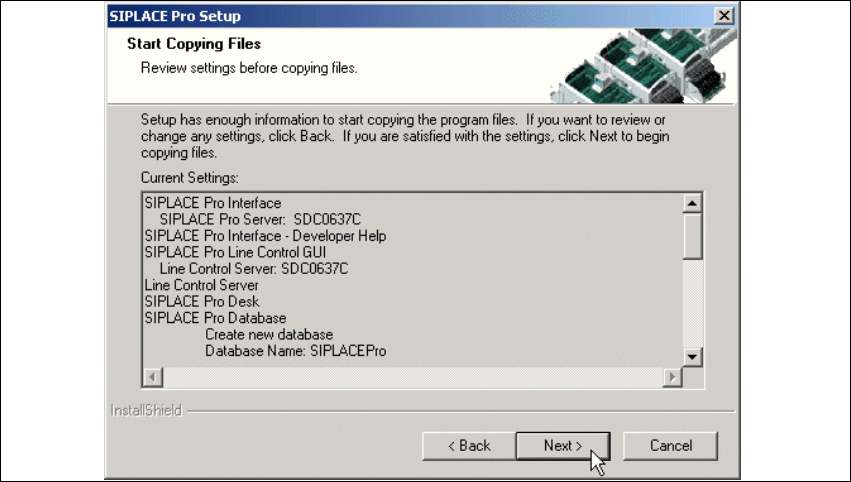
4 Installation of SIPLACE Pro and possible Setu p Types Installation manual SIPLACE Pro Edition 03/2005 US Version 3.0 30 Ste p 5 The "S tart Copying Files" dialog box gives you a last chance to check the infor…
Installation manual SIPLACE Pro 4 Installation of SIPLACE Pro and possible Setup Types
Version 3.0 Edition 03/2005 US
29
Æ If you wish for Error Reports to be sent automatically to Siemens, fill in your email address and
Mail Server name. The mail server field is preset to a valid name as found in your domaine.
In case of errors, the SIPLACE Pro Error Reporting Tool will automatically create an error report
and will mail these reports to Siemens. 4
The settings are used to configure the SIPLACE Pro Error Reporting Tool. Depending on your set-
tings these reports are automatically mailed to Siemens support personnel or are available for you
to se sent later on. 4
4 Installation of SIPLACE Pro and possible Setup Types Installation manual SIPLACE Pro
Edition 03/2005 US Version 3.0
30
Step 5
The "Start Copying Files" dialog box gives you a last chance to check the information you have
entered during the previous steps. 4
4
Fig. 4 - 15 The "Start Copying Files" dialog box
Æ Click Next if you accept all the information entered so far.
Æ If you want to alter one or more details, click the Back button until you get back to the dialog
box in question.
Æ There, enter your changes and click Next to continue as usual.
Step 6
– The installation routine is now started.
– The "Setup Complete" window confirms that the installation has been completed successfully.
Installation manual SIPLACE Pro 4 Installation of SIPLACE Pro and possible Setup Types
Version 3.0 Edition 03/2005 US
31
4.2.3 Setup Type – SIPLACE Pro Desk
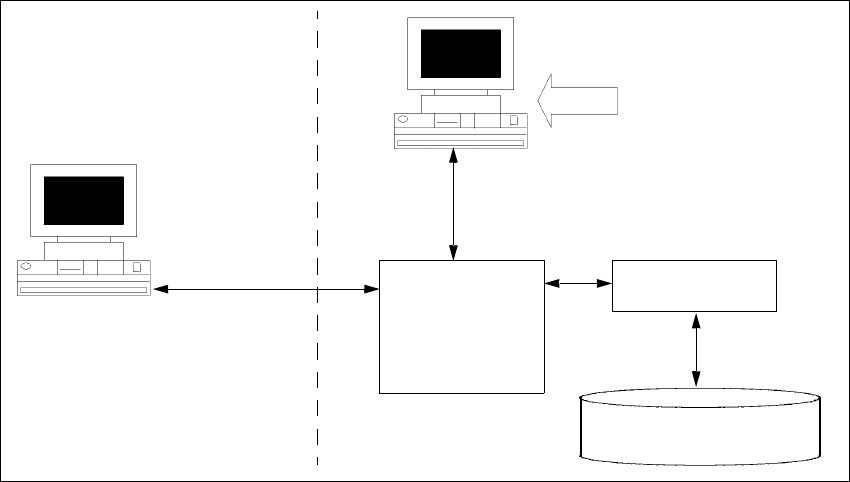
This setup type only contains a "Client" portion of SIPLACE Pro, i.e. the user interface. The SI-
PLACE Pro Desk setup requires that the SIPLACE Pro server has already been installed either
locally or remotely. The SIPLACE Pro Desk setup type is used in a distributed system in order to
create additional programming desks which are only operational together with the server. 4
4
Fig. 4 - 16 Components – SIPLACE Pro Desk (sample configuration)
Step 1
Æ Run through the steps in ”Starting installation – first steps” from page 15.
Æ Select the SIPLACE Pro Desk setup type.
Æ Click Next.
MS SQL Server with
SIPLACE Pro Server and
Database pre-installed
SIPLACE Pro
Desk
SIPLACE Pro
Interface
Setup
COM+
Resource
Manager
COM+
Line computer
master data