00194574-01.pdf - 第20页
4 Installation of SIPLACE Pro and possible Setu p Types Installation manual SIPLACE Pro Edition 03/2005 US Version 3.0 20 4.2 Individual setup types and next step s 4.2.1 Setup T ype – Custom This setup type allows the e…
Installation manual SIPLACE Pro 4 Installation of SIPLACE Pro and possible Setup Types
Version 3.0 Edition 03/2005 US
19
The "Choose Destination Location" dialog box prompts you to enter the name of the folder in
which SIPLACE Pro should be installed. The system suggests a default destination folder for you.
However, you can click the Browse button to open a dialog box in which you can enter or select
the path you want to use. If the folder you specify does not exist, it is created after having accepted
a confirmation dialog. 4
Æ Click Next.
Step 6
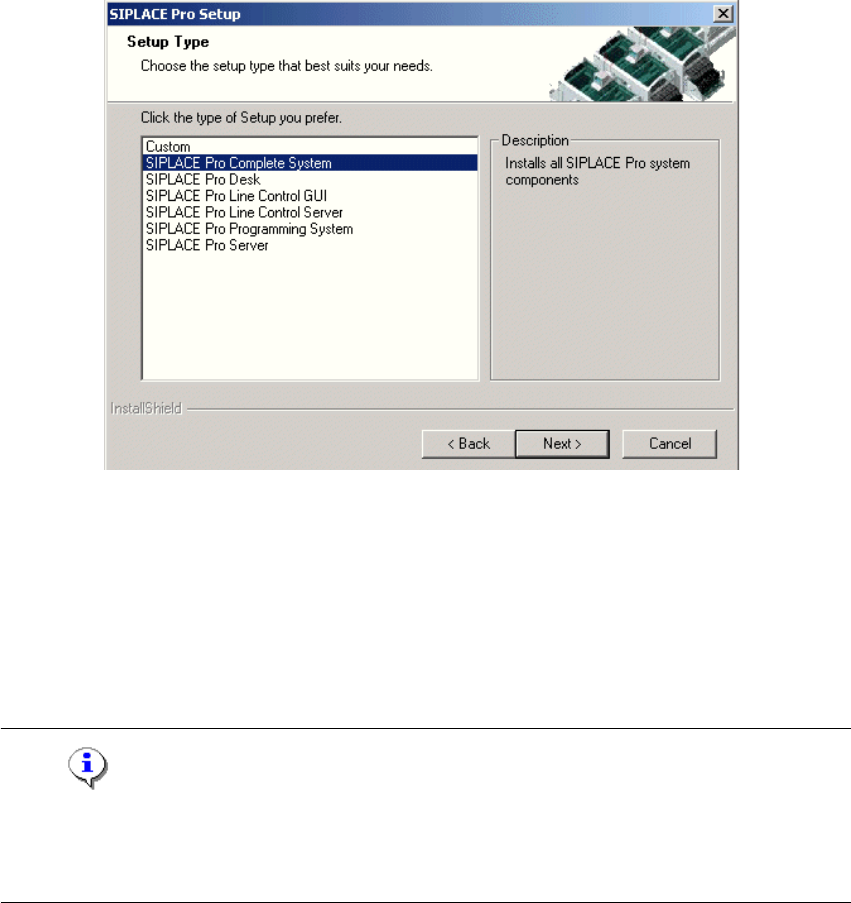
The Setup Type dialog box displays the SIPLACE Pro components you can choose for installa-
tion. 4
4
Fig. 4 - 6 "Setup Type" dialog box
In the "Setup Type" dialog box, 4
Æ select the setup type you want to install.
Æ Click Next.
A short description of the setup type in question appears in the Description box when you select
a type. 4
Note
After choosing a setup type which includes a database installation, the setup program immediately
checks if SQL server or MSDE (Microsoft Data Desktop Engine) and the proper Service Pack and
Security Patch are installed on the computer. 4
4 Installation of SIPLACE Pro and possible Setup Types Installation manual SIPLACE Pro
Edition 03/2005 US Version 3.0
20
4.2 Individual setup types and next steps
4.2.1 Setup Type – Custom
This setup type allows the experienced user to select any possible combination of SIPLACE Pro
components. However, you should use one of the specified setup types if you are installing stan-
dard components, since this means the necessary components are always installed and you do
not have to pay attention to the details. 4
Step 1
Æ Run through the steps in ”Starting installation – first steps” from page 15.
Æ Select the Custom setup type
Æ Click Next.
Installation manual SIPLACE Pro 4 Installation of SIPLACE Pro and possible Setup Types
Version 3.0 Edition 03/2005 US
21
Step 2
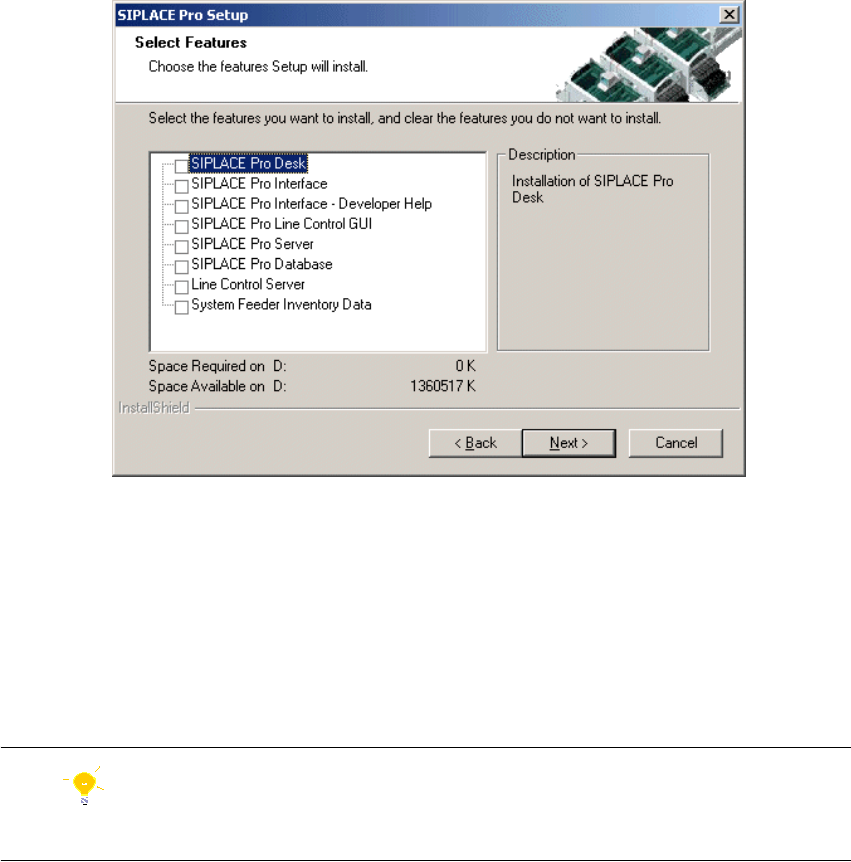
In the "Setup Features" dialog box, select the features you want to install. 4
Fig. 4 - 7 "Select Features" dialog box
– The disk space required by all selected components is shown. The size information for
SIPLACE Pro Database is misleading, since it only takes into account the size of the SQL
scripts copied by InstallShield and installed for these components. The size of the database
itself needs to be considered in addition. The initial value is defined in a later dialog when
creating a new database and the database size is dynamic anyway.
Æ Select the features you want to install.
Hint
You need to install SIPLACE Pro Interface as minimum requirement for external applications. 4