00194574-01.pdf - 第25页
Installation manual SIPLACE Pro 4 Installati on of SIPLACE Pro and possible Setup Types Version 3.0 Edition 03/2005 US 25 Ste p 3 The "Configuration of SIPLACE Pro Serv er" dialog box specifies which Windows us…
4 Installation of SIPLACE Pro and possible Setup Types Installation manual SIPLACE Pro
Edition 03/2005 US Version 3.0
24
Step 2
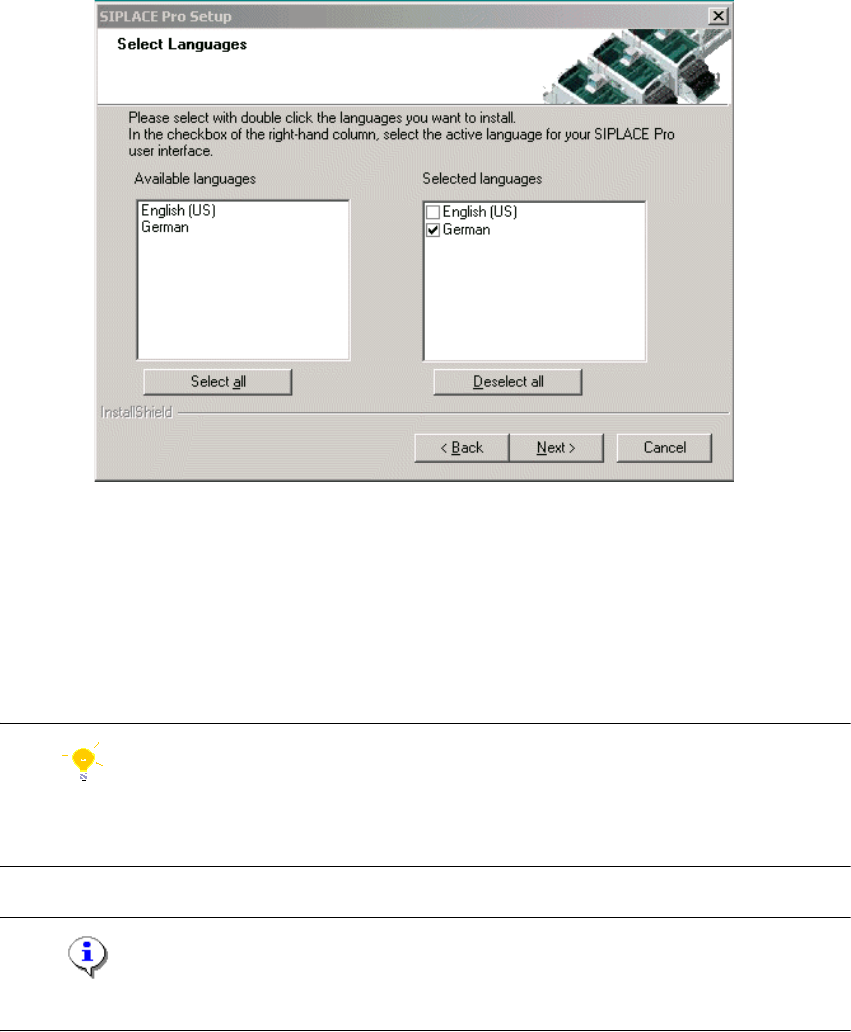
In the "Select languages" dialog box, select the languages you want to install to make them avail-
able for the applications. In addition, select which language should be active first. 4
You can alter the active language subsequently in SIPLACE Pro Desk and Line Control as well.4
4
Fig. 4 - 10 "Select Languages" dialog box
Æ Double-click the languages in the left-hand list Available languages to select the ones which
should be installed.
Æ In the right-hand list Selected languages, select the check box of the language with which
the installed applications like SIPLACE Pro Desk should start first.
Æ Click Next.
Hint
If you select the wrong language by mistake, you can remove it by double-clicking in the right-hand
list. 4
Note
English and German are always installed. You cannot de-select either language. 4
Installation manual SIPLACE Pro 4 Installation of SIPLACE Pro and possible Setup Types
Version 3.0 Edition 03/2005 US
25
Step 3
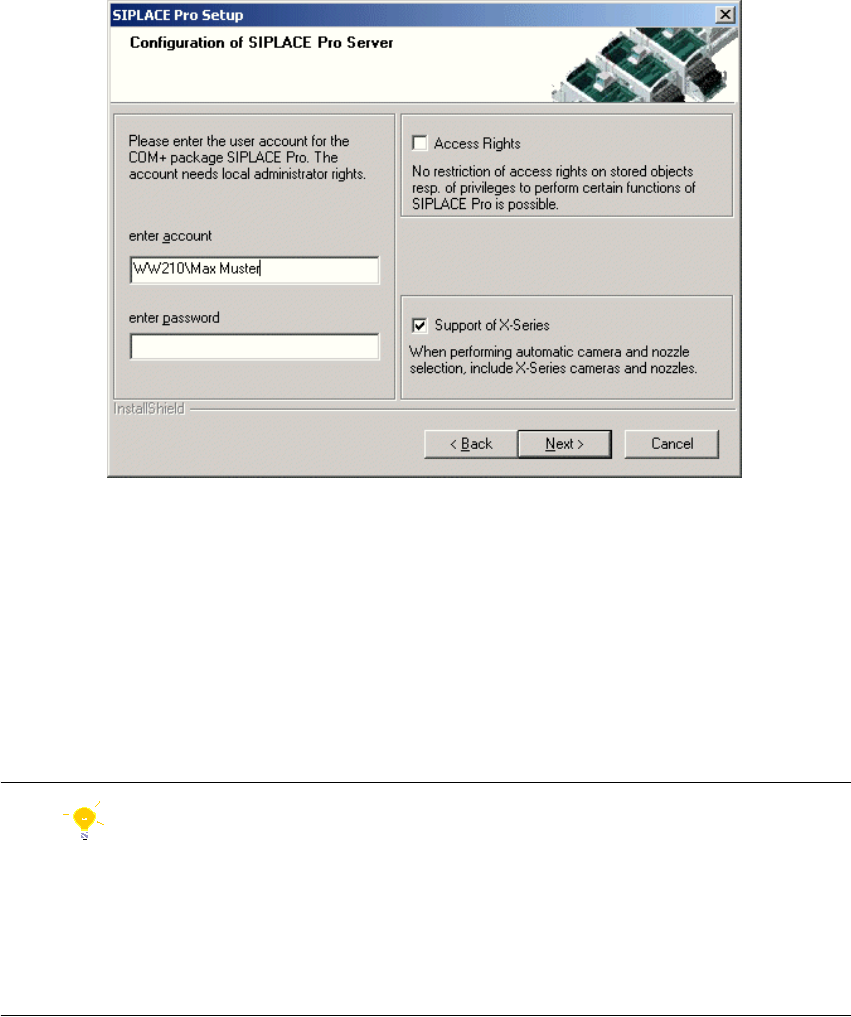
The "Configuration of SIPLACE Pro Server" dialog box specifies which Windows user account the
server component of SIPLACE Pro should run under. The current domain appears as the default
value in the account text box. This means it is usually sufficient just to add the account name. How-
ever, if this account is local, be sure to change this field appropriately. 4
4
Fig. 4 - 11 "Configuration of SIPLACE Pro" dialog box
Æ Enter the Account and Password for the Windows user in the dialog box.
Æ For new installations and upgrades, the option Access rights is deactivated by default. This
means there is no restriction of access rights on stored objects. We recommend you leave this
deactivated until you have created Users, Groups and set Privileges & Permissions in
SIPLACE Pro.
Æ The use of Support of X-Series is activated by default. This means that X-Series cameras and
nozzles can be automatically assigned when new Component Shapes are created.
Hint
Make sure that the properties for the user account are set to "Password never expires". Otherwise,
as soon as the password has expired, the system will not be operable until the COM+ package
SIPLACE Pro has been reconfigured. This can be done using the script COM+ServerAdmin.vbs,
which is located in the Start Menu (Start -->Programs --> Siemens SIPLACE -->Administration
--> COM+Server Administration). For more details please contact your system administrator. 4
4 Installation of SIPLACE Pro and possible Setup Types Installation manual SIPLACE Pro
Edition 03/2005 US Version 3.0
26
After SIPLACE Pro has successfully checked the user account and its administrator rights, the
SQL Server window opens. 4
Step 4
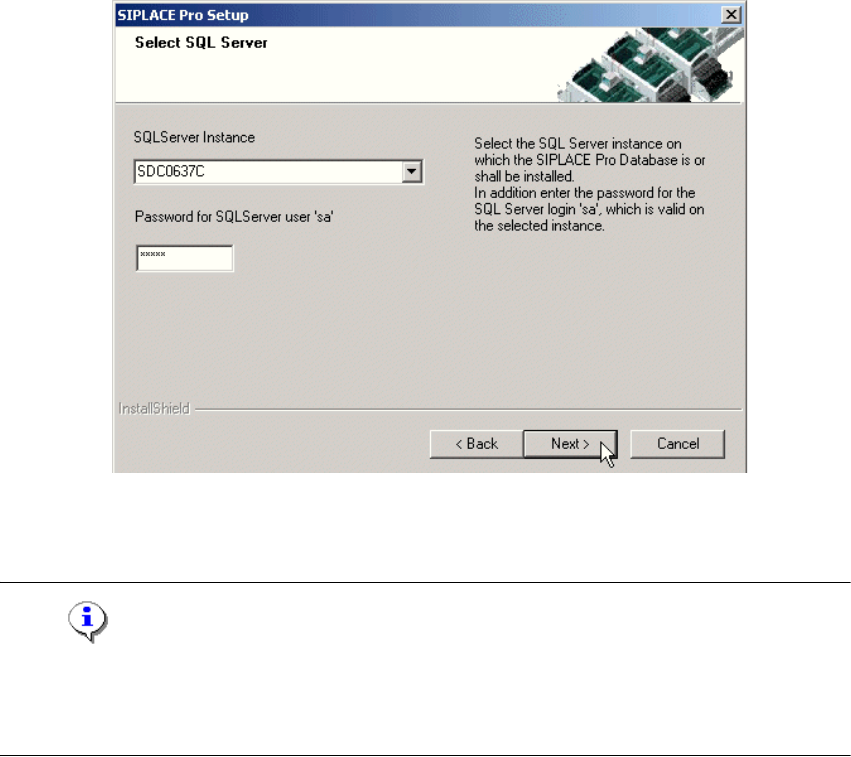
In the "Select SQL-Server" dialog box you enter the information required to be connected with the
SQL Server and database. 4
4
Fig. 4 - 12 "Select SQL-Server" dialog box
Æ Enter the "Password for the SQL Server user "sa", i.e. the SQL server system administrator.
Note
This password is empty if MSDE has been freshly installed. In this case, click on Next. Subse-
quently, a window will open, prompting you to change this password. You may accept the Siemens
Service default password or choose one of your own. 4
Æ Choose your SQL Server Instance from the drop-down menu.
Æ Click Next.