00194574-01.pdf - 第40页
4 Installation of SIPLACE Pro and possible Setu p Types Installation manual SIPLACE Pro Edition 03/2005 US Version 3.0 40 4.3 S tep s to perform af ter installation After SIPLACE Pro Desk has been installed, it is necess…
Installation manual SIPLACE Pro 4 Installation of SIPLACE Pro and possible Setup Types
Version 3.0 Edition 03/2005 US
39
4.2.7 Setup Type – SIPLACE Pro Server
This setup type contains the "Server" portion of SIPLACE Pro, i.e. the server program and the
database. The "SIPLACE Pro Server" setup type is designed to be used if you want to separate
server and client in order to increase the performance. 4
4
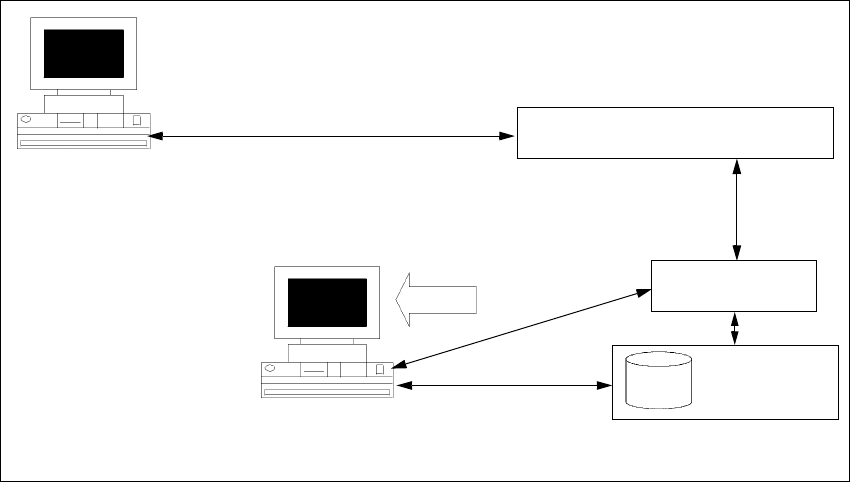
Fig. 4 - 23 Components – SIPLACE Pro Server
Step 1
Æ Run through the steps in ”Starting installation – first steps” from page 15.
Æ Select the SIPLACE Pro Server setup type.
Æ Then click Next.
The installation routine now checks whether: 4
– there is a connection to the SQL Server,
– whether a SIPLACE Pro database exists.
The subsequent steps are identical to the SIPLACE Pro complete system. 4
Step 2
Æ Continue by running through the steps described in ”Setup Type – SIPLACE Pro Complete
System” from page 23.
4
4
MS SQL Server pre-installed
Client computer with
SIPLACE Pro Desk or
Line Control GUI
SIPLACE Pro
Database
SIPLACE Pro
Interface
SIPLACE Pro
Server
Setup
COM+
COM+
OLE-DB
Resource
Manager
4 Installation of SIPLACE Pro and possible Setup Types Installation manual SIPLACE Pro
Edition 03/2005 US Version 3.0
40
4.3 Steps to perform after installation
After SIPLACE Pro Desk has been installed, it is necessary to ensure that the reporting feature
has been completely installed. To ascertain this, you need in invoke the reporting feature once af-
ter complete installation while you still have the SetupCD available at this compueter. This step is
required due to the fact that parts of the system may be installed only when reporting has been
invoked. This may fail if it happens later, when the CD is not availalbe. 4
4
Please perform the following steps: 4
1. If the database has been newly installed or reinitialized, import the master data (In SIPLACE
Pro Desk go to Tools -> Import -> Line computer Import Wizard). This step is required anyway
for you to use SIPLACE Pro and it ensures that data is available to be used for reporting. 4
2. Be sure the SetupCD is still in the same CD drive from where you installed the software. If you
installed from a network drive, be sure that you use the same share with the same drive letter. 4
3. In SIPLACE Pro Desk, locate any component shape in the tree view. 4
4. Using the right mouse button on the component shape, create a report for this object. 4
5. Once the report is displayed, complete installation of the reporting feature has been ensured
and you may remove the SetupCD. 4

Installation manual SIPLACE Pro 5 Update
Version 3.0 Edition 03/2005 US
41
5Update
Basically, follow the same procedure as for initial installation when making an update. Please refer
to chapter 4 in this regard. 5
Before you update from a SIPLACE Pro 1.x you must uninstall that old version. If you have a
SIPLACE Pro 2.x version, you are not required to uninstall the old version first, although this is
recommended. The database will be kept untouched by that uninstallation and will be upgraded
during the installation of SIPLACE Pro 3.0 5
Note
Any update is possible provided that an upgrade script is available. In case of problems, please
note any messages and check the installation logfile in the program folder. For more details please
contact your service technician. 5
5