00193796-08.pdf - 第75页
Installation Manual, Station Software Version 505.04 Edition 07/2006 75 of 156 4.4.4 Changing the network addresses To change the internet addresses, you must • Switch the machine off • Insert installation floppy #1 and …
Installation Manual Station Software Version 505.04
74 of 156
• Use the cursor keys to select the option to continue.
Warning!
Only machine data is saved. All user data is deleted. If necessary, save your user data to floppy.
• Confirm your selection with <RETURN>.
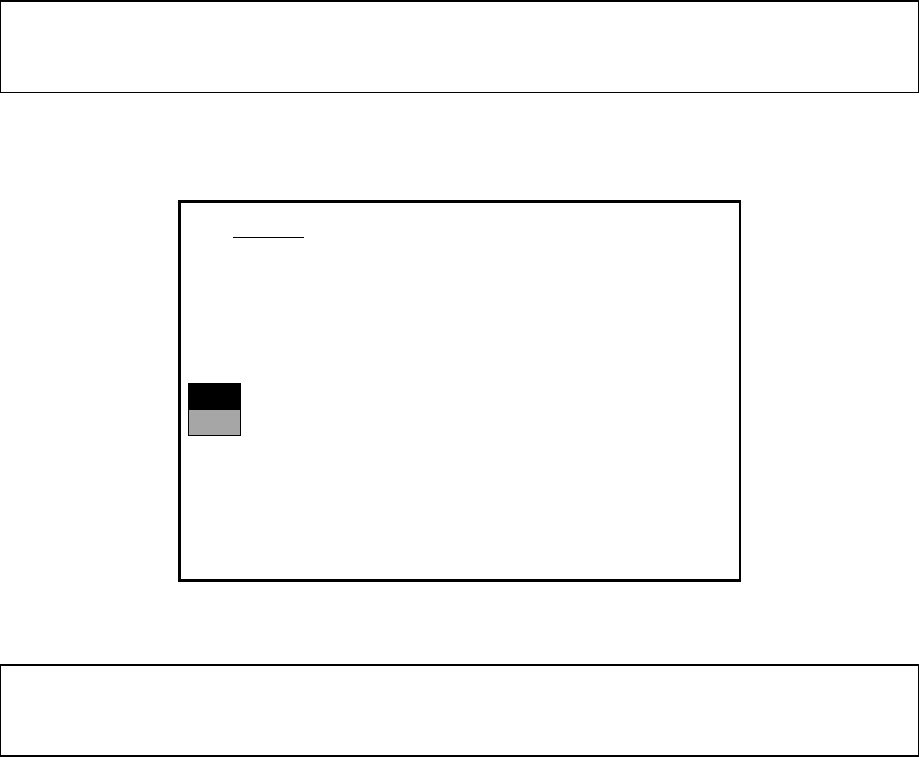
• If you have selected “Yes“, the installation is continued and the following screen display appears.
>>>
>>>
-----No
-----Yes
2. WARNING
Partition “C:“ of your hard disc will be formatted:
⇒
all files will be deleted.
Continue SIPLACE Installation Job?
Use the [Up Arrow] [Down Arrow] [Pg Up] [Pg Dn] keys to move the highlight bar to select the
button you prefer.
Press [Enter] to activate your selection
• Use the cursor keys to select whether to continue ("Yes") or cancel ("No").
Warning:
The C: partition will be formatted. All data which has not been saved will now be deleted.
• Confirm your selection with <RETURN>. The installation is then continued.
• You are now requested to insert the floppy MCRMOS HS50 Disk -1/2- into the drive.
• After both floppies have been installed, the message "Installation finished" appears.
The M54 operating system has been completely installed.
Now remove the floppy from the drive and switch the machine off and then on again.

Installation Manual, Station Software Version 505.04 Edition 07/2006
75 of 156
4.4.4 Changing the network addresses
To change the internet addresses, you must
• Switch the machine off
• Insert installation floppy #1 and switch the machine on
• Press the key 'A' in the first menu
• The menu offers you the choice of setting the Internet addresses or the port IDs.
[X] EXIT MENU [H] SET INTERNET ADDRESS
[S] SET PO RT ID
PRESS KEY TO CONTINUE [H,S,X]?
• If 'H' is selected, the file '\ETC\HOSTS' appears in the DOS editor.
The Internet addresses and system names valid for this station must be entered.
Note:
The ALIAS names "autlr", "autsr" and "localhost" must not be changed, as these names are used and
required by the software.
Example of hosts:
#******************************************************************************
#
# File : C:\ETC\HOSTS
#
# Author/Date : T. Noetzold 16-Aug-1995
#
# Abstract : Konfigurationsdatei fuer TCP/IP
#
# Inskript: : AUT 5 BSM 13 $Author:: ake/mme $
# $Date:: 10 Sep 1996 23:41:16$
# $Revision:: 3.0 $
#
# Usage : Durch TCP/IP-Software
#
#******************************************************************************
# Copyright (C) 1992-1996 by Siemens AG. All rights reserved
#******************************************************************************
#
# Internet Official List Of Aliases # Comment
# Address Host Name
#
127.255 loop
172.22.231.84 local localhost # my IP address!
172.22.231.82 autsr traceserver # station computer
220.9.200.1 autgem # gem computer
# --- end of host file ---

Installation Manual Station Software Version 505.04
76 of 156
• PL EA 1 has a globally unique Class B internet address. This official Class B Internet address is
39.10 (.x.y). All SIPLACE-LAN communication partners operate within this address range. We will
make the correct settings for you. (This information is also contained in the machine documents).
Should you have any queries, contact our Service department.
• If 'S' is selected, the file '\ETC\SERVICES' appears in the DOS editor.
• If 'X' is selected, the menu is exited and the DOS prompt appears.
Remove the floppy from the drive.
• To start the SIPLACE system, switch the machine off and then on again.
4.4.5 Troubleshooting
• If the installation program terminates prematurely due to an error, remove the floppy from the drive
and switch the machine off.
• Insert floppy #1 into the drive and switch the machine on again.
• Try installing the operating system again.
Note
If the software can still not be installed on the second attempt, contact your Service center.
4.4.6 Installing the conveyor control software
If downloading from SITEST is not successful, the conveyor firmware can be uploaded to the
conveyor from a boot floppy.
4.4.6.1 Creating the installation disk
The disk required to load the conveyor controller software can be created on any PC which is
running Windows XP and which has a CD drive, for example, the station computer. A directory
called \SIPLACE\SIP_MC\HS50\FD_IMAGE.TRP contains an image of the download disk in the
form of a self-extracting EXE file. The filenames are seff-explanatory.