00195813-05_IM_SSW_605.03_SP1_DE EN.pdf - 第23页
Installation Manual, Station Software Version 605.03 SP1 07/2011 Edition 23 of 48 5.2 Performing automatic BIOS up date/ settings on the machine computer and V ision computer The image files for the automatic BIOS update…
Installation Manual, Station Software Version 605.03 SP1 07/2011 Edition
5 Installing the station software
NOTICE
The operation system must be installed on the machine controller and Vision computer
before installing the station software.
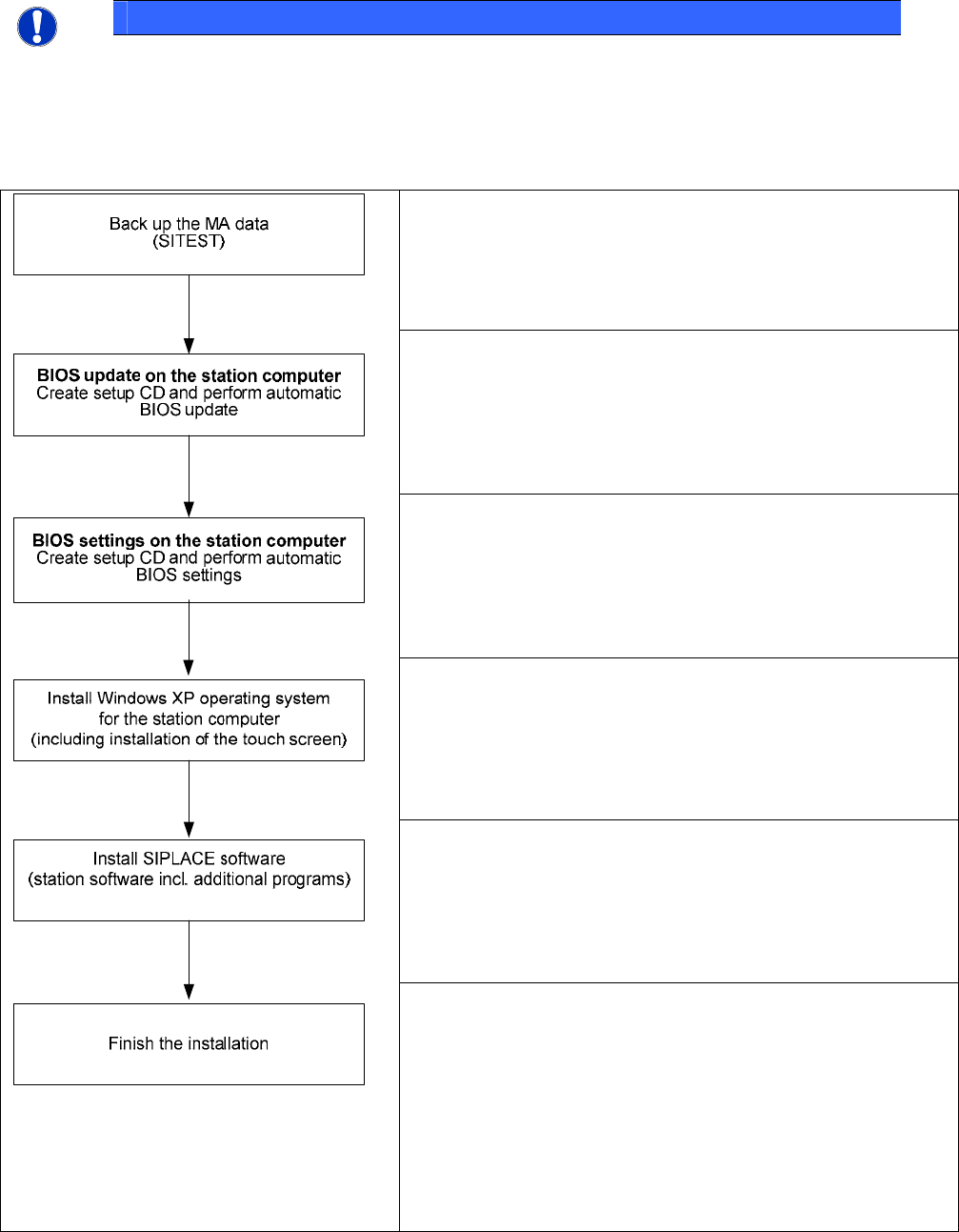
5.1 Installation sequence
See section 5.2.
See section 5.2.
See the separate installation manual for installing the "Windows
XP operating system" (item no. 00194575-xx)
For calibrating the touch screen, see sections 5.3.3.
See sections 5.3 and 5.4.
See section 5.5.
22 of 48
Installation Manual, Station Software Version 605.03 SP1 07/2011 Edition
23 of 48
5.2 Performing automatic BIOS update/settings on the machine computer
and Vision computer
The image files for the automatic BIOS update/BIOS settings and the corresponding installation instruction
(readme file) are available on the V1.0 BIOS CD that can be ordered via the service technician or
downloaded from the SIPLACE Download Center.
Installation Manual, Station Software Version 605.03 SP1 07/2011 Edition
5.3 Preparations for installing the software
5.3.1 Requirements
Requirements for installing the SIPLACE software and the optional Vision computer software:
• Installation of the Windows XP Professional operating system including
Service Pack 2 on the
station computer and the Vision computer (if present)
(see Installation Manual "Windows XP Operating System", item no. 00194575-02).
• Installation of the Windows XP Embedded operating system on the machine controller
(see Installation Manual "Windows XP Embedded Operating System for the Machine Controller",
item no. 00195327-xx).
The default Windows display settings must be changed and the touchscreen must be calibrated. You
must be logged on as the Administrator
in order to be able to carry out this work.
5.3.2 Changing the display settings
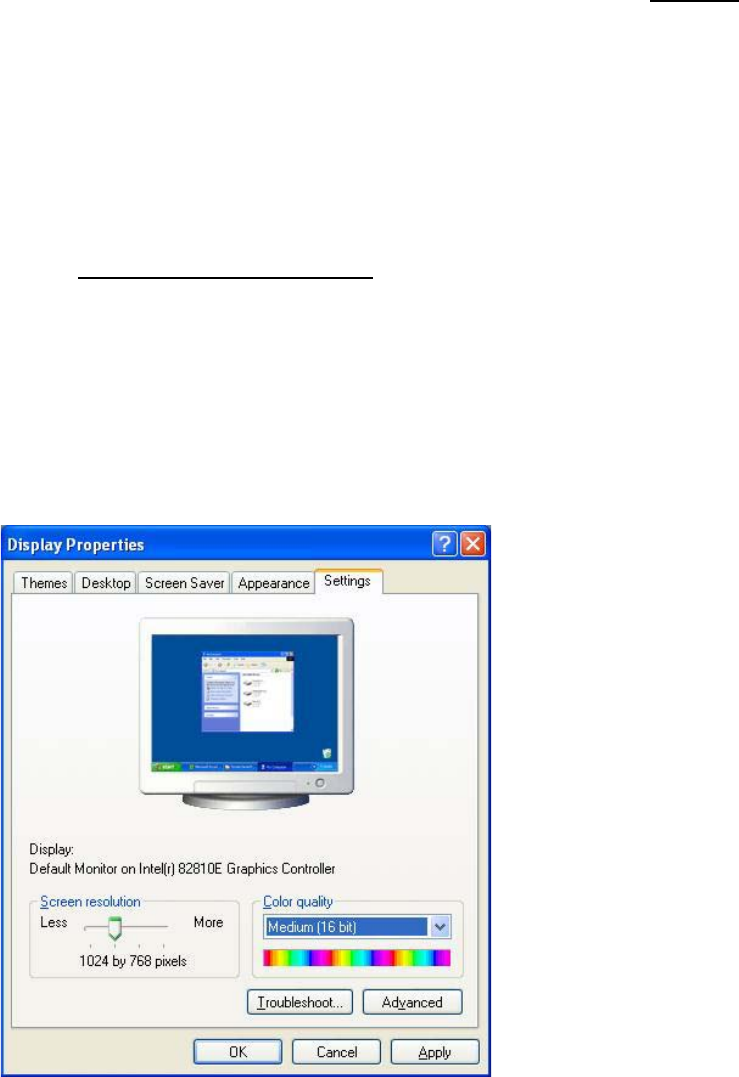
→ Choose Start Æ Settings Æ Control Panel Æ Display.
→ Click the Settings tab.
→ Set the "Screen resolution" slider to "1024 by 768 pixels".
Fig. 5-1: Screen settings
→ Confirm the settings by clicking OK.
24 of 48