wire-bonder.pdf - 第25页
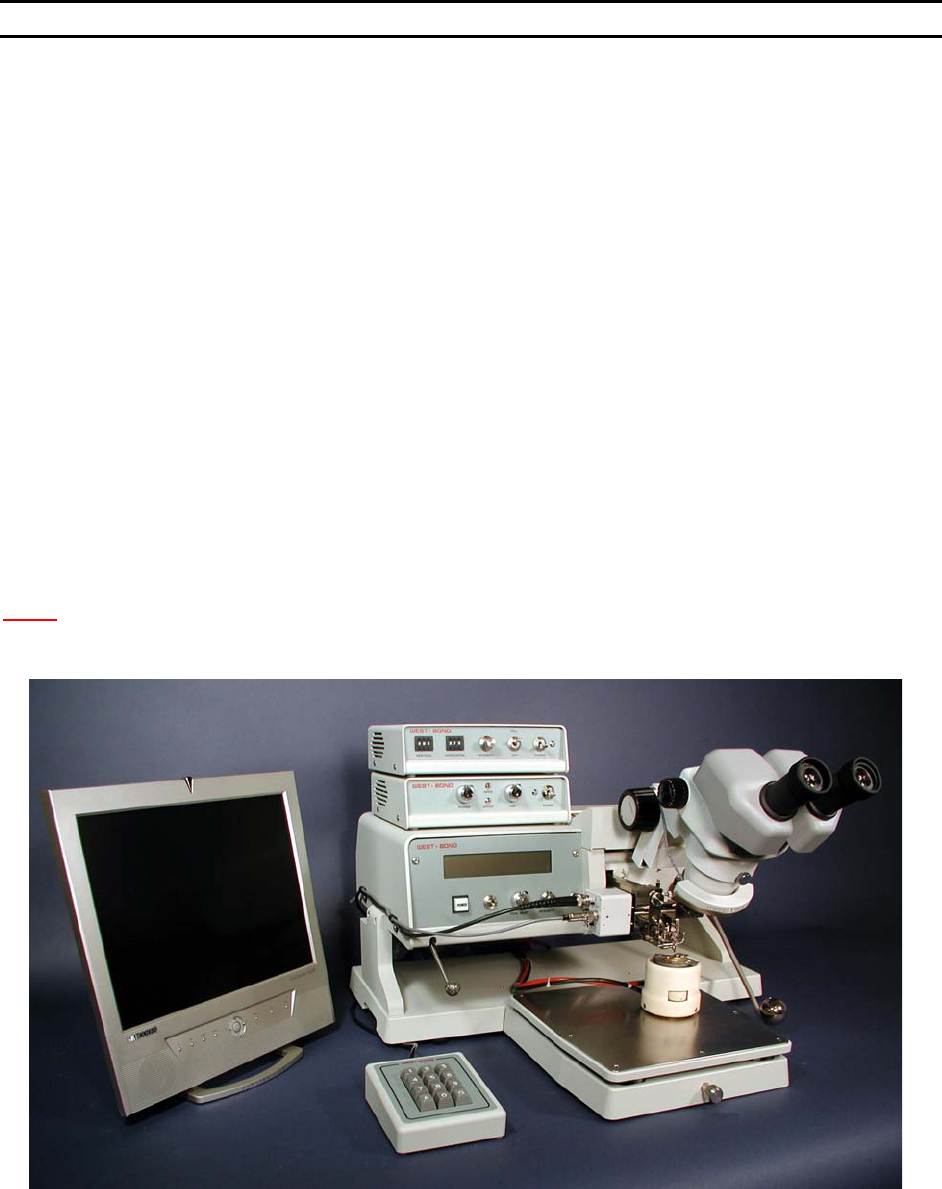
WEST•BOND MODEL 454647E SER IES INSTRUCTION MANUAL 19 MACHINE CONTROLS Front Panel The 454647E Semi-Automatic Wi re Bonder has been specifically designed to be versatile, depe ndable, and easy to use. To effect t his end…
WEST•BOND MODEL 454647E SERIES INSTRUCTION MANUAL
18
INSTALLATION
Adjusting the Camera Focus
STEP 4 – SETTING THE CROSSHAIRS
Use the digi-switches on the crosshair generator to move the crosshairs up and down or left and right. If
the bond did not stick then the operator may choose to bond again by pressing the A key or, if everything
is correct, key G may be pressed to accept the crosshair settings. If the bond is outside of the camera
screen it may be necessary to adjust the camera position and bring the bond back into the center of the
screen.
S
TEP 5 – ADJUSTING CAMERA POSITION
First, using the digi-switches on the crosshair generator set the cross hairs to target directly in the center
or lower center of the screen (placement of the crosshairs in the lower center of the screen will allow the
operator to see both first and last bond if they are close together). Next, ensure that the camera head is
square with the body of the camera. Looking from the right side of the machine you can look down the
side of the camera head and the camera body. If these two are not square with each other the onscreen
image may appear to be rotated in comparison to the image seen through the microscope.. Once these
two are aligned, locate the D
UTCH KEY SCREW holding the OPTICS TUBE ASSEMBLY. Insert a
7
/
64
” Allen
wrench into the socket head screw and loosen
1
/
2
turn. Do Not Remove This Screw! When this screw is
loosened it will allow the optics tube to rotate and slide left and right. Using these two adjustable axis
position the crosshairs over the bond. Snug down the D
UTCH KEY SCREW. Do not over tighten this screw.
At this point it may be necessary to readjust the focus as outlined in step 3. If the focus is ok, then bond
off again and make any small final adjustments to the crosshairs.
N
OTE! This is a delicate procedure that may require a bit of finesse and patience. Once this
camera is properly set up, a re-adjustment need not be performed unless the camera
head is knocked or jarred.
The 454647E is now ready for operation. Please refer to the next section to understand several
important aspects of successful wire bonding with the 454647E.
² ² ²
WEST•BOND MODEL 454647E SERIES INSTRUCTION MANUAL
19
MACHINE CONTROLS
Front Panel
The 454647E Semi-Automatic Wire Bonder has been specifically designed to be versatile, dependable,
and easy to use. To effect this end, the following sections have been developed to help the operator take
advantage of its advanced bonding features. A in-depth study and understanding of this section will result
in better bonds, higher gram pulls, and faster set up times.
P
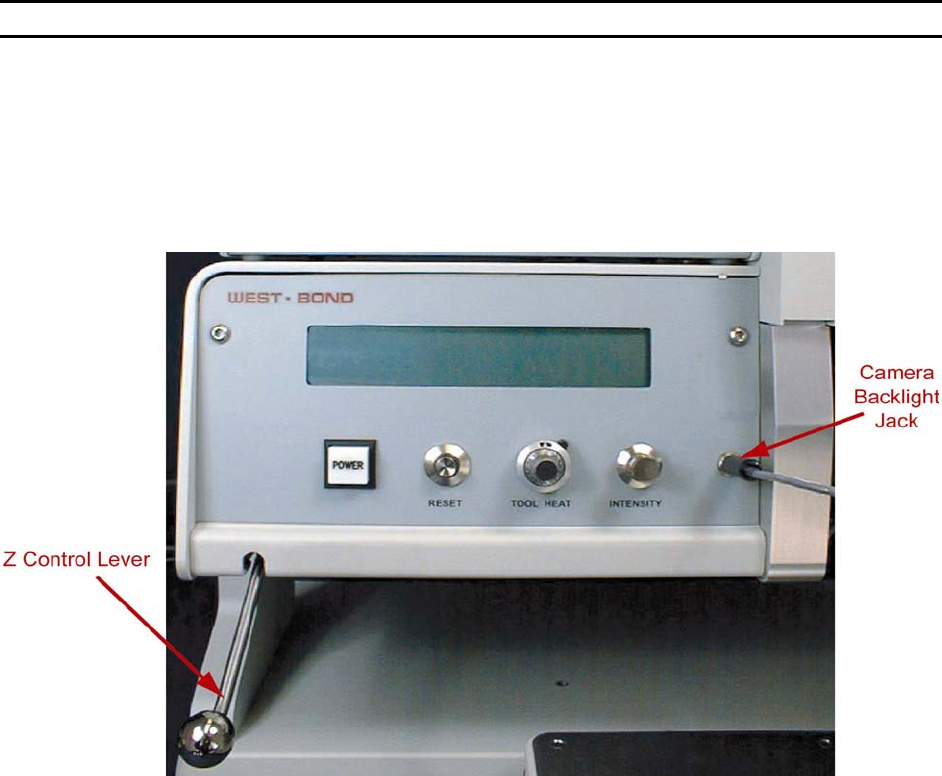
OWER SWITCH
Activates entire 454647E. Upon power-up, the microprocessor will complete several internal tests
and display a description of any problem detected. Refer to the Troubleshooting section (page
99) if an error is reported.
R
ESET SWITCH
When pressed, the machine re-homes all motor positions and returns the user to the home menu.
This button should be pressed once before the power is turned off. This prevents the tool head
from “snapping” back into the home position if it is down at search height when the power is
turned off.
T
OOL HEAT
See page 107 for dial settings and the corresponding temperature.
I
NTENSITY
This knob controls the available amount of camera backlighting. In bright (white surfaced)
packages this backlight is unnecessary and is difficult to even notice. However, in a dark or deep
package this option can greatly increase the visibility of the bonding pads.
WEST•BOND MODEL 454647E SERIES INSTRUCTION MANUAL
20
MACHINE CONTROLS
Front Panel
CAMERA BACKLIGHT JACK
This jack is directly controlled by the Intensity Knob described above.
LCD
The Liquid Crystal Display is used by the 454647E to communicate machine status, menu
prompts, explanations, and options. Four lines of text are available and each line is capable of
displaying 40 characters.
Z
CONTROL LEVER
Located at the far left on the machine front panel, this lever acts to bring the tool down to bond.
As with the manipulator arm, W
EST•BOND includes two Z-control levers (one high position style
and the other low position style).
G
O BUTTON (NOT SHOWN)
This is the small push-button switch located in the manipulator control ball. The Go button
controls two different features depending upon how it is used. When the button is quickly pressed
and released it operates the X-Axis braking system. This is done to aid the operator in scanning
the bond path along the Y-Axis. If this button is pressed and held, the bonder automatically goes
to Search before first bond. It pauses at search until the Go button is released. Once released,
the machine will complete the bonding sequence (if in Full-Auto mode). If the machine is set in
Half-Auto mode, it will pause before each operation, requiring a press of the Go button to
proceed.
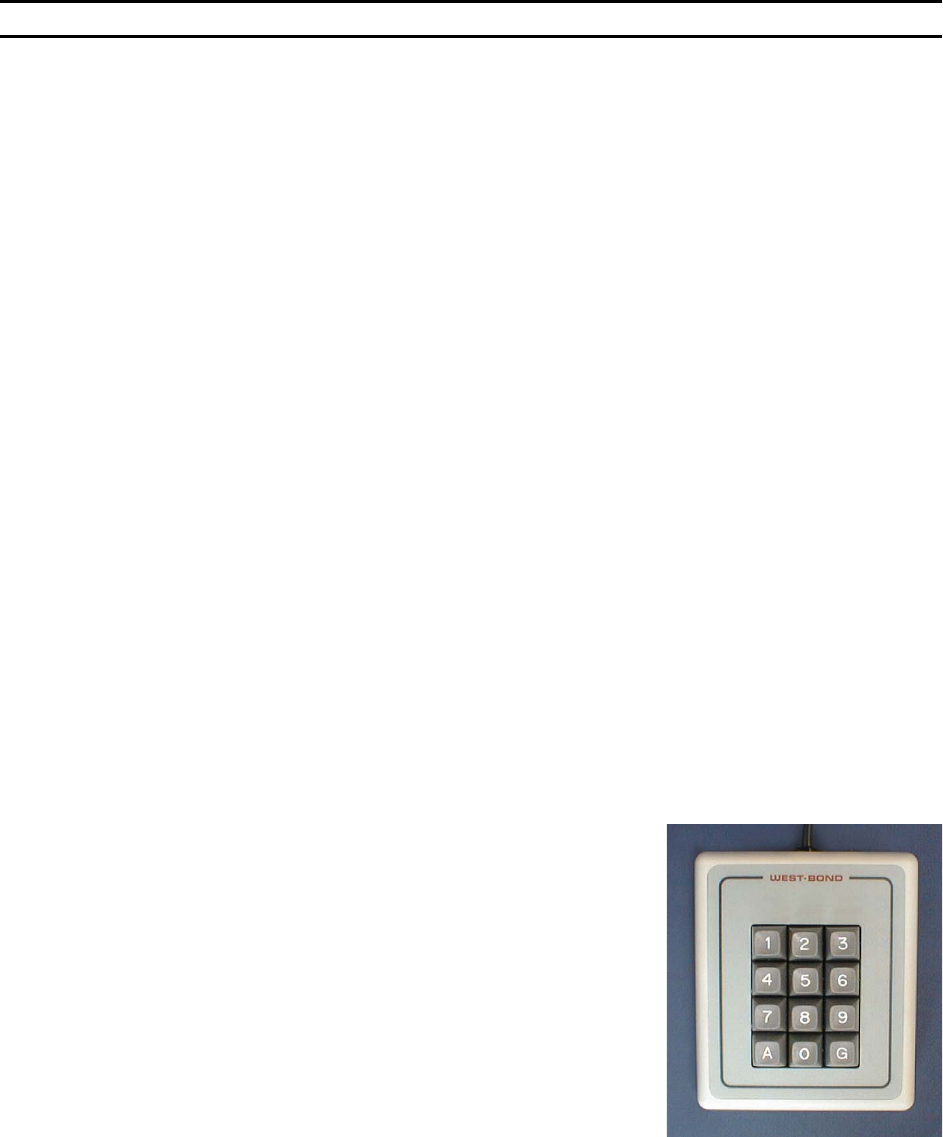
Key Pad
The KEY PAD, located on the left-hand side of the machine, enables the operator to access the
programmable and high level functions of the machine. Take extra time to read the LCD during
your first few programs for guidance to proper key strokes. Soon enough an operator will develop
time saving memorization of the menu’s and their location in the software. See the key format in
Programming section for more details (pages 40 to 87).
The following reserved keys will be used in most menus:
K
EY 1 = PREVIOUS MENU or ESCAPE - Press key “1” to escape
to the previous menu.
K
EY 2 = GO TO - Press key “2” for Go To options, such as: Go
To Device, or Go To Type.
K
EY 3 = HOME - Press key “3” to escape from any menu level,
or to return to the Align or “Home” Menu.