00192485-02.pdf - 第19页
19 On-scree n displays - warnin g and mes sage boxes Warning and message boxe s notify the u ser of faults or errors whic h have occurred in the mach ine; they also request the user to pe rform var ious actions. On-scree…
18
Click the Accept button.
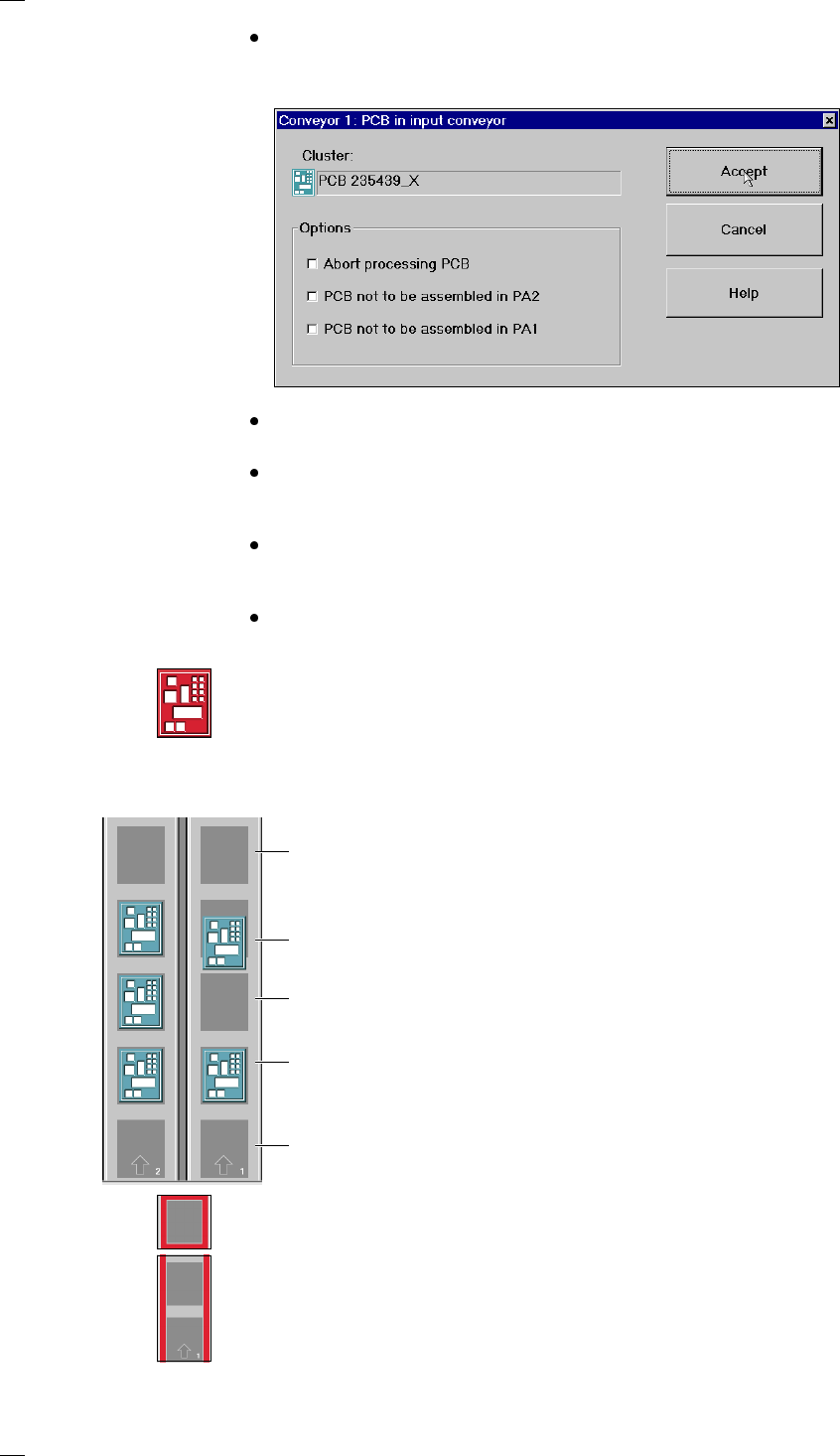
If the PCB is located on the input conveyor, the following dialog box is
opened.
Check the box "Abort processing PCB" if the PCB is to be transported to
the output conveyor without further processing.
Check the box "PCB not to be assembled in PA2" if the PCB is to be pro-
cessed on processing conveyor 1 only and is then to be transported to the
output conveyor without being processed on processing conveyor 2.
Check the box "PCB not to be assembled in PA1" if the PCB is to be trans-
ported through processing conveyor 1 without being processed and is
then to be processed on processing conveyor 2.
Click the Accept button.
Processing of PCB aborted
If processing of the PCB has been aborted by a click on the PCB icon (see
example above), the color of the PCB icon changes to red.
The icon is also displayed in red if a PCB is manually placed on process-
ing conveyor 1 or 2. The PCB is not recognized by the system and is
transported to the output conveyor.
Status display for the PCB conveyor (icon
L)
If a track error, machine error or transport error occurs, the corresponding
graphic is highlighted in red.
If an error occurs in a processing area, the area is displayed with a red
border. Placement of the PCB in this area can be aborted by clicking on
the PCB icon.
If a transport error occurs on a conveyor, the conveyor is highlighted by
a red bar on the right and left.
Output conveyor (OC)
The output conveyor is empty
Processing conveyor 2 (PC2)
The PCB is being transported
Intermediate conveyor (IC)
Processing conveyor 1 (PC1)
The PCB is being processed
Input conveyor (IC)
The input conveyor is empty
19
On-screen displays - warning and message boxes
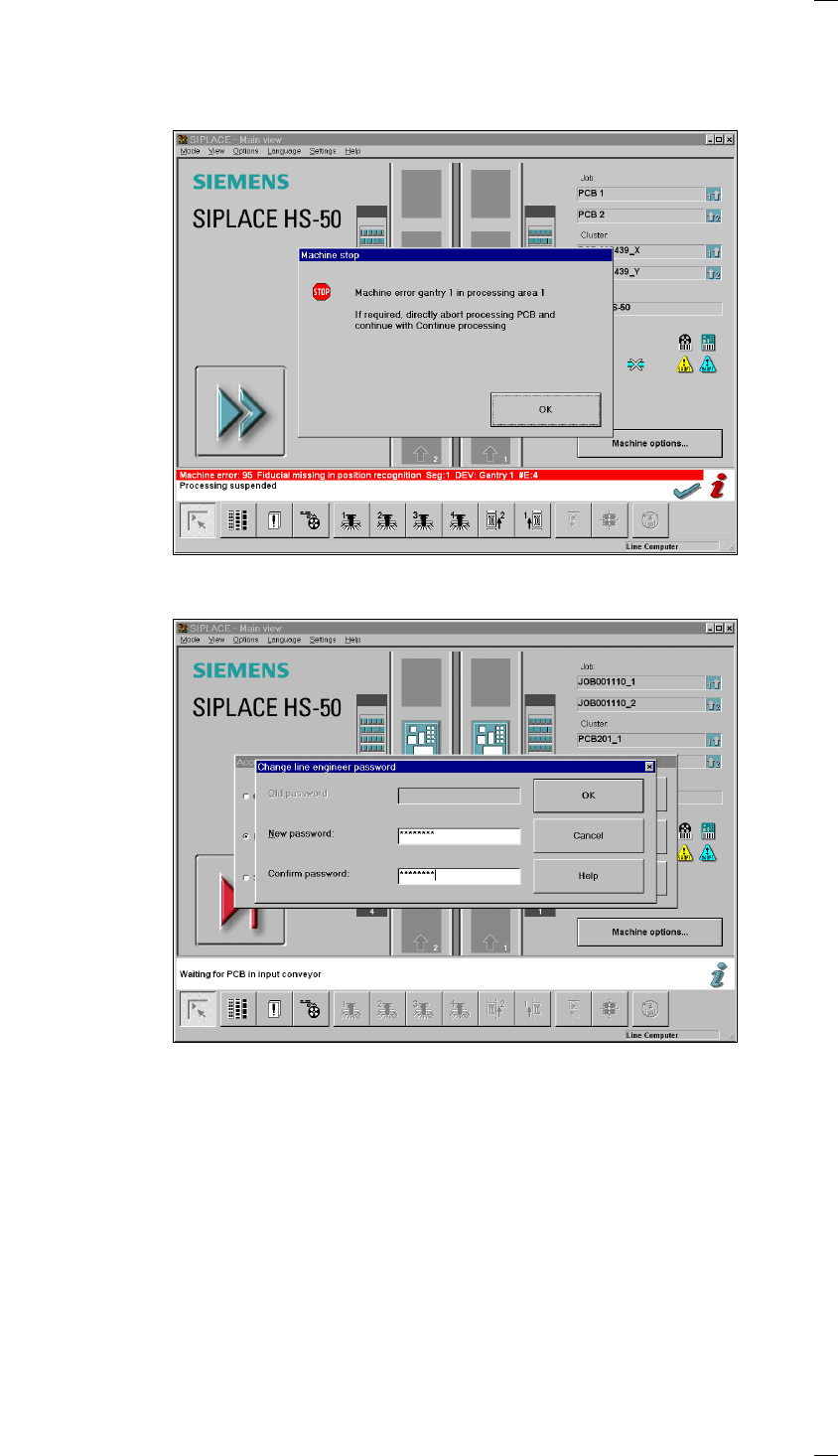
Warning and message boxes notify the user of faults or errors which have
occurred in the machine; they also request the user to perform various
actions.
On-screen displays - input box
Enter the desired information into the input field and click on the OK button
to finish your input. Click on the Cancel button, if you want to discard your
input. The Help button provides access to on-line help.
20
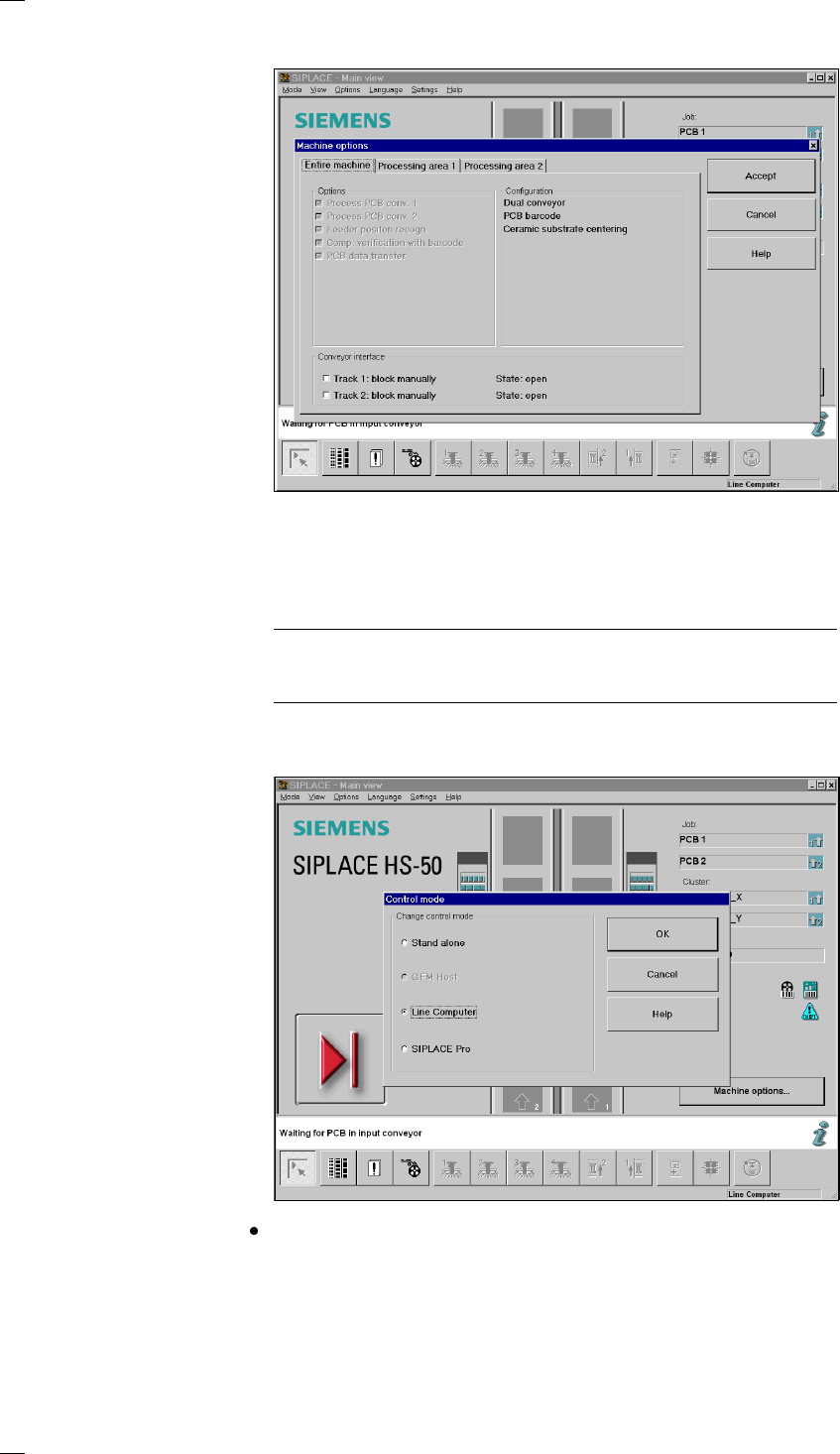
On-screen display - control box
In the control box you can activate or deactivate options. Activated options
are indicated by checks in the check boxes. You can activate or deactivate
options by clicking on the check box with the mouse pointer. Click on
Accept to save the settings you have selected or discard them by pressing
Cancel. Click on the Help button to activate on-line help.
Please note, that you will need the line engineer access authorization for
certain options and that these options can only be activated or deactivated
by persons with that authorization.
On-screen display - selection box
Click on the option you want and confirm your choice by pressing OK. You
can discard your choice by clicking on Cancel. Click on the Help button to
activate on-line help.