00197696-02_IM_SIPLACE_Pro_12.1_EN.pdf - 第25页
4 Installation of SIPLACE Pro and possible Setup Types Installation Manual Edition 04/2015 SIPLACE Pro 12.1 23 4 Fig. 4.2 - 4 Example of "Cancel" dialog box In this case, click the Close button to close the w…
Installation Manual 4 Installation of SIPLACE Pro and possible Setup Types
SIPLACE Pro 12.1 Edition 04/2015
22
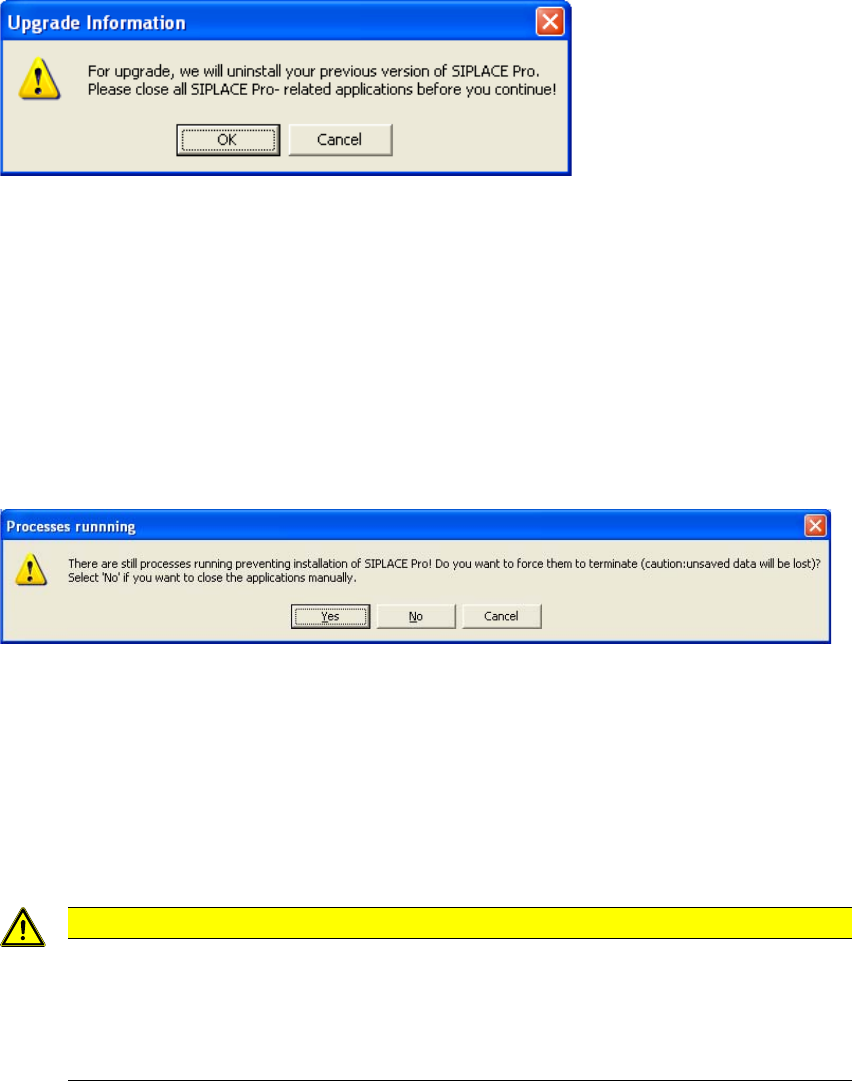
If Setup has found a previous version of SIPLACE Pro which is compatible for upgrade, the
following message will be shown: 4
4
Fig. 4.2 - 2 Upgrade Information Message
To continue with upgrade, you need to close SIPLACE Pro- related applications. If you find
that closing SIPLACE Pro- related applications is not appropriate just now, you may cancel
the upgrade by clicking on Cancel.
If you want to continue with Upgrade, you have to close all SIPLACE Pro- related applications
and click on OK.
After clicking OK, if SIPLACE Pro- related applications have still been found, the following
message will be shown 4
4
Fig. 4.2 - 3 Processes Running Message
To cancel the upgrade, click the Cancel button.
If you've closed SIPLACE Pro- related applications and want to check for remaining, click the
No button.
If you want to terminate all SIPLACE- Pro related applications automatically without unsaved
data being saved, click the Yes button.
4
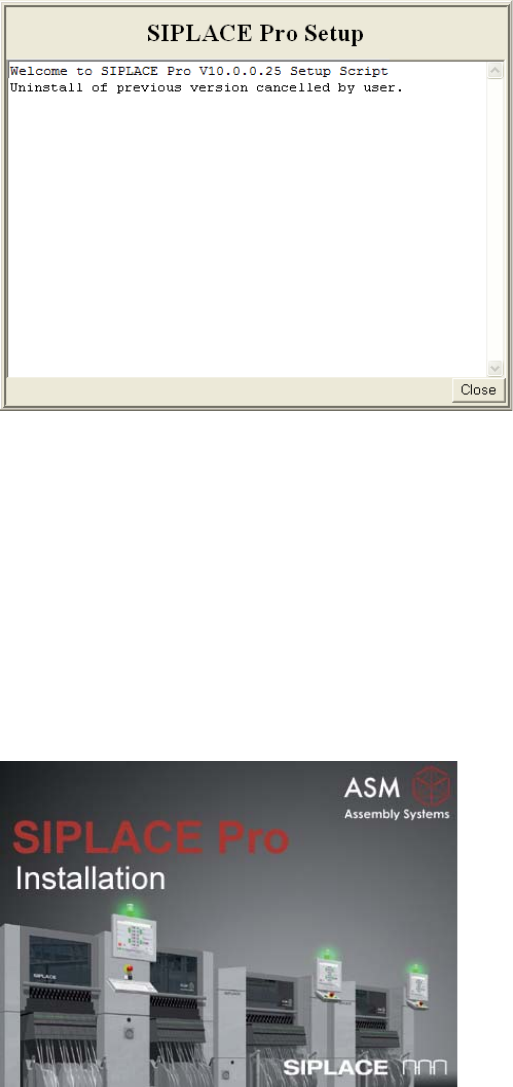
If you've cancelled Setup (or other errors occurred) during a step, a close button will be shown
after a short time as shown in the following picture:
Caution
It's strongly recommended to close all SIPLACE Pro- related applications manual-
ly, since this ensures all unsaved data being saved. Terminating SIPLACE Pro- re-
lated applications automatically should only be chosen if all data has been saved
and you've problems identifying remaining applications.
4 Installation of SIPLACE Pro and possible Setup Types Installation Manual
Edition 04/2015 SIPLACE Pro 12.1
23
4
Fig. 4.2 - 4 Example of "Cancel" dialog box
In this case, click the Close button to close the window and abort the Setup.
If you've met all conditions for upgrade, Setup will continue preparing your computer for
upgrade, which includes: 4
– Stopping SIPLACE Pro- related services and COM+ components
– Uninstalling previous version of SIPLACE Pro automatically
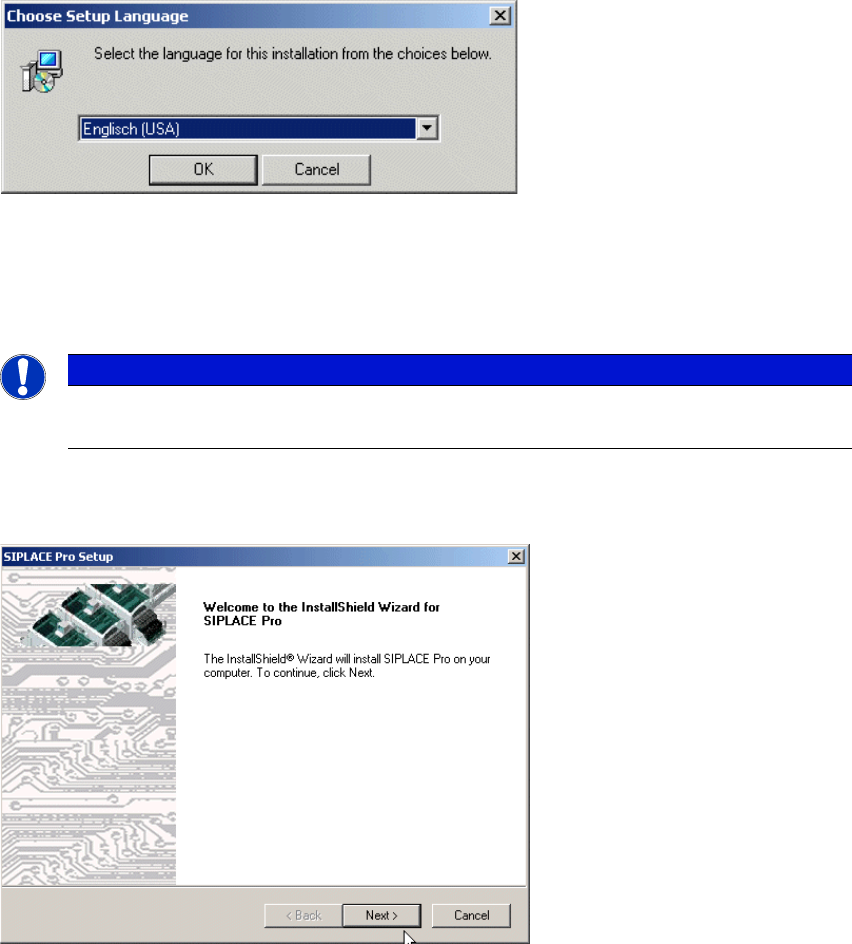
After preparation for upgrade has been completed, Setup will continue to start the user-controlled
installation of SIPLACE Pro.
4
Fig. 4.2 - 5 Start screen
Continue with Step 2 on page 24.
Installation Manual 4 Installation of SIPLACE Pro and possible Setup Types
SIPLACE Pro 12.1 Edition 04/2015
24
Step 2
This starts the user-controlled installation of SIPLACE Pro; you are prompted to select the
installation language. 4
4
Fig. 4.2 - 6 "Choose Setup Language" dialog box
Select the language you want.
Click OK.
4
Step 3
The InstallShield Wizard will guide you through the program setup process.
4
Fig. 4.2 - 7 InstallShield Wizard box for Siplace Pro
Click Next.
Note
This decision only relates to the language used during the installation routine!