00197696-02_IM_SIPLACE_Pro_12.1_EN.pdf - 第50页
Installation Manual 4 Installation of SIPLACE Pro and possible Setup Types SIPLACE Pro 12.1 Edition 04/2015 48 4.3.8 Setup T ype – SIPLACE Pro Server This setup type contains th e "Server" po rtion of SIPLACE P…
4 Installation of SIPLACE Pro and possible Setup Types Installation Manual
Edition 04/2015 SIPLACE Pro 12.1
47
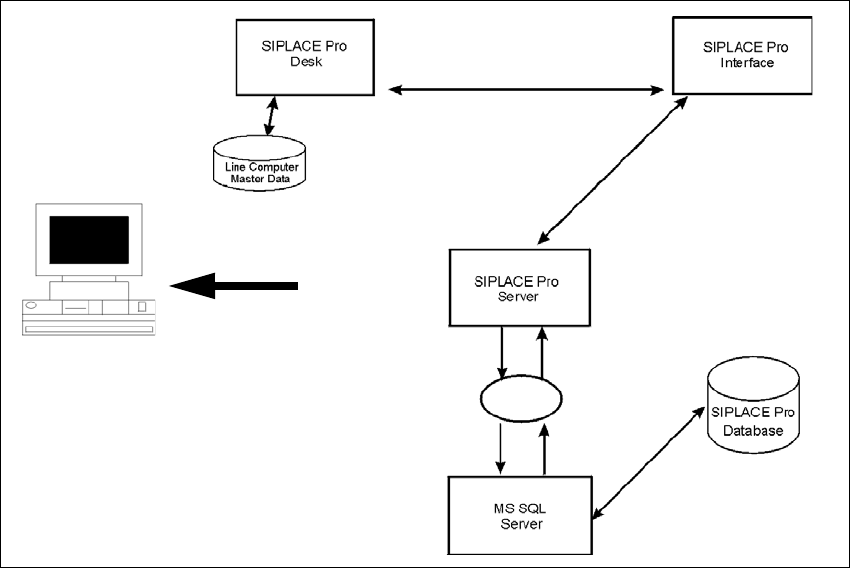
4.3.7 Setup Type – SIPLACE Pro Programming System
This setup type contains all the components of SIPLACE Pro except for the Line Control System,
and enables the programming system to be operated on a single computer (SIPLACE Pro Desk,
Server and Database). It is designed to be used only for programming without download function
on that computer.
4
Fig. 4.3 - 17 Components – SIPLACE Pro Programming System
Step 1
Run through the steps in “Starting installation – first steps” on page 21.
Select the SIPLACE Pro Programming System setup type.
Click Next.
The subsequent steps are identical to the SIPLACE Pro complete system. Only the components
for Line Control are not installed.
Step 2
Continue by running through the steps described in “Setup Type – SIPLACE Pro Complete
System” on page 31.
Setup
Installation Manual 4 Installation of SIPLACE Pro and possible Setup Types
SIPLACE Pro 12.1 Edition 04/2015
48
4.3.8 Setup Type – SIPLACE Pro Server
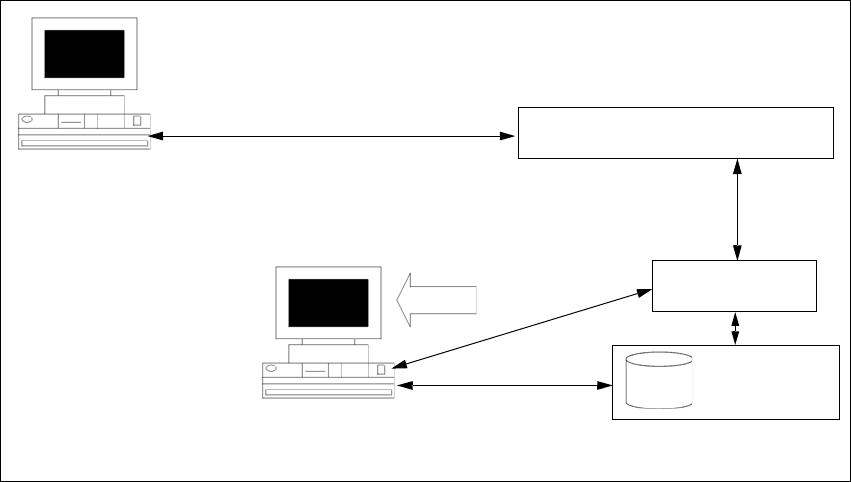
This setup type contains the "Server" portion of SIPLACE Pro, i.e. the server program and the
database. The "SIPLACE Pro Server" setup type is designed to be used if you want to separate
server and client in order to improve performance.
4
Fig. 4.3 - 18 Components – SIPLACE Pro Server
Step 1
Run through the steps in “Starting installation – first steps” on page 21.
Select the SIPLACE Pro Server setup type.
Then click Next.
The installation routine now checks whether:
– there is a connection to the SQL Server,
– whether a SIPLACE Pro database exists.
The subsequent steps are identical to the SIPLACE Pro complete system.
Step 2
Continue by running through the steps described in “Setup Type – SIPLACE Pro Complete
System” on page 31.
MS SQL Server pre-installed
Client computer with
SIPLACE Pro Desk or
Line Control GUI
SIPLACE Pro
Database
SIPLACE Pro
Interface
SIPLACE Pro
Server
Setup
COM+
COM+
OLE-DB
Resource
Manager

4 Installation of SIPLACE Pro and possible Setup Types Installation Manual
Edition 04/2015 SIPLACE Pro 12.1
49
4.4 Steps to perform after installation
4
Note
After a new installation of the database, it is necessary to import the standard shape li-
brary in
SIPLACE Pro desk go to Tools-->Import-->Standard Shape Library... This step is re-
quired anyway for you to use SIPLACE Pro and it ensures that data is available to be
used for reporting.
After having upgraded the database from a previous version (see chapter 5 below) it is
not necessary to import data from the component shape library.