00197696-02_IM_SIPLACE_Pro_12.1_EN.pdf - 第52页
Installation Manual 4 Installation of SIPLACE Pro and possible Setup Types SIPLACE Pro 12.1 Edition 04/2015 50

4 Installation of SIPLACE Pro and possible Setup Types Installation Manual
Edition 04/2015 SIPLACE Pro 12.1
49
4.4 Steps to perform after installation
4
Note
After a new installation of the database, it is necessary to import the standard shape li-
brary in
SIPLACE Pro desk go to Tools-->Import-->Standard Shape Library... This step is re-
quired anyway for you to use SIPLACE Pro and it ensures that data is available to be
used for reporting.
After having upgraded the database from a previous version (see chapter 5 below) it is
not necessary to import data from the component shape library.
Installation Manual 4 Installation of SIPLACE Pro and possible Setup Types
SIPLACE Pro 12.1 Edition 04/2015
50
5 Installation of SIPLACE Pro Language Pack Installation Manual
Edition 04/2015 SIPLACE Pro 12.1
51
5 Installation of SIPLACE Pro Lan-
guage Pack
Before you install the Language Pack, please verify that SIPLACE Pro is installed. Be sure that
the installed version of SIPLACE Pro matches the version of the language pack. Check the
readme files on the language pack CD for related version information. Once you have verified this,
the language pack can be installed. For more details please refer to Section 5.2 Compatibility of
SIPLACE Pro Language Packs.
The SIPLACE Pro basic version is delivered with English and German. All additional languages
are delivered later on with a separate SIPLACE Pro Language Pack version.
Follow the instructions listed below precisely to install the language pack successfully.
5.1 Starting installation - first steps
Insert the Language Pack CD in the CD-Rom drive. The installation should start automati-
cally.
If not, go to Windows Explorer and double click on the setup.exe located in the root directory
of the installation CD.
This starts the user-controlled installation of SIPLACE Pro
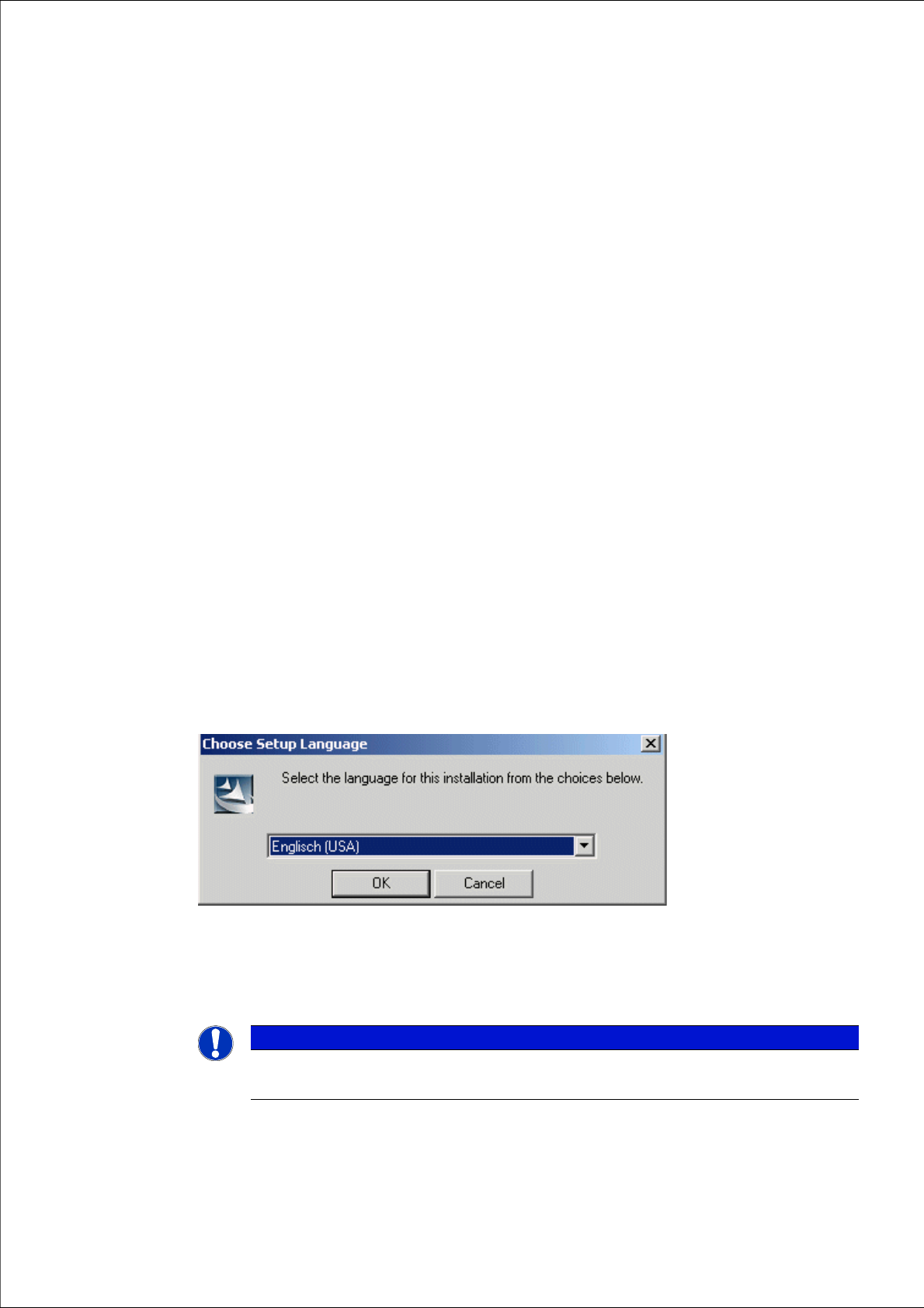
The Language Pack Update Wizard is started and you are prompted by the following dialog box.
5
Fig. 5.1 - 1 "Choose Setup Language" dialog box
Select the language which is to be used during the installation.
Click OK.
5
Note
This decision only relates to the language used during the installation routine!