00197696-02_IM_SIPLACE_Pro_12.1_EN.pdf - 第33页
4 Installation of SIPLACE Pro and possible Setup Types Installation Manual Edition 04/2015 SIPLACE Pro 12.1 31 4.3.2 Setup T ype – SIPLAC E Pro Complete System This setup type cont ains all SIPLACE Pro comp onents for op…
Installation Manual 4 Installation of SIPLACE Pro and possible Setup Types
SIPLACE Pro 12.1 Edition 04/2015
30
Select the features you want to install.
4
4
Click Next.
4
Note
You need to install SIPLACE Pro Interface as minimum requirement for external applica-
tions.
Note
After choosing the feature "SIPLACE Pro Database" and clicking Next, setup immediate-
ly checks if SQL server is installed on the computer.
Note
From this point onwards, the dialog boxes displayed depend on which features have
been selected (either implicit via the other Setup Type selection or explicit in the Custom
Setup Type). The sequence varies according to which features and options have been
selected, so there are many possible combinations. It is not feasible to describe all the
combinations for Custom installation here. However, you will see the individual dialog
boxes occuring in the course of the following setup types.
4 Installation of SIPLACE Pro and possible Setup Types Installation Manual
Edition 04/2015 SIPLACE Pro 12.1
31
4.3.2 Setup Type – SIPLACE Pro Complete System
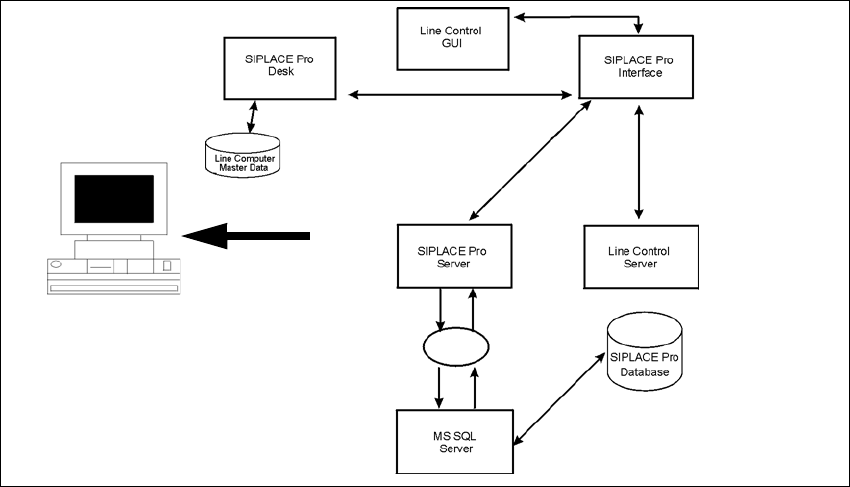
This setup type contains all SIPLACE Pro components for operating the system on a single com-
puter. Setup detects if SQL Server has already been installed.
4
Fig. 4.3 - 2 Components – SIPLACE Pro Complete Installation
Select this type to install all SIPLACE Pro system components (Programming system, LC GUI, LC
Server) on one computer as described here. Even if you choose this Setup type, it is possible to
integrate further clients on other computers.
Step 1
Run through the steps in “Starting installation – first steps” on page 21.
Select the SIPLACE Pro complete system setup type
Click Next.
Setup
Installation Manual 4 Installation of SIPLACE Pro and possible Setup Types
SIPLACE Pro 12.1 Edition 04/2015
32
Step 2
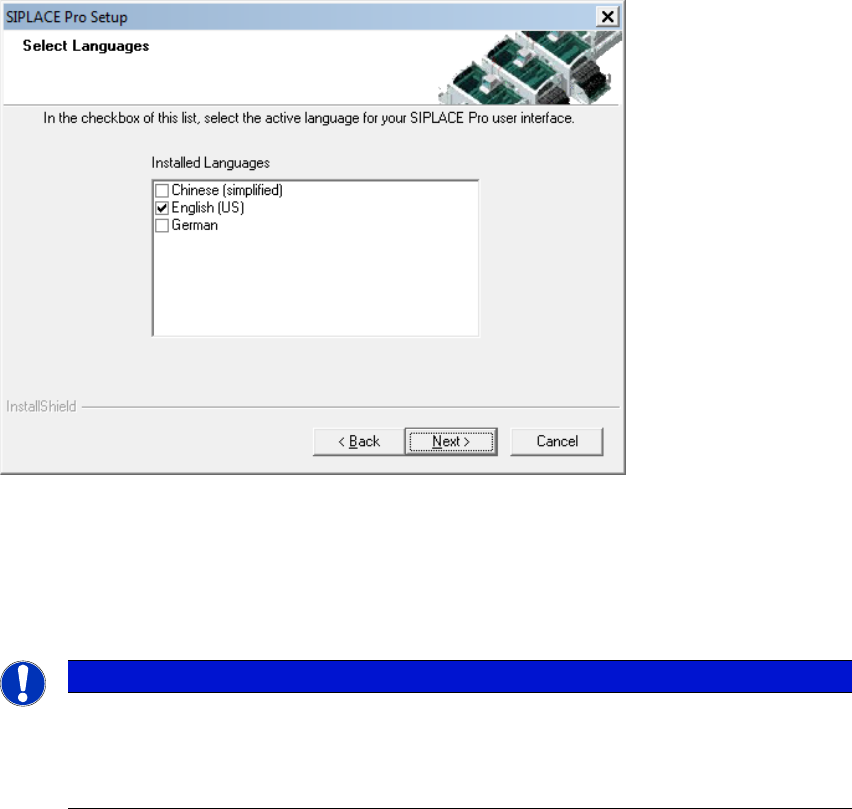
In the "Select languages" dialog box, select the languages you want to install to make them avail-
able for the applications. In addition, select which language should be active first.
You can switch the active language subsequently in SIPLACE Pro Desk and Line Control to any
other language installed.
4
Fig. 4.3 - 3 "Select Languages" dialog box
Select the check box of the language with which the installed applications like SIPLACE Pro
Desk should start first.
Click Next.
4
Note
Chinese (simplified.), English (US) and German are always installed. You cannot de-se-
lect either language. Additional languages are listed only if the language pack for this ver-
sion of SIPLACE Pro has been installed.