00197696-02_IM_SIPLACE_Pro_12.1_EN.pdf - 第28页
Installation Manual 4 Installation of SIPLACE Pro and possible Setup Types SIPLACE Pro 12.1 Edition 04/2015 26 Ste p 5 4 Fig. 4.2 - 9 "Customer Information" dialog box Enter your User Name and Company Name in…
4 Installation of SIPLACE Pro and possible Setup Types Installation Manual
Edition 04/2015 SIPLACE Pro 12.1
25
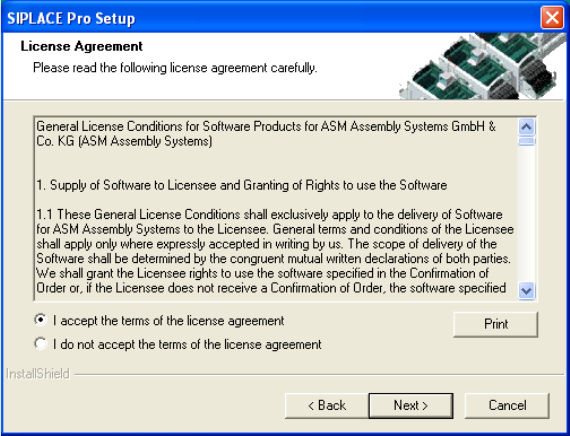
Step 4
Read the license agreement relating to use of this software.
4
Fig. 4.2 - 8 "Software License Agreement" dialog box
Please make sure to accept the licence agreement.
Then click the Next button to continue with the installation routine.
Installation Manual 4 Installation of SIPLACE Pro and possible Setup Types
SIPLACE Pro 12.1 Edition 04/2015
26
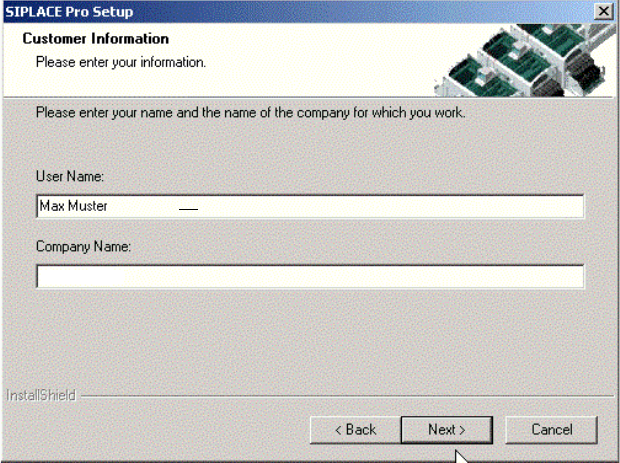
Step 5
4
Fig. 4.2 - 9 "Customer Information" dialog box
Enter your User Name and Company Name in the "Customer Information" dialog box.
Both boxes must be filled in before the installation process can be continued.
Click Next.
4 Installation of SIPLACE Pro and possible Setup Types Installation Manual
Edition 04/2015 SIPLACE Pro 12.1
27
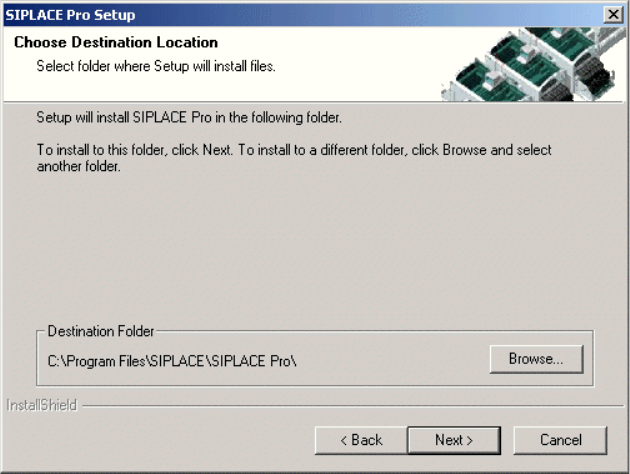
Step 6
4
Fig. 4.2 - 10 "Choose Destination Location" dialog box
The "Choose Destination Location" dialog box prompts you to enter the name of the folder in
which SIPLACE Pro should be installed. The system suggests a default destination folder for you.
However, you can click the Browse button to open a dialog box in which you can enter or select
the path you want to use. If the folder you specify does not exist, it is created after having accepted
a confirmation dialog.
Click Next.