00198235-01_VD_710.0_R16-2_DE_EN.pdf - 第16页
Station S oftware 71 0.0 (R16 - 2) / Version Descript ion 12/2016 Edition 16 W hen the board enters the outp ut section, a detaile d message is displa yed . Figure 4-6 : Confirming placement positions It contains : – The…
Station Software 710.0 (R16-2) / Version Description 12/2016 Edition
15
4.5.3 Improved Placement of Snap-In Components
The feature for placement of snap-in OSC components has been improved. With this feature, the
system can check whether the pins of such components are "snapped-in", i.e. completely inserted.
The actual Z-axis position of every snap-in placement will be compared with its corresponding
height reference value. These values must match each other. It is recommended to set support
pins close to the snap-in placement positions.
The snap-in placement process has to be enabled for the component shape in SIPLACE Pro.
Additionally, the snap-in threshold that will be used for comparing the two values has to be
specified in mm.
After the first board has been completely produced, it will be transferred to the output section or the
configured inspection location and marked for manual inspection. The operator has to inspect
every snap-in placement position and confirm whether the placement is correct or not. If correct,
the corresponding Z-axis position will be stored as reference position and used as placement
position for all subsequent boards. If not correct or if subsequent boards are already produced
before the height reference values have been taught, the measured height will be ignored and the
operator has to confirm the height whenever the next component is placed.
The height reference values are not uploaded to SIPLACE Pro. Thus, when the job at the
placement machine is changed or the machine is shut down, the height reference values have to
be taught again.
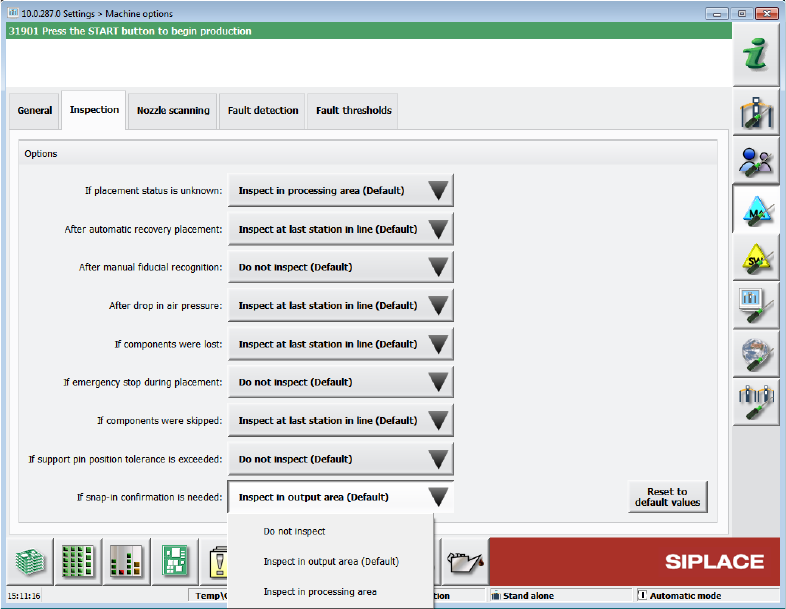
The position where the operator can inspect the board is configurable under Machine options –
Inspection – If snap-in confirmation is needed. Default option: Inspect in output section.
Figure 4-5: If snap-in confirmation is needed
Station Software 710.0 (R16-2) / Version Description 12/2016 Edition
16
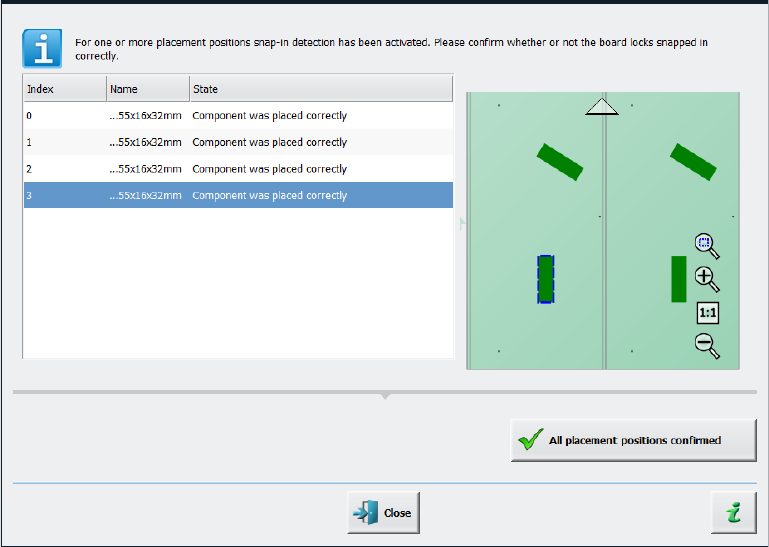
When the board enters the output section, a detailed message is displayed.
Figure 4-6: Confirming placement positions
It contains:
– The position of the board in the machine.
– A list including all placement positions on the board which have to be confirmed.
– A graphical board overview in which the selected items in the list are highlighted.
There are three options for each row in the list:
– Component was placed correctly
The Z-height will be set as good for the snap-in detection.
– Component placed manually now
The measured height will be ignored and the user has to confirm the height whenever the next
component is placed. The board is no longer marked for inspection.
– Repeat measurement
The measured height will be ignored and the user has to confirm the height whenever the next
component is placed. The board keeps marked for inspection.
After setting the results for all placement positions, the settings have to be confirmed with the All
placement positions confirmed button.
In the Placement positions view, there are two new icons under the Options column:
– Snap-in confirmation required
is displayed if the correct Z-height has not yet been confirmed by the operator.
– Snap-in detection active
is displayed if the confirmation has already been done by the operator.
Station Software 710.0 (R16-2) / Version Description 12/2016 Edition
17
4.5.4 Support to Find Best Acceleration
A new teaching function supports finding the highest acceleration or speed values for a component
shape. For this, the dialog for teaching component shapes has been enhanced by the new Teach
acceleration values menu entry under Actions as of the Machine service activity level. By
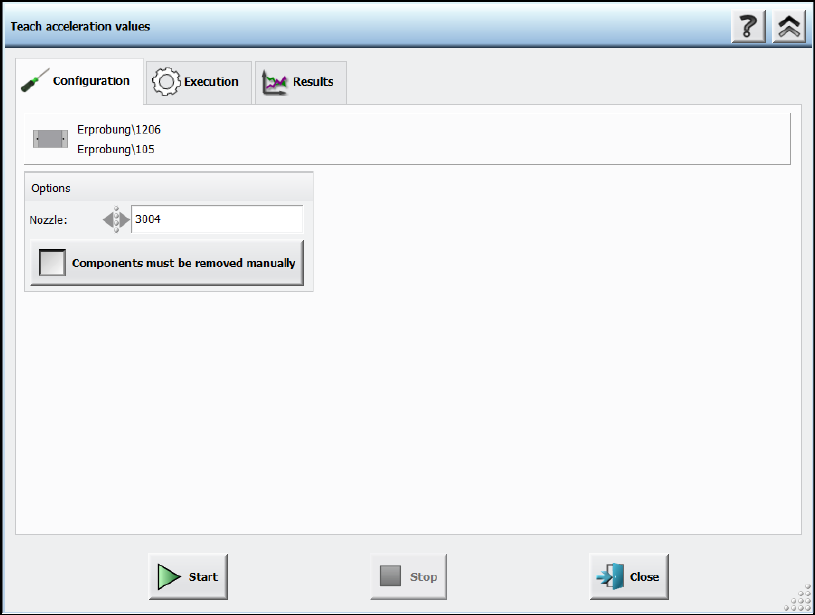
triggering this action, a Configuration page is displayed.
Figure 4-7: Teach acceleration values – Configuration
Following decisions have to be made:
– Nozzle to be used
If the user wants to perform the teaching with another nozzle, the nozzle can be selected from
a list. Only available nozzles will be displayed.
– Option for disabling the rejection of components
The default value is to reject the components automatically. But if the Components must be
removed manually option is set, the operator will be prompted to remove the component
manually from the placement head as soon as the check fails. The option is only available for
placement heads for which this is possible. Once set, the value is saved for the next run.