252301 Issue 2.0.pdf - 第154页
GEM Manual for DEK Printers Appendix B I ssue 2.0 June 9th, 2011 page 154 of 156 5. Select Enable Comms 12.3 Using GE M Once enable d and communicating w ith a host, the operator c an perfor m the following functions: 1.…
GEM Manual for DEK Printers Appendix B
Issue 2.0 June 9th, 2011 page 153 of 156
12 Appendix B
Operator instructions for configuring and using GEM on DEK printers.
12.1 Network Configuration
The GEM IP Address for the machine must be set up in the DekSECSII.cfg file, this can be checked
and edited if necessary in the configuration file D:\Program
Files\DEK\MachineControl\Printer\DekSECSII.cfg.
Set the PASSIVE ENTITY IP ADDRESS to the printer’s IP Address.
The IP Address can be obtained by using the ipconfig command at the command prompt.
If there is more than one printer communicating with the GEM host, set the DEVICEID differently for
each printer. The default value is 0x109 (265). Alternate DEVICEID values should be chosen within
the range 0x0000 – 0x7FFF (0 – 32767).
12.2 Enabling GEM
Classic User Interface
From the Ready page:
1. Select Maintenance (F8)
2. Select Set Prefs (F5)
3. Change the value of Host Comms to GEM
4. Select Enable Comms (F1).
Instinctiv User Interface
From the Ready page:
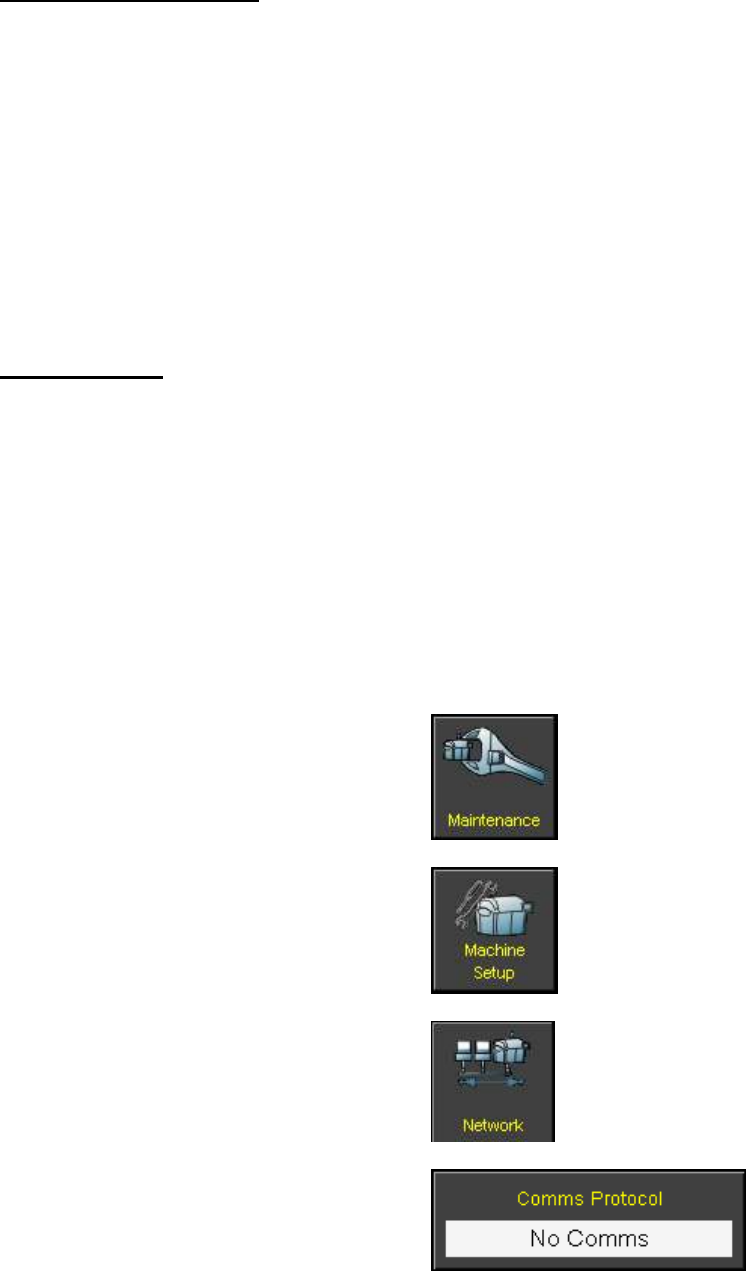
1. Select Maintenance
2. Select Machine Setup
3. Select Network
4. Change the Comms Protocol to GEM
GEM Manual for DEK Printers Appendix B
Issue 2.0 June 9th, 2011 page 154 of 156
5. Select Enable Comms
12.3 Using GEM
Once enabled and communicating with a host, the operator can perform the following functions:
1. Switch between online and online state
2. Switch between local and remote state
3. Transfer product files to and from the host
4. Terminal services
Classic User Interface
From the Ready page:
1. Select Monitor (F7)
2. Select Host Comms (F2)
3. To switch to online state, select On-Line (F4). The printer will change to “Attempt On-Line”
state until the host accepts the request.
4. To switch to offline state, select Off-Line (F5)
5. To switch between local and remote modes, select Local/Remote (F6)
6. To transfer a product from the printer to the host, select Transfer To Host (F2):
a. Navigate to the required product using Left, Right, Previous, Next (F4 – F7)
b. Select Upload (F1) to transfer the product
c. Select Exit (F8) to cancel the transfer
7. To transfer a product from the host to the printer, select Transfer To Equipment (F3):
a. Enter the name of the product file
b. Select Download (F1) to transfer the product
c. Select Exit (F8) to cancel the transfer
8. To access terminal services, select Terminal Services (F1):
a. Recent messages from the host will be displayed
b. Type a new message and select Send Message (F1) to send a message to the host
c. Select Exit (F8) when finished
9. To test communications with the host, select Test Comms (F7)
Instinctiv User Interface
From the Ready page:
1. Select Host Comms
2. To switch to the online state, select Online

GEM Manual for DEK Printers Appendix B
Issue 2.0 June 9th, 2011 page 155 of 156
3. To switch to the offline state, select
Offline
4. To switch to the remote mode, select
Remote
5. To switch to the local mode, select Local
6. To transfer a product from the printer to
the host:
a. Select Send Product
b. Navigate to the required product
c. Select Send Product
7. To transfer a product from the host to the
printer:
a. Select Receive Product
b. Enter the name of the product file
c. Select Receive Product
8. To access terminal services, select
Terminal Services