00192231-09_VD_SSW 407.05_de en.pdf - 第78页
Software Version Description, Station Software Version 407.05 07/2008 Edition 9.3.2.3 Installation Program • Turn on the station. • When the Windows screen appears, keep the Shift key depressed to prevent the system from…
Software Version Description, Station Software Version 407.05 07/2008 Edition
9.3 Installation of the SIPLACE Software
9.3.1 Interfaces
To be able to install the optional GEM application software on the GEM computer, the Windows for GEM
software version V407.02 must be installed.
9.3.2 Installation Instructions/Upgrade Instructions
9.3.2.1 Definitions
9.3.2.1.1 Initial Installation
The first-time installation of the Station Software on the SIPLACE machines S-20 and F
4
is referred to as
"initial installation".
9.3.2.1.2 Update
If an initial installation was previously performed and a new revision level of the Station Software is to be
loaded, this procedure is referred to as an "Update". The revision level is identified by the last two numerals
of the complete version number.
9.3.2.1.3 Upgrade
The functionality of the station software is identified by the three-digit code integrated in the complete version
number.
Example:
407.xx = The number 407 indicates the functionality of the software
The installation of a SW version with a higher version number than the already-installed SW version is
referred to as an "Upgrade".
9.3.2.2 Installation of the Station Computer and the Machine Controller
The installation time depends on the machine type to be installed. It takes 30 minutes on average for the
SIPLACE S20, SIPLACE F
4
, SIPLACE F
5
and about 15 minutes for the SIPLACE S23 and SIPLACE F5HM
systems.
There are only two differences between installing station software for Windows XP and the familiar
installation under Windows NT. Explicit reference is made to these differences at the relevant points.
77 of 104
Software Version Description, Station Software Version 407.05 07/2008 Edition
9.3.2.3 Installation Program
• Turn on the station.
• When the Windows screen appears, keep the Shift key depressed to prevent the system from booting
automatically.
• Log in as an administrator!
• Once you have inserted the CD into the CD-ROM drive, the installation will start with the language
selection.
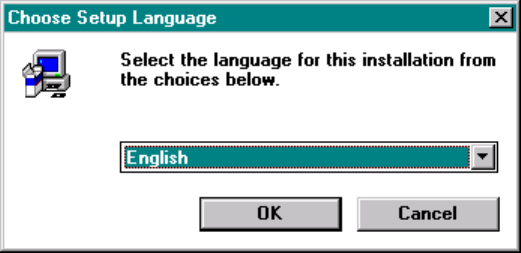
Language Selection
In the first screen a query is displayed asking you in which language the installation program is to
communicate with you. You can select between German and English.
Fig: Language Selection
Choose OK to reach the welcome screen.
78 of 104
Software Version Description, Station Software Version 407.05 07/2008 Edition
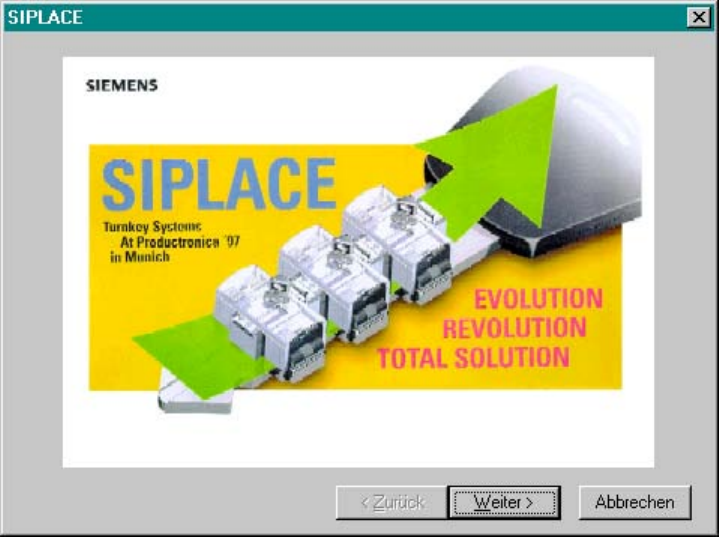
Welcome
Fig.: Welcome Screen
Choose Next for the registration screen to be displayed.
79 of 104