00192231-09_VD_SSW 407.05_de en.pdf - 第95页
Software Version Description, Station Software Version 407.05 07/2008 Edition 9.3.2.4 Configuration of the SIPLACE Pro Connection The communication partner linking the station to the SIPLACE Pro programming system is the…
Software Version Description, Station Software Version 407.05 07/2008 Edition
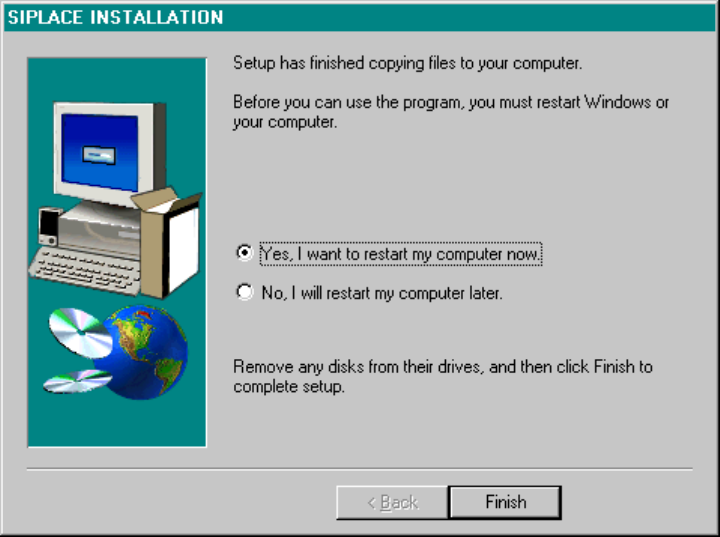
Closing Screen
At the end of the installation, the screen shown below is displayed. Clicking on the Finish button causes a
reboot to be performed. The installed packages are now ready for use.
Fig.: Closing Screen of the Installation from CD-ROM
94 of 104
Software Version Description, Station Software Version 407.05 07/2008 Edition
9.3.2.4 Configuration of the SIPLACE Pro Connection
The communication partner linking the station to the SIPLACE Pro programming system is the SIPLACE Pro
Line Control Server.
If this SIPLACE Pro Line Control Server is installed on a computer that is connected directly to the SIPLACE
LAN, the SIPLACE Pro connection is configured on the user interface of the station under the menu item
Mode -> Configure SIPLACE Pro connection...
If, however, the SIPLACE Pro Line Control Server is installed on a computer that is connected to the
SIPLACE LAN only via a gateway, a static route needs to be configured in addition.
In software version 407, this static route still needs to be configured manually:
• Log in as "Administrator" user.
• Open a DOS prompt ("DOS window")
• Enter the following command:
route –p add <Line-Control-Server> mask 255.255.255.255 <Gateway>
For the <Line-Control-Server> enter the IP address of the computer where the SIPLACE Pro Line Control
Server is installed. And for <Gateway> enter the IP address of the gateway.
• Use the following command to check whether the configuration was successful:
route print
The line below must be contained in the Table that is now displayed:
<Line-Control-Server> 255.255.255.255 <Gateway> <Stationsrechner> 1
<Stationsrechner>: The station computer's own IP address.
95 of 104
Software Version Description, Station Software Version 407.05 07/2008 Edition
9.3.2.5 Troubleshooting
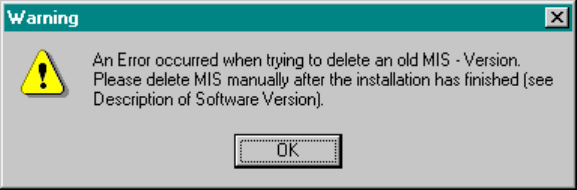
Where an earlier version of the "OIS" (previously known as "MIS") application exists, it is necessary to delete
this version during the installation procedure.
If an error occurs in so doing, the following warning will be displayed.
The installation will now be completed in an orderly fashion. All that remains to be done is to delete MIS
manually after the installation is finished.
Proceed as follows:
Open a DOS prompt ("DOS window").
Successively enter the following commands:
c:
cd \MIS
MisBuffer /UNREGSERVER
RegSVR32 /u /s MisBufferPs.dll
RegSVR32 /u /s C:\MIS\MisBufferDllPs.dll
del *.*
cd ..
rd MIS
This will first delete the entries of the MIS application from the registry. Subsequently, the application and the
directory are removed from the hard disk.
96 of 104