00192231-09_VD_SSW 407.05_de en.pdf - 第96页
Software Version Description, Station Software Version 407.05 07/2008 Edition 9.3.2.5 Troubleshooting Where an earlier version of the "OIS" (previously known as "MIS") application exists, it is necess…
Software Version Description, Station Software Version 407.05 07/2008 Edition
9.3.2.4 Configuration of the SIPLACE Pro Connection
The communication partner linking the station to the SIPLACE Pro programming system is the SIPLACE Pro
Line Control Server.
If this SIPLACE Pro Line Control Server is installed on a computer that is connected directly to the SIPLACE
LAN, the SIPLACE Pro connection is configured on the user interface of the station under the menu item
Mode -> Configure SIPLACE Pro connection...
If, however, the SIPLACE Pro Line Control Server is installed on a computer that is connected to the
SIPLACE LAN only via a gateway, a static route needs to be configured in addition.
In software version 407, this static route still needs to be configured manually:
• Log in as "Administrator" user.
• Open a DOS prompt ("DOS window")
• Enter the following command:
route –p add <Line-Control-Server> mask 255.255.255.255 <Gateway>
For the <Line-Control-Server> enter the IP address of the computer where the SIPLACE Pro Line Control
Server is installed. And for <Gateway> enter the IP address of the gateway.
• Use the following command to check whether the configuration was successful:
route print
The line below must be contained in the Table that is now displayed:
<Line-Control-Server> 255.255.255.255 <Gateway> <Stationsrechner> 1
<Stationsrechner>: The station computer's own IP address.
95 of 104
Software Version Description, Station Software Version 407.05 07/2008 Edition
9.3.2.5 Troubleshooting
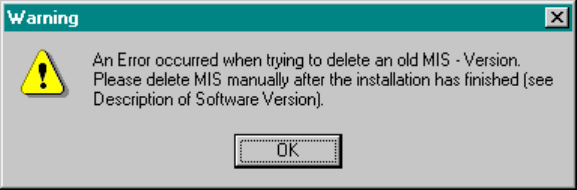
Where an earlier version of the "OIS" (previously known as "MIS") application exists, it is necessary to delete
this version during the installation procedure.
If an error occurs in so doing, the following warning will be displayed.
The installation will now be completed in an orderly fashion. All that remains to be done is to delete MIS
manually after the installation is finished.
Proceed as follows:
Open a DOS prompt ("DOS window").
Successively enter the following commands:
c:
cd \MIS
MisBuffer /UNREGSERVER
RegSVR32 /u /s MisBufferPs.dll
RegSVR32 /u /s C:\MIS\MisBufferDllPs.dll
del *.*
cd ..
rd MIS
This will first delete the entries of the MIS application from the registry. Subsequently, the application and the
directory are removed from the hard disk.
96 of 104
Software Version Description, Station Software Version 407.05 07/2008 Edition
9.3.3 Installation From an External CD-ROM Drive
If the station on which you wish to install the software has no CD-ROM drive, you can still enjoy the
advantages of an installation from CD by using the CD-ROM drive of another station computer.
9.3.3.1 CD-ROM Drive of a Different Station Computer
The computer with the CD-ROM drive must permit the destination computer to access the CD. To
accomplish this, proceed as follows:
• Log in as administrator on the computer equipped with the CD-ROM drive.
• Insert the CD. Abort the installation procedure that will start automatically.
• Call up Start -> Programs -> Explorer
• Click on the CD-ROM icon and then click the right mouse button.
• Select the Sharing menu item.
• Release the drive as shared drive.
Now you have to connect the destination computer to the CD-ROM drive. To this end, log on to the
destination computer as Administrator as well and choose the Connect Net Drive function from the
Explorer.
From the destination computer you can then start siplace\setup on the CD, and the installation is carried out
via the network.
9.3.4 Result Log
The installation program keeps a detailed log as to which software packages and drivers have been
installed. This information is stored in the file c:\windosw\instlog.txt. This file can be viewed with any text
editor.
The information contained in the file will not be deleted. New information will be appended to the end. Please
be sure not to change the file as it holds important information for our service staff.
97 of 104