00195327-03_EN_DE_Install_eWinXP_MC.pdf - 第22页
Installation Manual, Windows XP Embedded operating syst em for the machine controller Issue 04/2007 6.3 Inst alling the Windows XP Embedded operating sy stem Note: Before you start work, ensure that the CD-ROM drive is s…

Installation Manual, Windows XP Embedded operating system for the machine controller Issue 04/2007
6.2 Automatic BIOS settings on the machine controller
→ Disconnect the USB keyboard from the station computer and connect it to the machine controller
computer.
→ Switch the video multiplexer from the station computer to the machine controller.
→ Use the USB cable to connect the external DVD drive to the machine controller computer.
A setup CD must first be created to automatically make the BIOS settings on the machine controller. To do
this, you require a computer running Windows XP that is fitted with a DVD and CD-RW drive.
The image files necessary for creating the CD (see table below) are in the "BIOS-Images" folder of the CD
for version 604.01 of the software.
Machine controller
Computer type
BIOS settings
ISO image
SIMATIC Microbox 420 CPU420_MC_BIOS_Settings.iso
SIMATIC Box PC 627 CPU627_SR_MC_BIOS_Settings.iso
Table 6-1: Files required for creating the data media for making the BIOS settings on the MC
6.2.1 Creating a setup CD
→ Insert an empty writable CD in the drive on any computer.
→ Insert the CD for version 604.01 of the software in the drive.
→ In the Windows Explorer, open the "BIOS-Images" folder on the CD.
→ Open the image file for the relevant computer type (see table above) using the installed CD writing
program and follow the instructions on screen.
→ Once the CD has been written, remove the CDs from the drives.
6.2.2 Making the BIOS settings on the machine controller
Note:
Before you start work, ensure that the CD-ROM drive is set as the first boot device in the
BIOS to allow the computer to be booted from CD.
→ Insert the CD you have created in the drive on the machine controller and boot from the CD by
switching the machine on.
→ Follow the instructions regarding the BIOS settings that appear on screen.
→ Remove the setup CD from the DVD drive.
→ Press the key combination <Ctrl><Alt><Del> to perform a warm start of the MC computer.
21 of 28

Installation Manual, Windows XP Embedded operating system for the machine controller Issue 04/2007
6.3 Installing the Windows XP Embedded operating system
Note:
Before you start work, ensure that the CD-ROM drive is set as the first boot device in the
BIOS to allow the computer to be booted from DVD.
→ Insert the installation DVD for the Windows XP Embedded operating system (see section
4.1) in the
external DVD drive connected to the MC computer.
→ Switch the machine on to boot the MC computer from DVD or, if the machine is already switched on,
restart the MC computer.
An automatic inspection of the system is carried out and then the screen for selecting the language
appears.
1 German
2 English
→ Select the required language with the cursor keys and confirm your selection with <ENTER>.
The restore options appear.
1 Restore system partition only
2 Restore entire hard disk
3 Cancel
→ Select option 2 "Restore complete hard disk" and confirm your selection with <ENTER>.
→ Confirm the query whether the action should really be carried out by choosing "Yes".
The operating system is installed and the computer is automatically rebooted.
After a short time, the message "Restore completed" is displayed and you are requested to remove the
data media and restart the computer.
→ Remove the installation DVD from the DVD drive and reboot the computer.
22 of 28
Installation Manual, Windows XP Embedded operating system for the machine controller Issue 04/2007
7 …after the installation
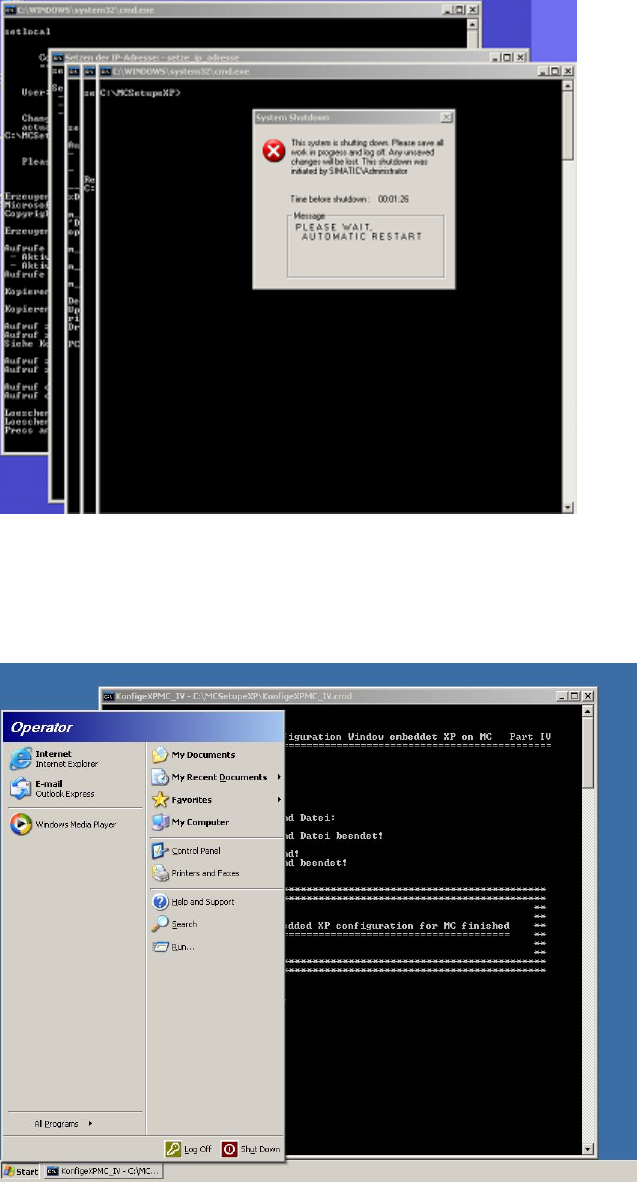
→ Wait until the login window appears and then log in as administrator.
After you have logged in, settings are made and installation operations carried out automatically.
The computer is then automatically rebooted.
After the computer has rebooted, you are logged in automatically as "Operator".
After further settings have been made automatically, the following window appears which confirms that
installation of Windows XP Embedded has been completed on the MC computer.
→ Press any key to close the window in background.
→ Reboot the computer.
23 of 28