00195327-03_EN_DE_Install_eWinXP_MC.pdf - 第24页
Installation Manual, Windows XP Embedded operating syst em for the machine controller Issue 04/2007 8 Changing settings It is now necessary to check the display settings and change them if necessary. → Right-click on a f…
Installation Manual, Windows XP Embedded operating system for the machine controller Issue 04/2007
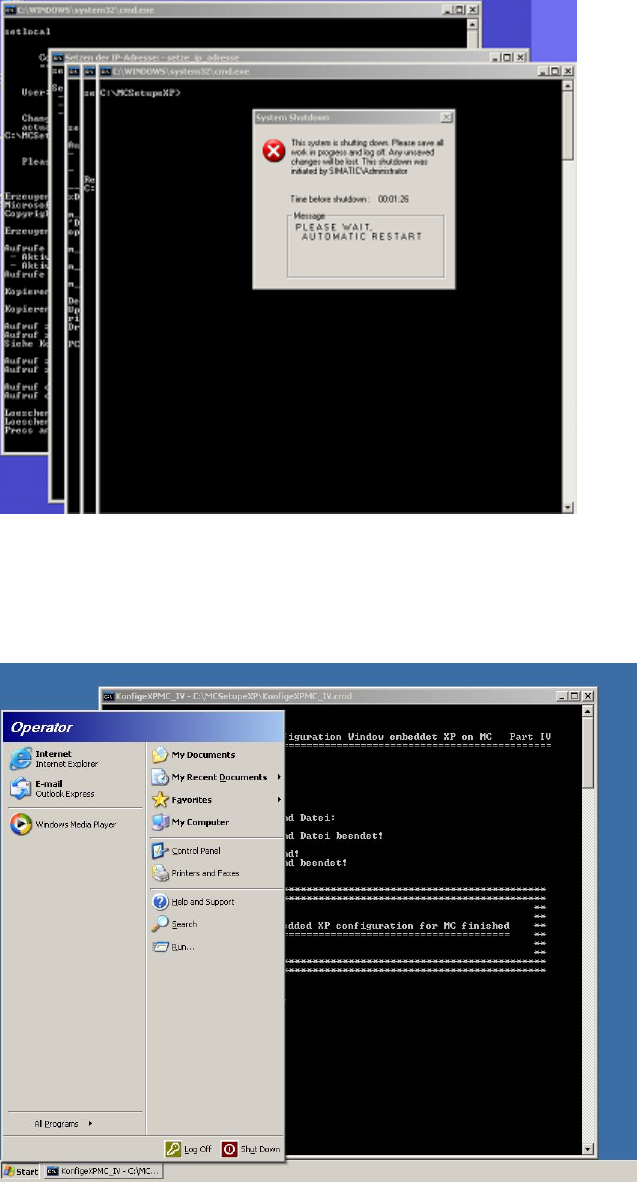
7 …after the installation
→ Wait until the login window appears and then log in as administrator.
After you have logged in, settings are made and installation operations carried out automatically.
The computer is then automatically rebooted.
After the computer has rebooted, you are logged in automatically as "Operator".
After further settings have been made automatically, the following window appears which confirms that
installation of Windows XP Embedded has been completed on the MC computer.
→ Press any key to close the window in background.
→ Reboot the computer.
23 of 28
Installation Manual, Windows XP Embedded operating system for the machine controller Issue 04/2007
8 Changing settings
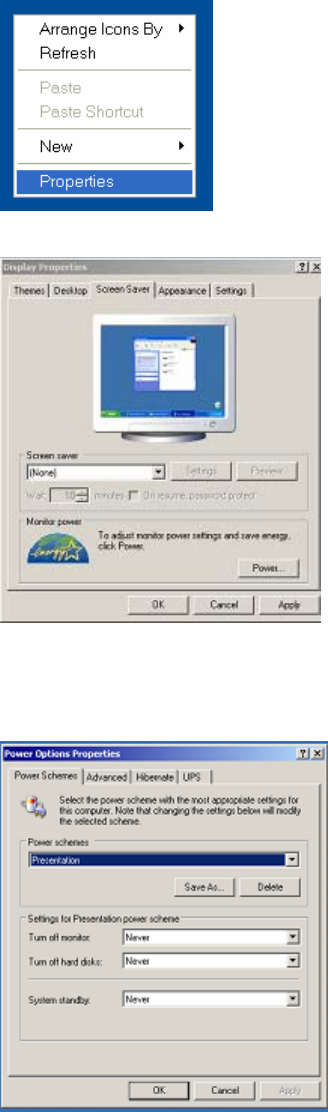
It is now necessary to check the display settings and change them if necessary.
→ Right-click on a free area of the desktop and select Properties from the context menu.
→ Click the Screen Saver tab.
→ Select (None) from the list of screen savers.
→ Confirm the settings by clicking OK.
→ Click the Power… button.
→ Set all the options to Never under the "Settings for Presentation power scheme".
→ Confirm the settings by clicking OK.
24 of 28
Installation Manual, Windows XP Embedded operating system for the machine controller Issue 04/2007
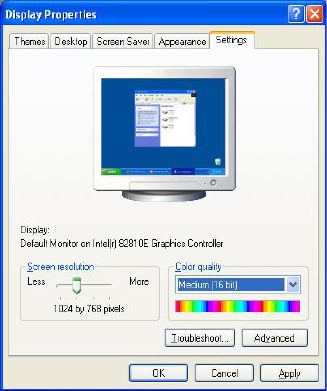
→ Click the Settings tab.
→ Set the "Screen resolution" slider to "1024 by 768 pixels".
→ Confirm the settings by clicking OK.
9 Restoring the initial configuration
→ Reconnect the keyboard to the station computer.
→ Switch the video multiplexer back to the station computer.
→ For SIMATIC Box PC 627 and SIMATIC Microbox 420:
Disconnect the USB cable for the DVD drive from the MC computer.
25 of 28