4OM-1064-001.pdf - 第155页
Tg0249-PM-MM • T rackball Operation [CENTER 1-PT .] Key The cross hairs appear on the recognition monitor . Adjust the cross hairs to the pick-up point, using the trackball. (1) When the [CENTER 1-PT .] key is selected a…
Tg0249-PM-MM
• Teaching Operation for Setting of Eccentric Pick-Up against Hindrance
to Component Picks at Center
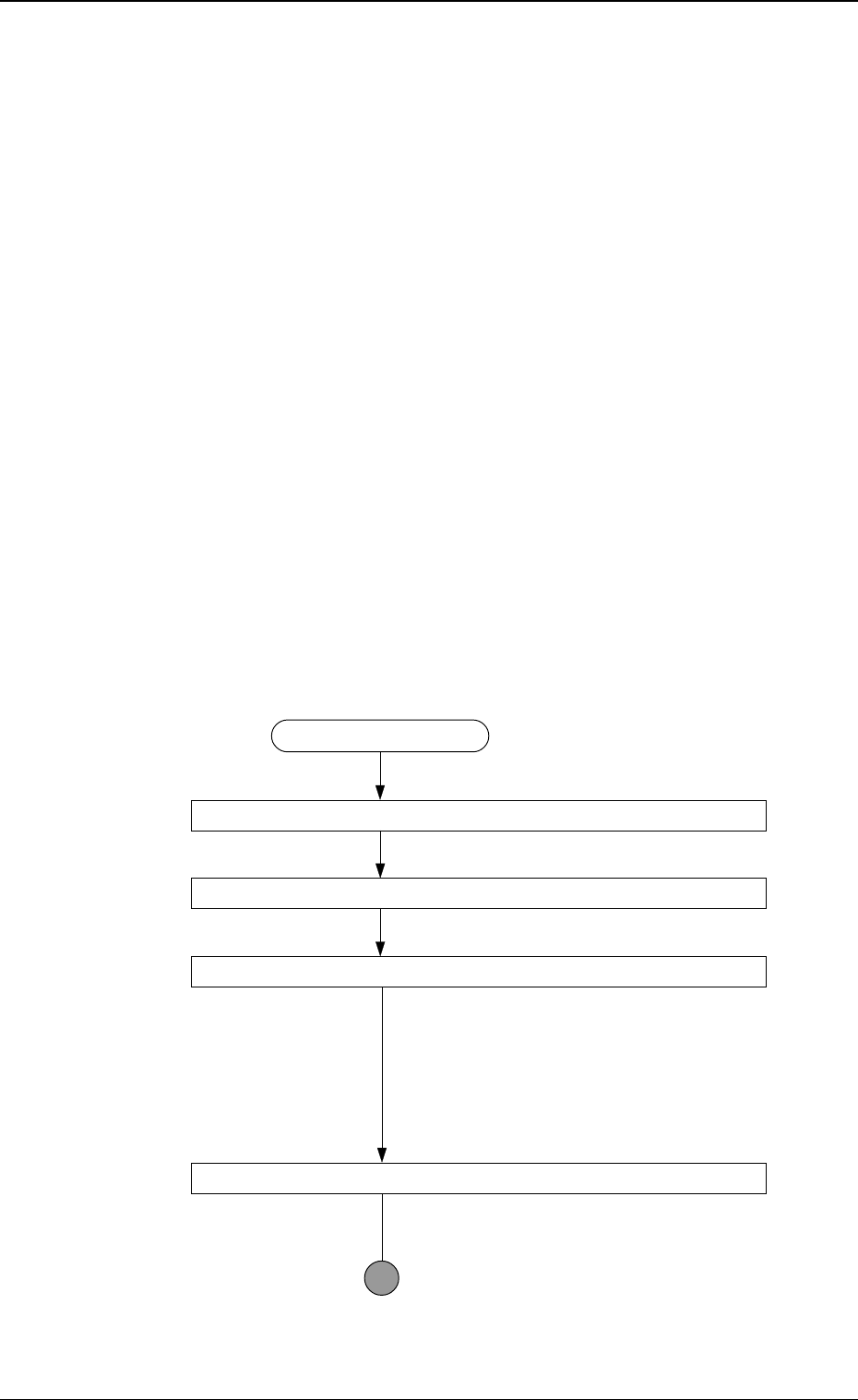
(1) Follow the teaching flow in Fig. 3.68 and perform the teaching operation
on the component center position.
(2) Follow the teaching flow in Fig. 3.69 and perform the teaching operation
on the pick-up location correction position.
When a component has a groove, a protrusion, etc., and cannot be picked
up at the center without any hindrance, use the [TEACH ECC. PICKUP
POS [PICKUP LOC. ADJ] key.
Before teaching the data for “PICKUP LOCATION ADJUSTMENT” in
the component library data to intentionally shift the pick-up location from
the component center, it is premised that the component center position
should be grasped first. Therefore, be sure to select the [TEACH PICK-
UP POS. [COMP. CENTER POS.]] key and perform the teaching opera-
tion on the component center position. After that, select the [TEACH
ECC. PICKUP POS [PICKUP LOC. ADJ]] key to adjust the pick-up lo-
cation.
Note: When the center position is not grasped correctly and the teach-
ing operation is performed on the eccentric pick-up location, im-
proper values are fed back to “PICKUP LOCATION ADJUST-
MENT X, Y”, causing the component library data to lose its gen-
erality.
Teaching Procedure
Designate the objective feeder No. for teaching.
Select the [TEACH ECC. PICKUP POS [PICKUP LOC. ADJ] key.
Press the [MOVE] button.
An image is captured by the P.E.C. camera at
the pick-up location correction position of the
objective feeder for teaching.
The pick-up location adjustment data set up
at teaching execution is reflected.
Positioning Operation with Trackball
Refer to “Trackball Operation” (described
later) for details.
9910-001 3-108
6. TEACH OFFSET Display
Fig. 3.69
Tg0249-PM-MM
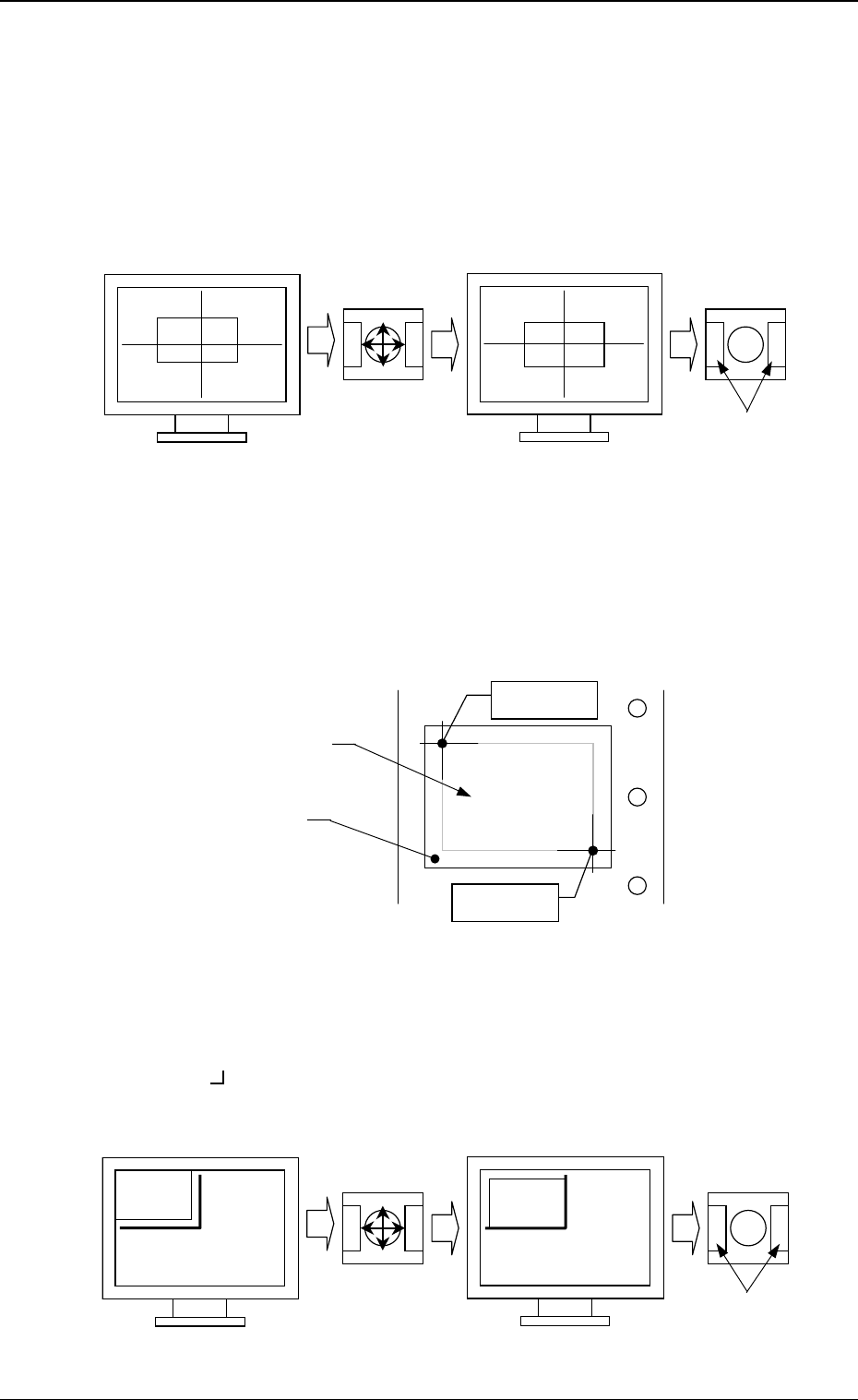
• Trackball Operation
[CENTER 1-PT.] Key
The cross hairs appear on the recognition monitor.
Adjust the cross hairs to the pick-up point, using the trackball.
(1) When the [CENTER 1-PT.] key is selected and the [MOVE] button is
pressed, the P.E.C. recognition camera moves to the designated feeder
No. position.
(2) Manipulate the trackball as shown in Fig. 3.70.
“DIAGONAL 2-PT.”
Specify the two edges of the component to be picked up or the embossed
mounting hole.
Specify the edge two points of the component in embossed.
Or, specify two corners (points) of the embossed mounting hole.
(1) When the [1POINT] key is selected and the [MOVE] button is pressed,
the P.E.C. recognition camera moves to the designated feeder No. posi-
tion.
“ (first point)” appears on the recognition monitor.
(2) Make an alignment with the trackball and press the right and left but-
tons simultaneously.
9910-001 3-109
6. TEACH OFFSET Display
Fig. 3.70
Fig. 3.71
Fig. 3.72
Press the buttons
simultaneously.
Roll the ball for
alignment.
Trackball
Trackball
Crosshairs dislocated from the
pick-up point
Second Point
First Point
Component
Embossed
Mounting Hole
Roll the ball for
alignment.
Trackball
Trackball
Press the buttons
simultaneously.
Tg0249-PM-MM
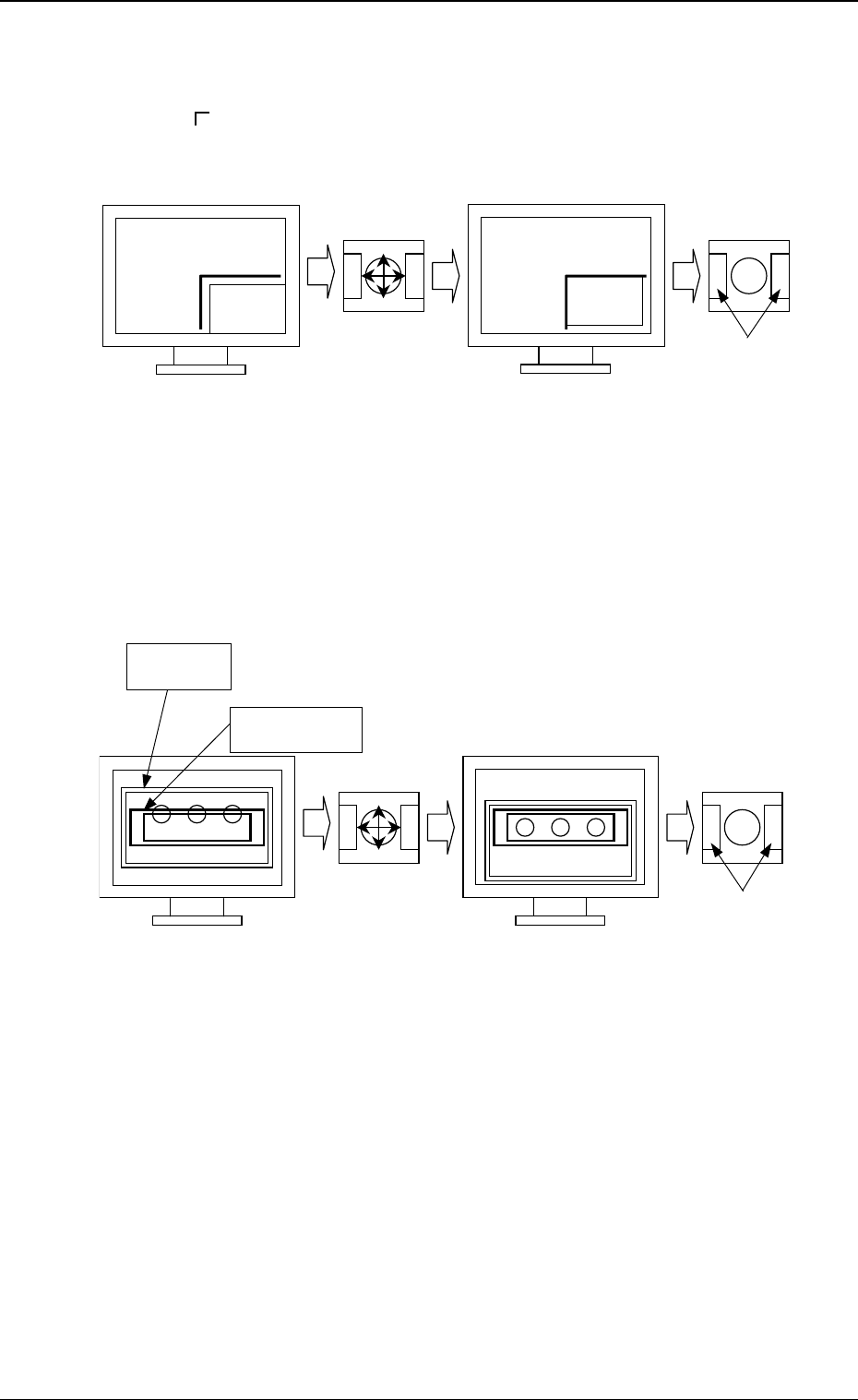
(3) When the [2POINT] key is selected and the [MOVE] button is pressed,
the P.E.C. recognition camera moves to the designated feeder No. posi-
tion.
“ (second point)” appears on the recognition monitor.
(4) Make an alignment with the trackball and press the right and left buttons
simultaneously.
[TEACH ECC. PICKUP POS [PICKUP LOC. ADJ]] Key
(1) When the [ECCENTRIC PT.] key is selected and the [MOVE] button is
pressed, the P.E.C. recognition camera moves to the designated feeder
No. position.
The graphic of the nozzle appears on the recognition monitor.
(2) Make an alignment with the trackball and press the right and left buttons
simultaneously.
9910-001 3-110
Fig. 3.73
Fig. 3.74
Press the buttons
simultaneously.
Roll the ball
for alignment.
TrackballTrackball
Press the buttons
simultaneously.
Roll the ball
for alignment.
Trackball
Trackball
Nozzle Graphic
Component