YS12调整.pdf - 第17页
Service Engineer Service I nformati on SI080 4004 E-000 = YS12 , YG12: Procedure for adjustmen t after installa tion of the mach ine 17/60 Note: As the max imum value of the Bit value i s the warning value for the upper …
Service Engineer
Service Information
SI0804004E-000 = YS12, YG12: Procedure for adjustment after installation of the machine
16/60
7. Click on the [Execute] button.
If you click on the [Execute] button, the adjustment of the brightness is automatically
performed.
Figure 17
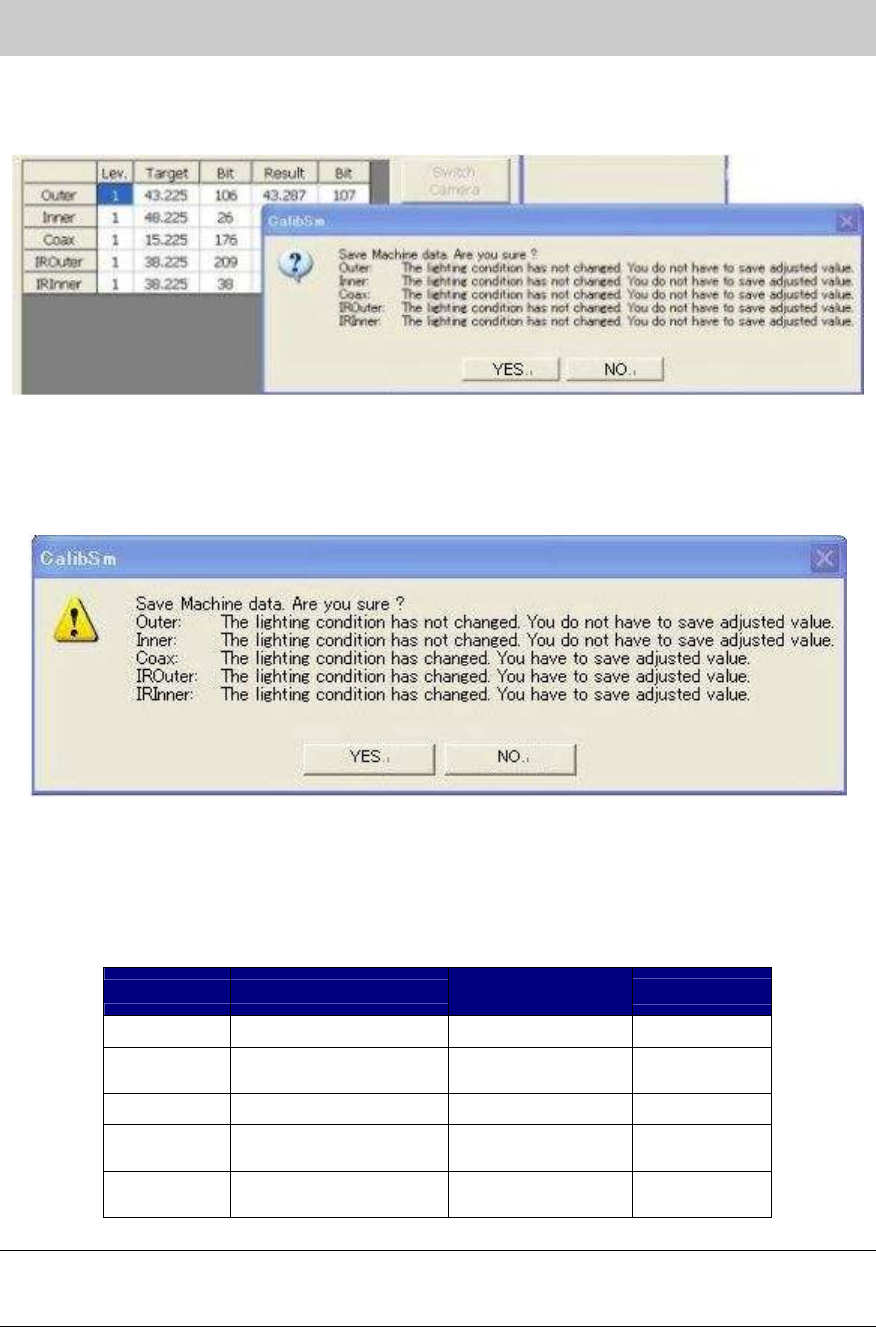
Check if the values in the “Target” and “Bit” fields fall within the specification, and save the data.
[The dialog box indicating that the data needs to be saved]
Figure 18
8. Click on the [Rec.Test] button.
Click on the [Rec.Test] button to perform recognition test and check if the measured values
fall within the tolerance.
If the values fall within the tolerance, please fill in the value on the check sheet.
Target value
Tolerance of the
measured value
Bit
BitBit
Bit value
Outer 35+ Black level value Target value+-2 0 -16128
Inner
40(44)+
Black level value
Target value+-2 0 -16128
Coax 7(8)+ Black level value
Target value+-2 0 -16128
IR Outer
30(31)+
Black level value
Target value+-2 0 -16128
IR Outer
30(33,35)+
Black level value
Target value+-2 0 -16128
Table 10
Note:
If the Bit value does not fall within the specification, please check if the lens of the camera is clean,
if the lighting condition is good or if the connector is connected properly.
Service Engineer
Service Information
SI0804004E-000 = YS12, YG12: Procedure for adjustment after installation of the machine
17/60
Note:
As the maximum value of the Bit value is the warning value for the upper limit, the adjustment can
be performed even when the value exceeds the Bit value.
If the Bit value exceeds 16128 (the seven eighth of the maximum value), it may attribute to the
deterioration of the lighting device. It is recommended to replace the lighting.
(The maximum value of the Bit value: 19400)
As the target value varies depends on the tools used for brightness adjustment, please follow the
specification of the machine.
* If the machine is not equipped with the sub fiducial camera (Option), this is the end of the
brightness adjustment.
9. Switch the fiducial camera. (Option: If the machine is equipped with two fiducial cameras.)
After completing the adjustment of the reference camera (the one on the right), perform
adjustment of the sub fiducial camera (the one on the left).
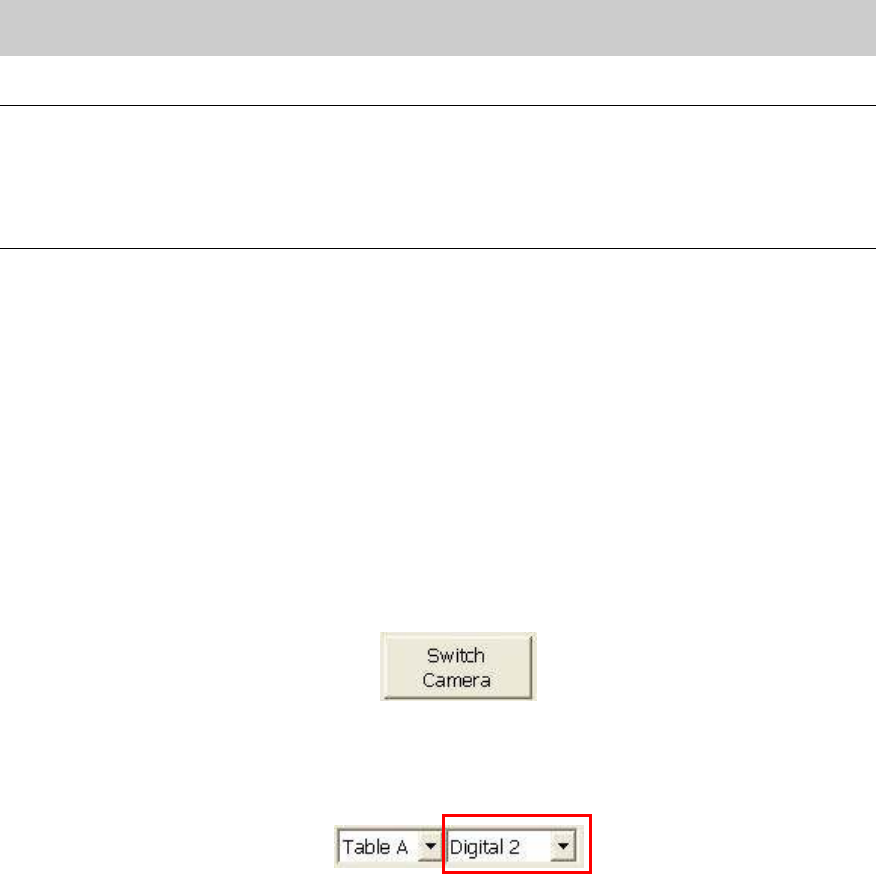
1) Click on the [Switch Camera] button on the “Fiducial Camera” screen to move the sub
camera to above the adjustment tool that is being caught by the reference fiducial
camera.
Figure 19
2) After the sub fiducial camera is moved, the camera number item on the “Fiducial camera”
screen changes from “Digital 1” to “Digital 2” automatically.
Figure 20
3) Check the number of the camera, and perform brightness adjustment.
Check if the values in the “Target” and “Bit” fields fall within the specification, and save
the data.
If the values fall within the specification, please fill in the values on the check sheet.
Service Engineer
Service Information
SI0804004E-000 = YS12, YG12: Procedure for adjustment after installation of the machine
18/60
4.5.2. How to adjust the “brightness “of the scan camera
The main camera and the side view camera of the scan cameras of YS series need to be adjusted
separately.
Please make sure to use the specified adjustment tool for the scan camera when performing
adjustment of the main camera in order to avoid the interference with the scan unit.
No tools (for brightness adjustment) are required for brightness adjustment of the side view
camera.
[Required tool]
Part No. Part Name Size Feature
KHW-M8806-D0* LIGHT ADJ.4 ASSY
11mm
square
Light gray + white
Table 11
1. Change the nozzle to “Nozzle 303A”.
Change the nozzle of Head 1 to “Nozzle 303A (314A)” in order to pick up the tool for brightness
adjustment of the scan camera.
If the machine is not equipped with the nozzle station, please press the [Emergency stop]
button and replace the nozzle by hand.
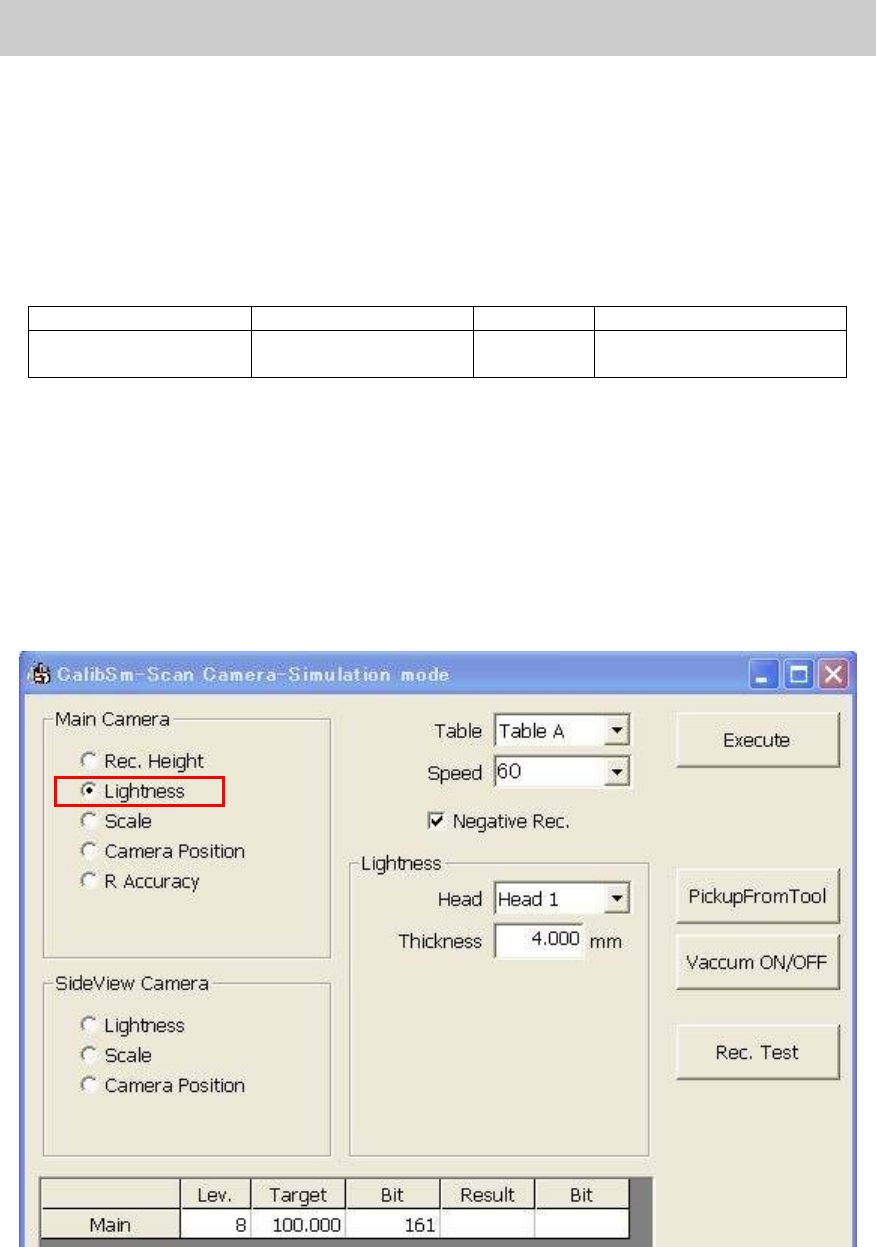
2. Select “Lightness” from the “Main Camera” item.
Click on the [Scan Camera] button on the main menu of the CalibSm.
Select “Lightness” from the “Main Camera” item.
Figure 21
3. Pick up the tool for brightness adjustment.
Use the [Vacuum ON/OFF] button.
If you click on the [Vacuum ON/OFF] button, Head 1 becomes able to pick up the tool for
brightness adjustment. Press the [Emergency Stop] button and make the nozzle vacuum
the tool with the light gray side facing down.