Cognex_Scanner_HS-60_HF_X-_D_S_F - CS_06.pdf - 第45页
2 Assembly instructions Special design Cognex Scanner SIPL ACE HS-60 / HF-serie s / X-series / D-series / S / F 10/2008 Edition 45 : Change to the view "System-Settings" => "Output" and activate th…
2 Assembly instructions Special design Cognex Scanner SIPLACE HS-60 / HF-series / X-series / D-series / S / F
10/2008 Edition
44
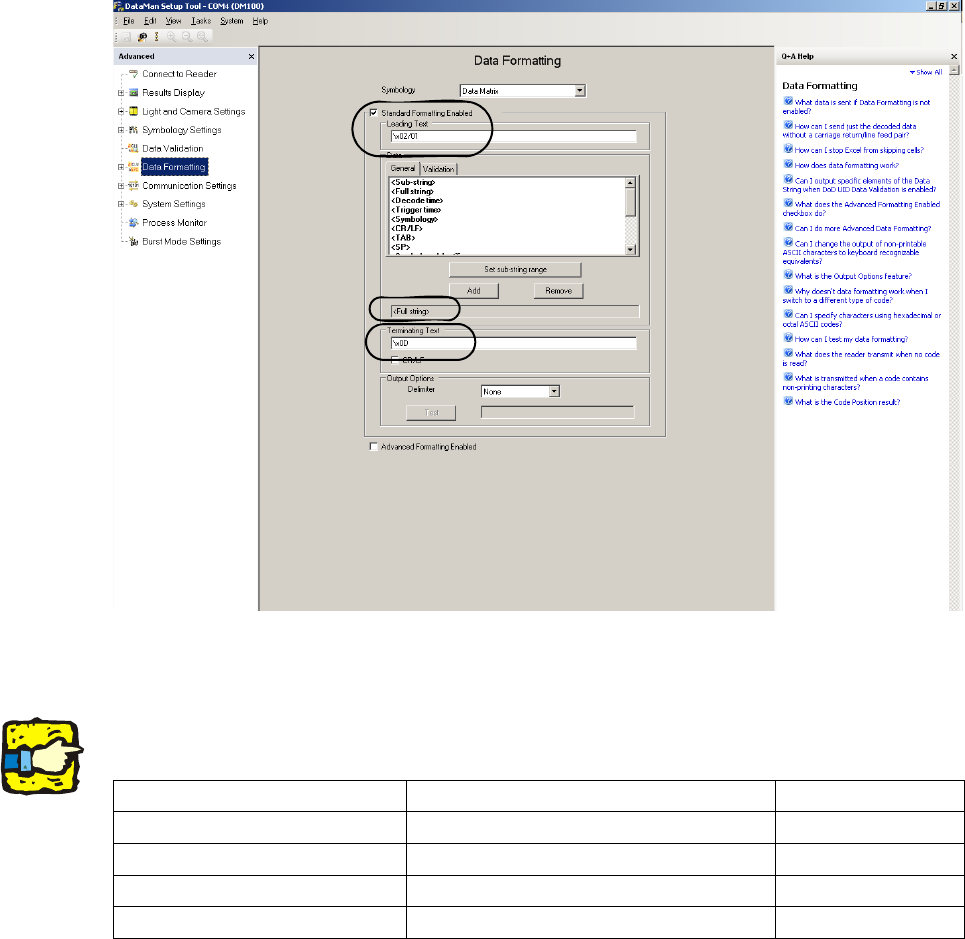
: Change to the “Data Formatting” view and make the following settings:
2
2
: Under “Leading Text” has to be put in the following command: “\x02/0A”.
2
The “A” stands for the installation position of the scanner. Depending on the installation position
the A has to be displaced by “1”, “2”, “3” or “4”. 2
2
2
2
2
2
2
Scanner position Figure for scanner position Command
Single conveyor upper 1 \x02/01
Single conveyor lower 2 \x02/02
Double conveyor upper 3 \x02/03
Double conveyor lower 4 \x02/04
2 Assembly instructions Special design Cognex Scanner SIPLACE HS-60 / HF-series / X-series / D-series / S / F
10/2008 Edition
45
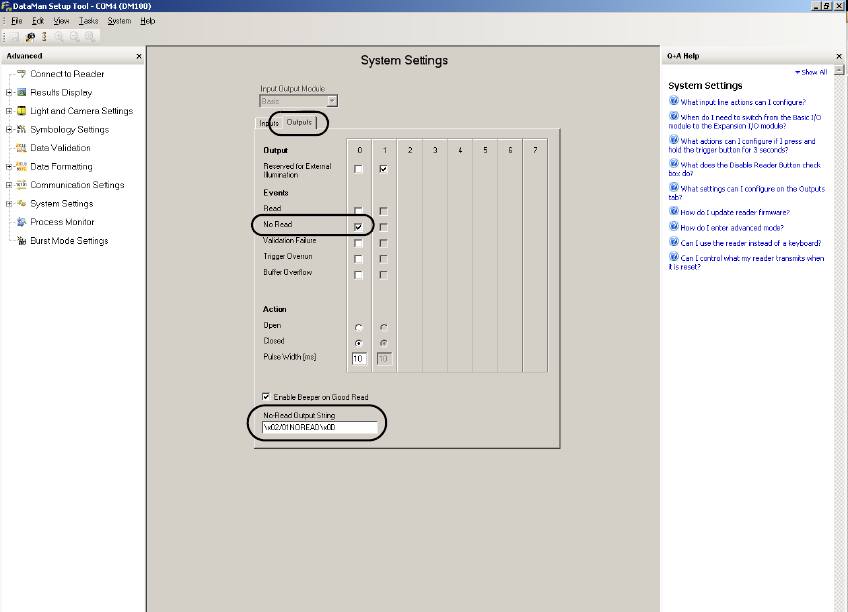
: Change to the view "System-Settings" => "Output" and activate the No-Read function:
Enter the following at "No-Read Output String":
"\x02/0ANOREAD\x0D".
The first "A" stands as described in the former table for the installation position of the scanner.
2
2
After these settings the scanner is able to send the data in the correct format to the machine. 2
2
2
2
2
2
2
2
2
2
2
2 Assembly instructions Special design Cognex Scanner SIPLACE HS-60 / HF-series / X-series / D-series / S / F
10/2008 Edition
46
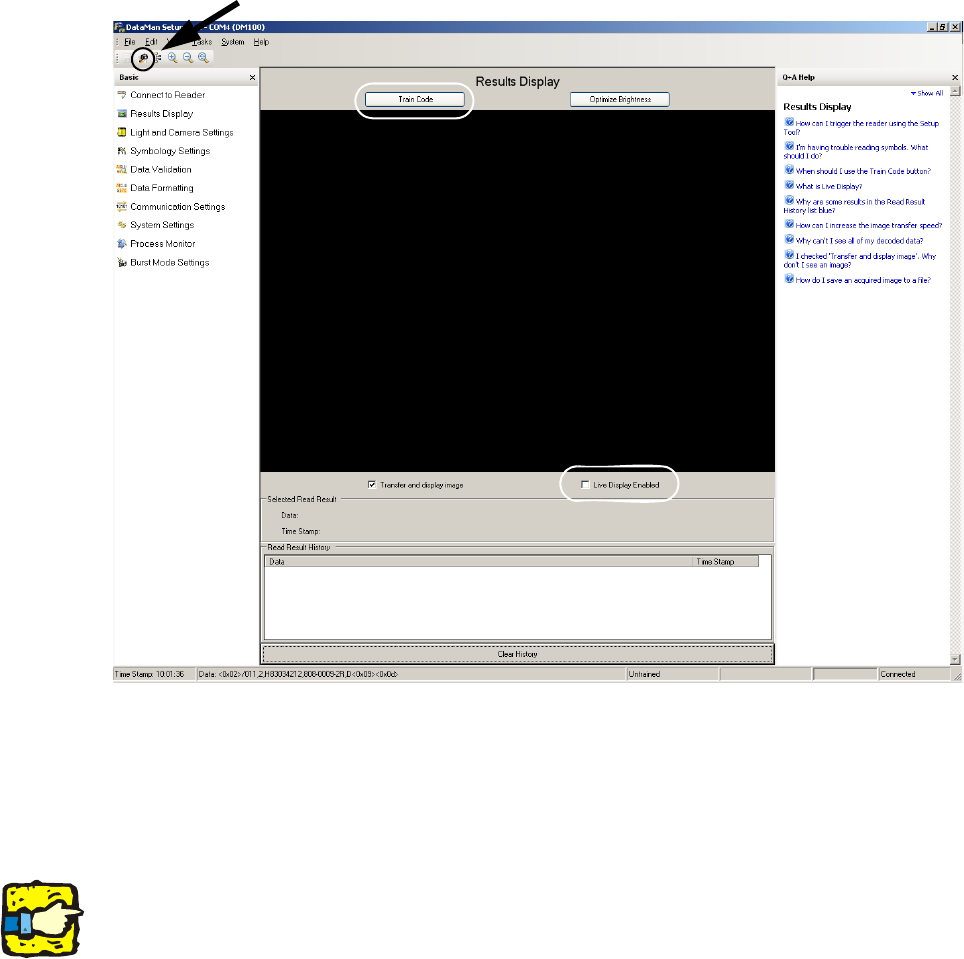
: By the “Result Display” view and clicking the “Trigger” button, you can make pictures when the
PCB drives into the machine and you can check the settings.
In this case the trigger signal is sent automatically by the machine. The second possibility
should only be used when the barcode was trained before.
When you tick on the "Live Display Enabled" you get a live picture.
2
2
: For training the barcodes, hold the relevant barcode between both flashing green light beam
of the scanner.
Then click to “Train Code” above the black screen. The button “Train Code” changes to “Un-
train Code”. The scanner now has learned all information which it requires.
2
If the scanner is trained for special barcode size, it is unable to read other barcode sizes.2
2
2
2
Manual trigger