JAKA Zu se使用手册 - 英文版.pdf - 第7页
JAKA Zu Se 7 Chapter 4 Use of JAKA Zu se a. Autom atic l oad i dentification function When the force control function is used, accurate l oad parameters shall be set first. Manual input can be selected in [Load Settings]…

6 JAKA Zu Se
Chapter 3 JAKA Zu Se System Construction
As shown in Figure 2 and 3, users need to complete simple hardware connection and software
settings to realize the setup of JAKA Zu se system. The specific setup process is as follows:
a. The user designs the connection between the force sensor and the end flange according to the
actual demand, and ensures that the X+ direction of the sensor is consistent with the X+ direction of
the robot flange through the connection or setting the tool coordinate system.
b. The force-sensing sensor can be powered by a robot controller or an additional 24V DC
power supply to the user. According to the different communication modes of the sensor, the sensor
can carry out serial communication through the USB interface connected to the control cabinet or
TCP communication through the network interface.
c. If sensor I or III is selected, IP and port number settings need to be made in the APP. Please
refer to the relevant sensor configuration appendix for specific setting methods. If sensor II is
selected, no IP and port number settings are required.
JAKA Zu Se 7
Chapter 4 Use of JAKA Zu se
a. Automatic load identification function
When the force control function is used, accurate load parameters shall be set first. Manual
input can be selected in [Load Settings]; the automatic identification function can also be used. The
process is as follows:
[Set the Starting Position] Enter the manual interface, move the robot to the appropriate position,
and confirm to exit;
[Set the End Position] Enter the manual interface, and only joints 4, 5 and 6 are allowed to
move, with the motion range within ±90° of the initial position (under the condition that the robot's
motion is not interfered, the larger the motion range is, the more accurate the identification result will
be), and confirm to exit;
[Pilot Operation], long press [Set the Starting Position] to return to the initial position, long
press [Pilot Operation] to confirm that there is no interference in the identified track;
[Start Identification], long press [Set the Starting Position] to return to the initial position, click
[Start Identification], wait for a few seconds, the APP will display the identification results, the
results are correct and confirmed; If there are problems, they can be identified again.
b. Security protection function
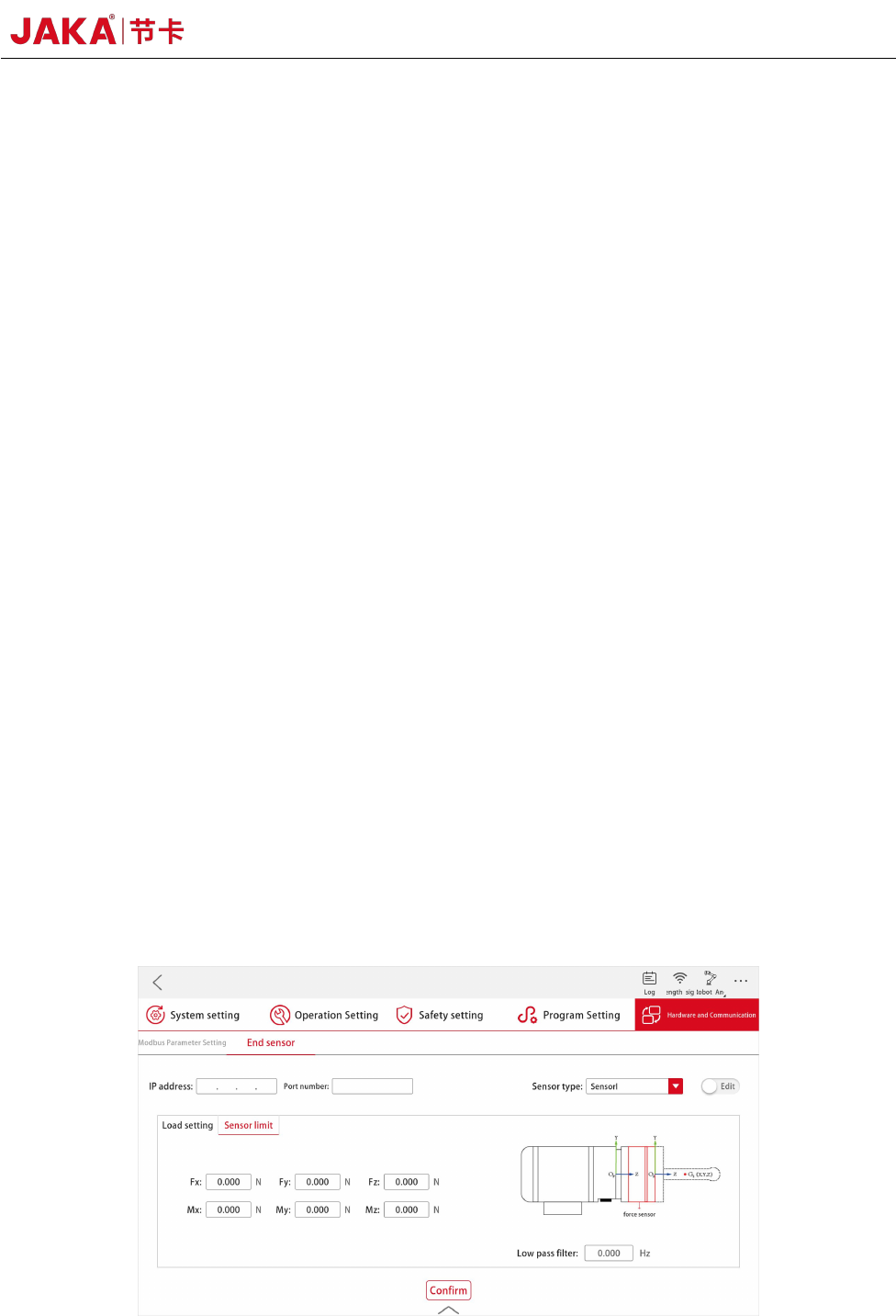
The safety force value is set in [Sensor Limit]. During the movement of the robot, if the force at
the end of the sensor is greater than the set threshold, the robot will stop its movement immediately
to avoid causing danger or property loss.
Figure 4. Settings of JAKA Zu Se Security Protection Function

8 JAKA Zu Se
c. Traction teaching function
As shown in Figure 3, after selecting the sensor type and setting IP, port number, filtering and
load, etc., the controller starts to receive data from the sensor after pressing [OK] and [Run].
As shown in Figure 4, enter [Manual operation]. First, enter [Configuration] interface, where Fx,
Fy and Fz correspond to displacement in X, Y and Z directions, and Mx, My and Mz correspond to
rotation in X, Y and Z directions. By checking the □ in front of [Direction] to enable a certain
direction or several directions, that is, after the drag and drop is opened, the robot can be dragged in
the enabling direction. The smaller the setting of [Damping force] is, the smaller the drag force is
required by the user. However, the smaller setting of [Damping force] is not the better. It is
suggested that F is greater than 10N and M is greater than 0.2nm, and the setting value shall not be 0.
[Rebound] enables the robot to return to the original position before dragging. The larger the setting
value is, the greater the force is required to drag the robot;
Tick "Tool Coordinate System" to drag the robot in the set tool coordinate system. Tick [World
Coordinate System], then drag the robot in the base coordinate system;
Initialize or not. After the controller runs, it enters the drag mode for the first time. tick
[Initialize] to compensate the sensor bias and load, and ensure that there is no external force contact
at the end of the robot during the drag, otherwise the compensation accuracy will be affected.
After the parameters are configured, click [OK] and then click [Exit] to enter the [Drag] mode.
Before entering the drag mode, the robot end shall not be subjected to external force, otherwise it
will cause compensation error of the sensor and cause danger.
Due to the temperature drift and other reasons of the sensor, if the robot's position drifts in the
drag mode, please [Exit] and enter [Drag] to make sensor compensation again. Do not use traction
teaching function, please [Exit] in time.