2OM-1751-003w_G5S.pdf - 第262页
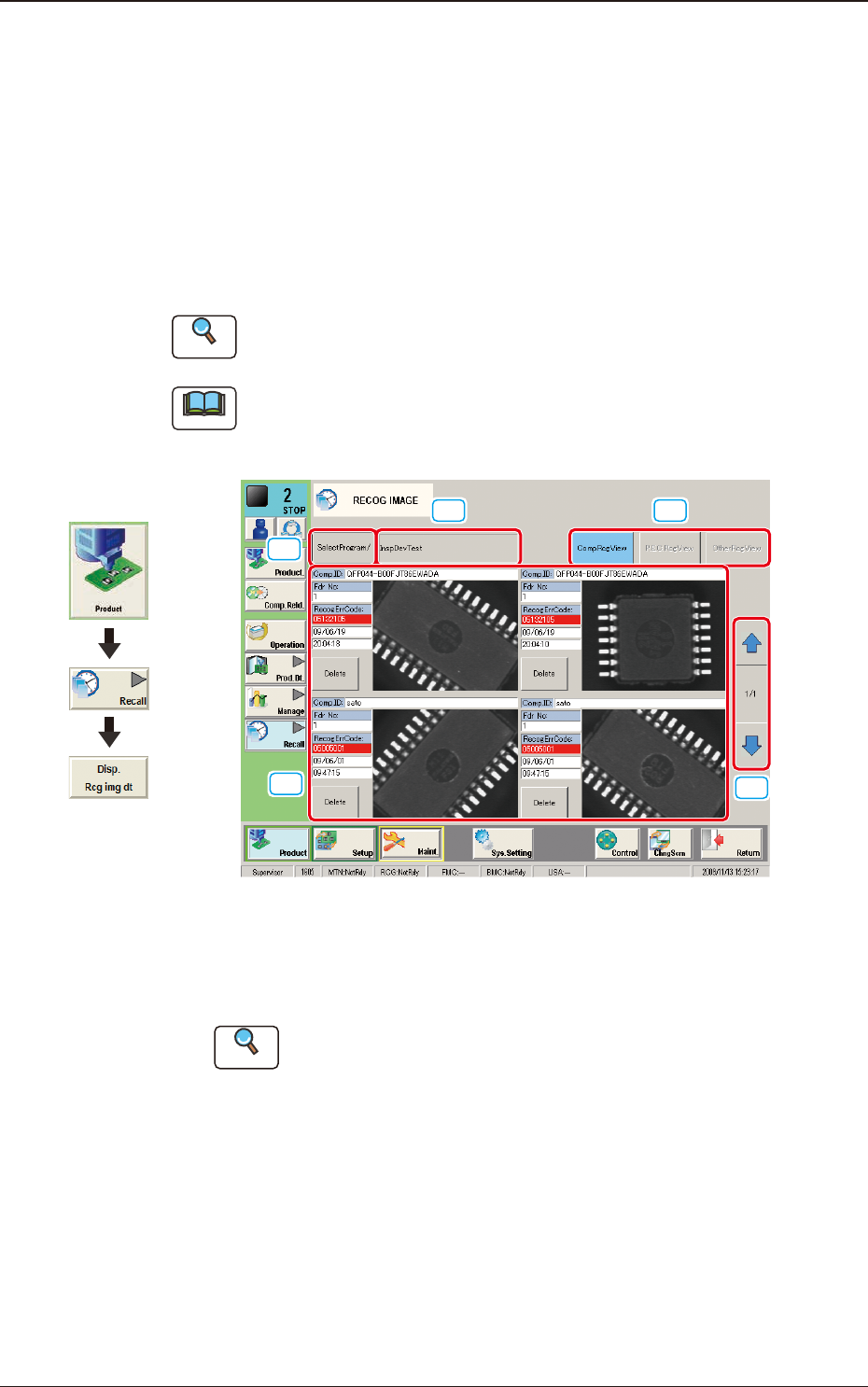
2OM-1751 5-6 1303-001 6. "RECOG IMAGE" Window When the [Disp. Recg img dt] button is pressed, the images of the components and PCB in the automatic operation are saved according to the "Recognized Image Sa…
2OM-1751
5-51303-001
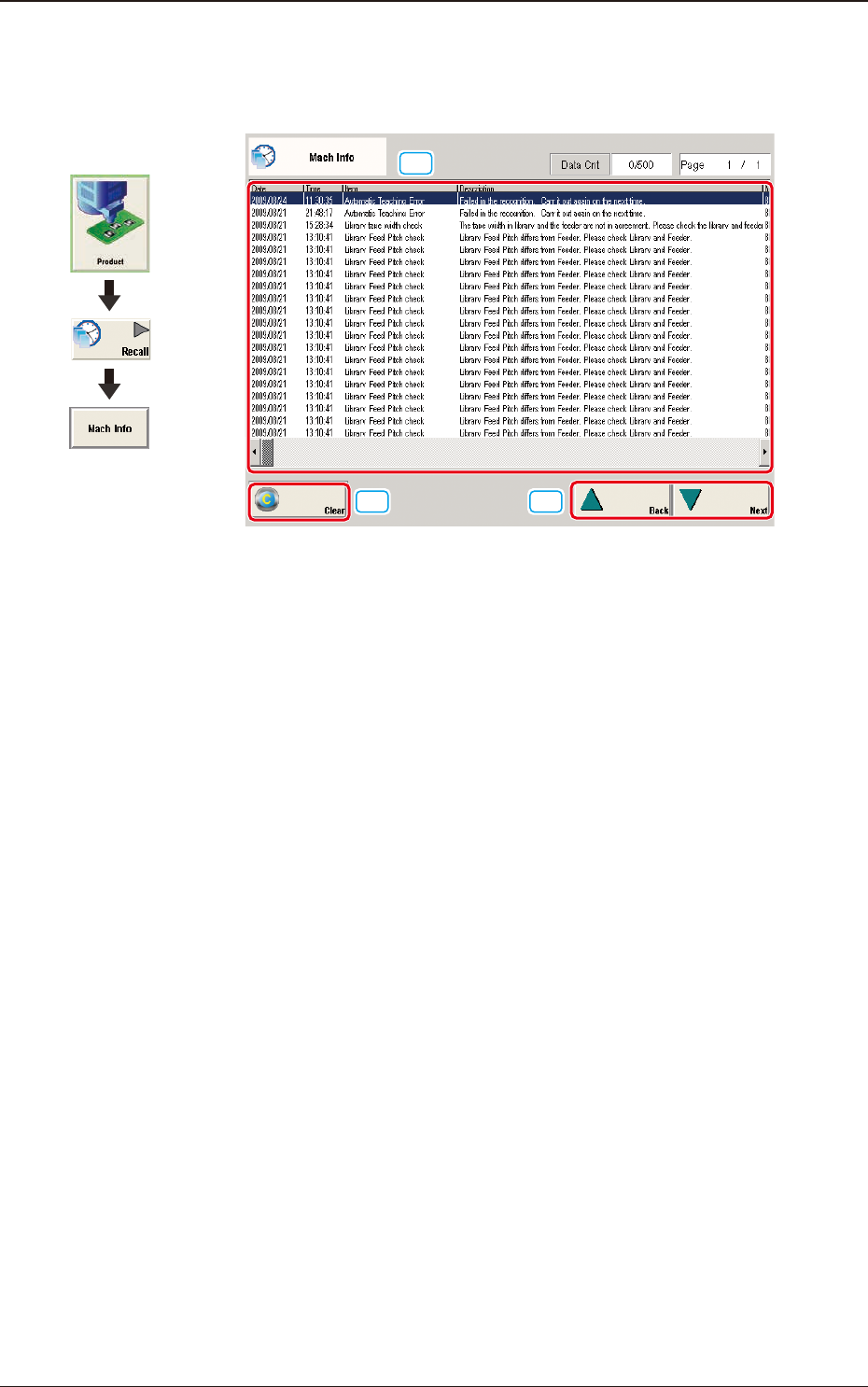
5. "Mach Info" Window
When the [Mach Info] button is pressed, the "Mach Info" window appears.
[2]
[3]
[1]
"Mach Info" Window F2E5
[1] Detailed Display
Up to 500 logs of the machine information will be displayed.
When the number of logs exceeds "500", the old logs are deleted in the
sequential order. That is, the logs are updated.
[2] [Clear] Button
When pressed, this button deletes the error logs.
[3] [Back] and [Next] Buttons
When the [Next] button is pressed, the next page opens. Pressing the [Back]
button opens the previous page.
Graphic
Development
5. "Mach Info" Window
2OM-1751
5-61303-001
6. "RECOG IMAGE" Window
When the [Disp. Recg img dt] button is pressed, the images of the components
and PCB in the automatic operation are saved according to the "Recognized
Image Save" settings.
Other recognition processing data is saved automatically. (Component
Recognition Test, PEC Recognition Test, Nozzle Recognition, Pocket
Recognition, Badmark (Option), 2-D Barcode (Option) and Various Jig
Recognitions, etc.)
Reference
Refer to "4.2.2 Recog Image Save" in "Chapter 1" for the details.
Note
When the machine is currently set in a running mode other than "STOP" or
"PAUSE", set the machine in the "STOP" or the "PAUSE" mode and press the
[Disp. Rcg img dt] button.
[1]
[2] [3]
[5]
[4]
F2E6
[1] [SelectProgram/] Button
When pressed, the list of the saved recognized image names is displayed.
Reference
Refer to "6.1 Recog Image List (Recognized Image List)"for the details.
[2] [ (Selected pattern program name) ] Button
When pressed, the selected pattern program recognized image is displayed.
Graphic
Development
6. "RECOG IMAGE" Window
2OM-1751
5-71303-001
[3] Displayed Item Change Button
[CompRcgView] Button
When pressed, the component recognized image is displayed.
[PECRcgView] Button
When pressed, the PEC recognized image is displayed.
[OtherRcgView] Button
When pressed, the other recognized images such as teaching, are displayed.
[4] Recognized Image Display Section
The saved recognized image data items are displayed in the four panes and
the images are displayed in order from the new one (Upper Left, Upper
Right, Lower Left and Lower Right in this order).
When the recognized image to be checked is selected, the recognized image
window appears.
Reference
Refer to "6.2 Recog Image Check Window" for the details of the "Recog
Image Window".
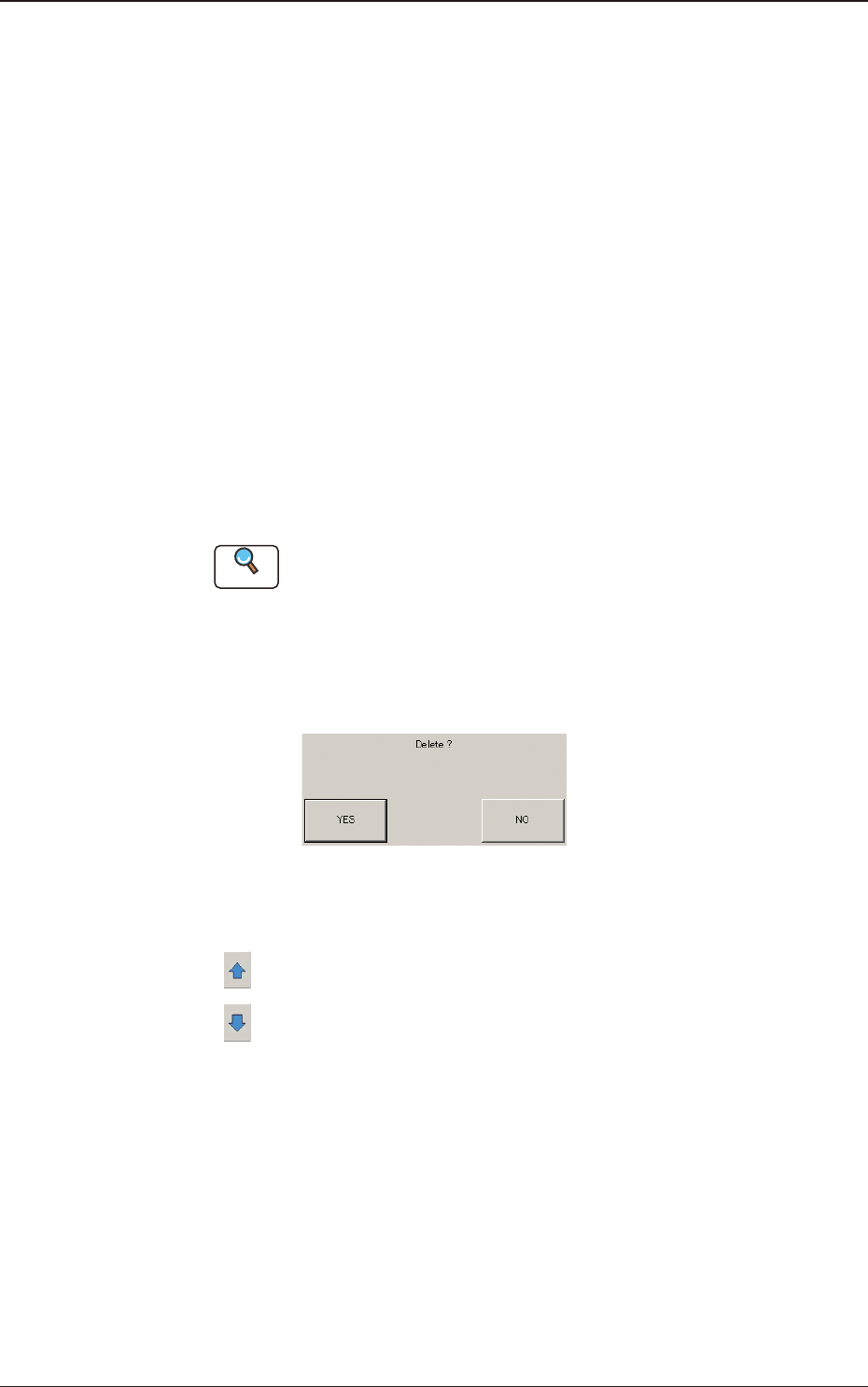
[Delete] Button
When the [Delete] button for the recognized image to be deleted, is pressed,
the deletion conrmation window appears.
F2E7
[5] Page Change Button
[
] : When pressed, the previous page appears.
[
] : When pressed, the next page appears.
6. "RECOG IMAGE" Window