2OM-1751-003w_G5S.pdf - 第370页
2OM-1751 6-98 1303-001 7.4.1 Manual Alignment Operation The PEC recognition position is located using the manual alignment operation. When the [Manual Alignment] button is pressed after the [Move] button is pressed on th…

2OM-1751
6-971303-001
[5] [Move] Button
Using this button, the beam is moved to the set position.
[6] [Manual Alignment] Button
Using this button, the window where the recognition position setup using the
manual alignment operation, is opened.
[7] [PEC Recog] Button
When this button is pressed, the PEC recognition test is prepared.
[8] Result:
In this pane, the PEC recognition test results are displayed.
[9] [PCB XFER] Button
When this button is pressed, the "PCB Transfer" window appears.
[10] [Save Image] Button
When this button is pressed, the "Image Save" window appears.
This window is used to save the test results.
[11] [Re-Recognition] Button
After pressing this button, the recognition image is touched in the "Manual
Alignment" window to re-recognize the marks.
7.4 "PEC RCG" Test Window
2OM-1751
6-981303-001
7.4.1 Manual Alignment Operation
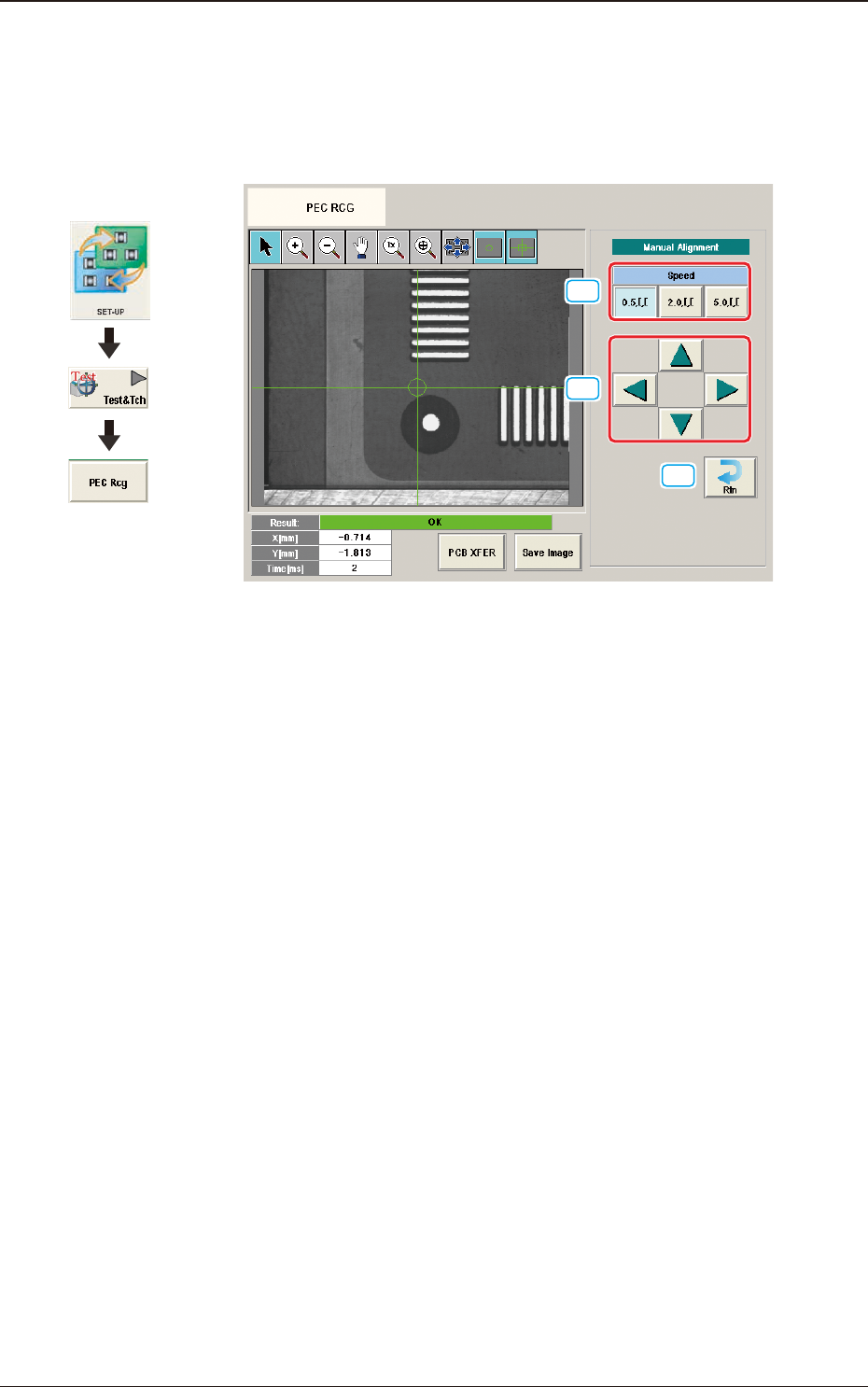
The PEC recognition position is located using the manual alignment operation.
When the [Manual Alignment] button is pressed after the [Move] button is pressed
on the "PEC RCG" test window, the "Manual Alignment" window appears.
[1]
[2]
[3]
F2F117
[1] [Speed] Button
The beam movement speed in the manual alignment operation is selected
from the following items.
[0.5 mm] Button, [2.0 mm] Button, [5.0 mm] Button
[2] Manual Alignment Operation
When pressed, the beam is moved at the speed selected in "[1] Speed Setup"
in the arrow direction.
[3] [Rtn] Button
When pressed, the "PCB Test" window is returned.
7.4 "PEC RCG" Test Window
Graphic
Development
2OM-1751
6-991303-001
7.4.2 PEC Recognition Test Procedure
•
PEC Recognition Test Preparation
Procedure
(1) Open the "PP CHANGE" window from the "Setup" main menu to set the
pattern program.
(2) Transfer the PCB to be tested onto the PCB positioning section on the "PCB
XFER" window selected from [Product.] menu or "PCB XFER" window
displayed by pressing the [PCB XFER] button in the "PEC RCG" test
window.
(3) Display the "Move to Setup Position" window or "Setting from Recog Data"
window and set each parameter for PEC recognition position and PEC
recognition mark.
Note
Selecting [Zone n] and [#n] for the global recognition position in the [Set
Data (Crnt.PP.)] window, can set the position data and PEC recognition
mark code.
(4) Set the XY beam movement position so that the PEC recognition mark with
which the PEC recognition test is performed, is within the recognition range
(camera view).
Note
For the XY beam movement operation, there are two ways; one is
"Move to Setup Position" where the movement destination is setup using
numerical value and the other is "Manual Alignment Operation" where
the recognition window is displayed and the XY beam position is adjusted
using the manual alignment operation, viewing the recognition image.
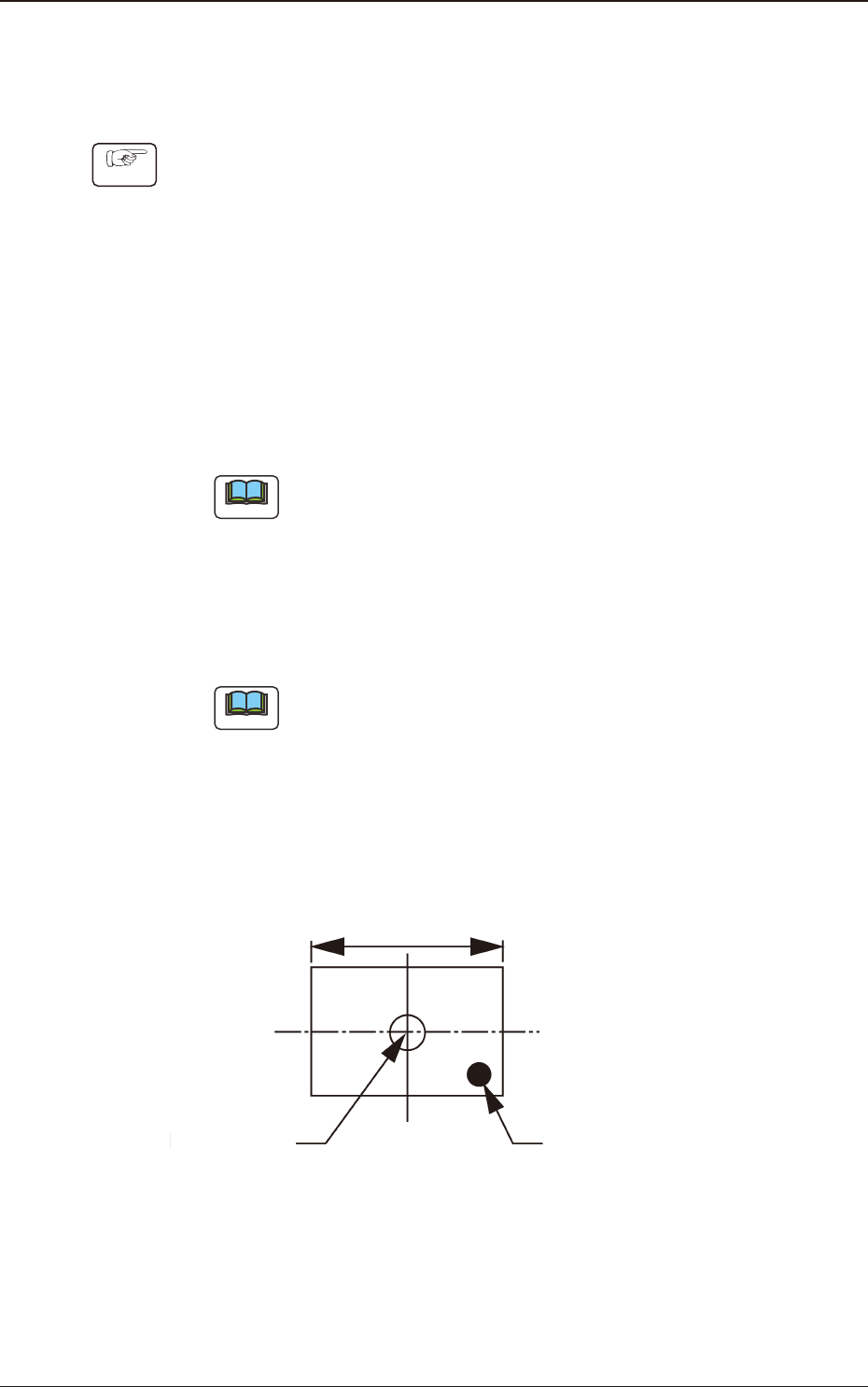
Locate the recognition mark close to a corner of the recognition range as
shown in the following gure.
Center of the
Recognized Image
Recognition Mark
Recognition Range
F2F118
7.4 "PEC RCG" Test Window