00193687-03.pdf - 第42页
3 Installation des SIPLACE Explorer Installati ons- und Konfigurationsanleitung SIPLACE Explor er 3.3 Installationsvorgang SIPLACE Explorer 2.0 Ausgabe 02/2005 DE 42 → In Abhängigkeit der ausgewählten Inst allati onsopti…
Installations- und Konfigurationsanleitung SIPLACE Explorer 3 Installation des SIPLACE Explorer
Ausgabe 02/2005 DE 3.3 Installationsvorgang SIPLACE Explorer 2.0
41
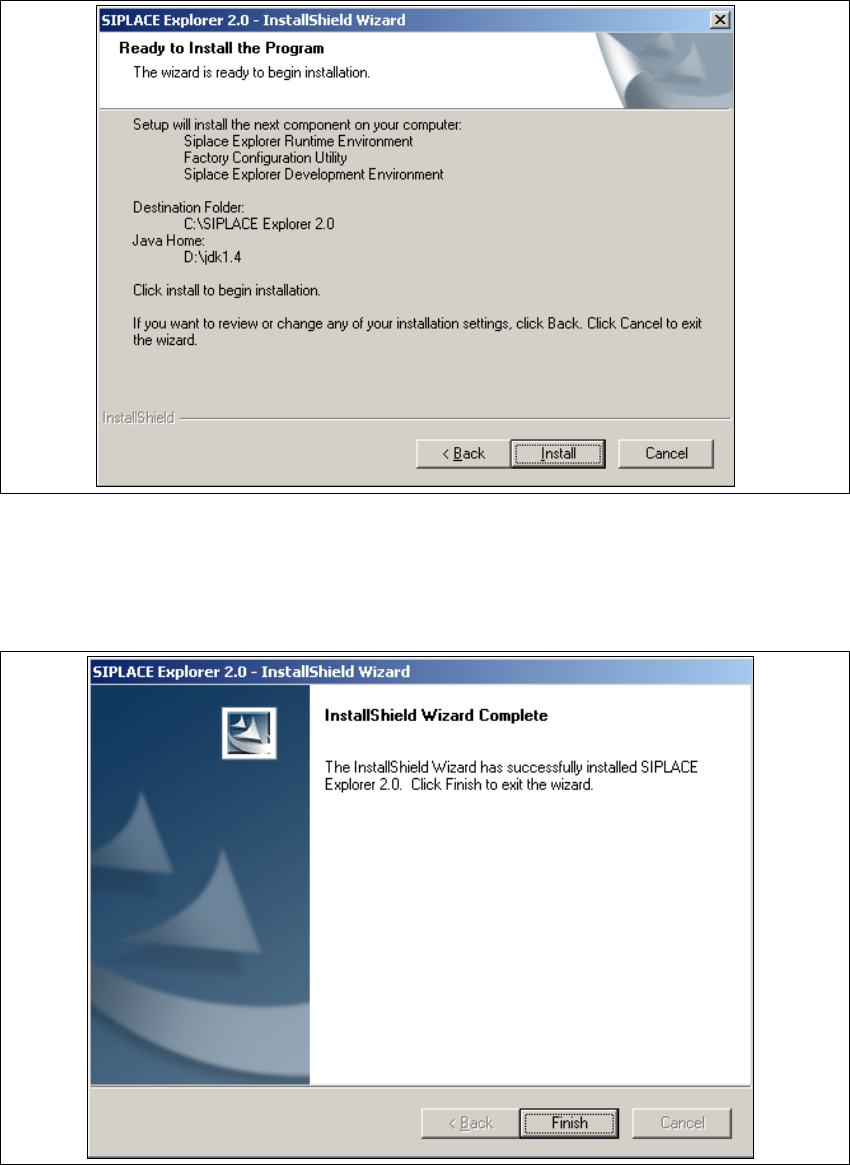
→ Das nachfolgende Dialogfenster wird angezeigt.
3
Abb. 3 - 23 SIPLACE Explorer Setup - Dialogfenster 'Ready to Install' (Bereit für die Installation)
→ Betätigen Sie die Sie die Schaltfläche Install, die eigentliche Installation von SIPLACE
Explorer V2.0 beginnt.
→ Wenn die Installation beendet ist, erscheint nachfolgendes Dialogfenster.
3
Abb. 3 - 24 SIPLACE Explorer Setup - Installation beendet
→ Klicken Sie auf Finish.
3 Installation des SIPLACE Explorer Installations- und Konfigurationsanleitung SIPLACE Explorer
3.3 Installationsvorgang SIPLACE Explorer 2.0 Ausgabe 02/2005 DE
42
→ In Abhängigkeit der ausgewählten Installationsoptionen können Sie SIPLACE Explorer aus
dem Menü Programme → SIPLACE Explorer 2.0 in Windows starten.
→ SIPLACE Explorer V.2.0 Runtime Environment:
Runtime Environment wird bei jedem Neustart des Computers als Windows NT Service
automatisch gestartet. Sie sehen das Symbol in der Konsole. Mit dem rechten Mausklick
können Sie weitere Applikationen und Tools starten. Sie haben folgende
Auswahlmöglichkeiten: 3
– SE Manager
– SE Security Manager
– Line Configuration
– Performance Analyzer
–Console
– Language
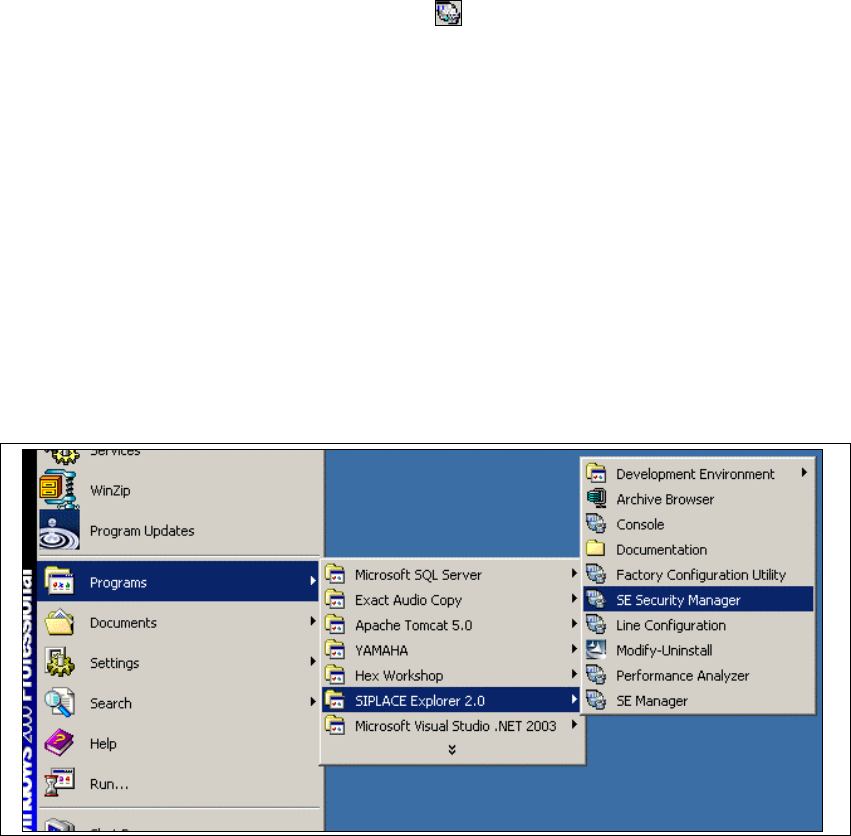
Sie können die weiteren Applikationen und Tools auch über das Windows-Menü Programme
→ SIPLACE Explorer 2.0 starten. 3
3
Abb. 3 - 25 RTE Windows Start Menü
Sie haben folgende Auswahlmöglichkeiten: 3
– Archive Browser
–Console
– Line Configuration
– Performance Analyser
– SE Manager
Installations- und Konfigurationsanleitung SIPLACE Explorer 3 Installation des SIPLACE Explorer
Ausgabe 02/2005 DE 3.3 Installationsvorgang SIPLACE Explorer 2.0
43
– SE Security Manager
– Modify-Uninstall
– Documentation
→ SIPLACE Explorer V.2.0 Development Environment
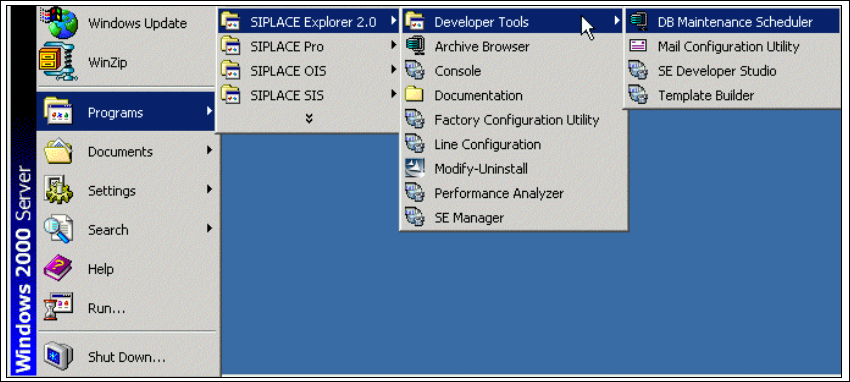
Starten Sie Development Environment über das Windows-Menü Programme → SIPLACE
Explorer 2.0 → Developer Tools. 3
3
Abb. 3 - 26 DE Windows Start Menü
Sie haben folgende weitere Applikationen und Tools zur Auswahl: 3
– DB Maintenance Scheduler
– Mail Configuration Utility
– SE Developer Studio
– Template Builder