00193687-03.pdf - 第44页
3 Installation des SIPLACE Explorer Installati ons- und Konfigurationsanleitung SIPLACE Explor er 3.3 Installationsvorgang SIPLACE Explorer 2.0 Ausgabe 02/2005 DE 44 → SIPLACE Explorer V .2.0 Fa ctory Configuration Utili…
Installations- und Konfigurationsanleitung SIPLACE Explorer 3 Installation des SIPLACE Explorer
Ausgabe 02/2005 DE 3.3 Installationsvorgang SIPLACE Explorer 2.0
43
– SE Security Manager
– Modify-Uninstall
– Documentation
→ SIPLACE Explorer V.2.0 Development Environment
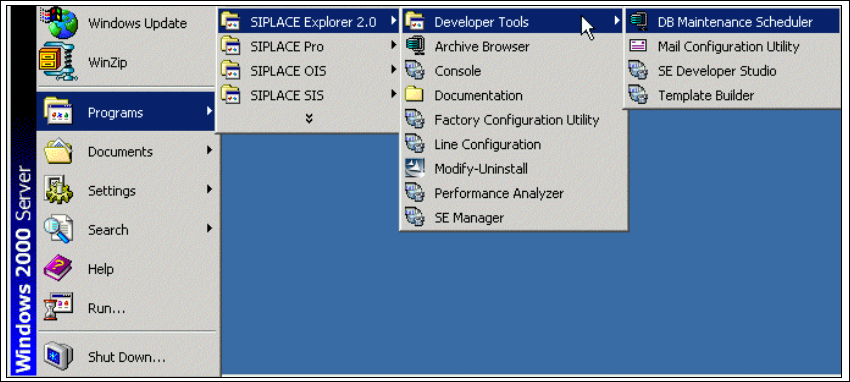
Starten Sie Development Environment über das Windows-Menü Programme → SIPLACE
Explorer 2.0 → Developer Tools. 3
3
Abb. 3 - 26 DE Windows Start Menü
Sie haben folgende weitere Applikationen und Tools zur Auswahl: 3
– DB Maintenance Scheduler
– Mail Configuration Utility
– SE Developer Studio
– Template Builder
3 Installation des SIPLACE Explorer Installations- und Konfigurationsanleitung SIPLACE Explorer
3.3 Installationsvorgang SIPLACE Explorer 2.0 Ausgabe 02/2005 DE
44
→ SIPLACE Explorer V.2.0 Factory Configuration Utility
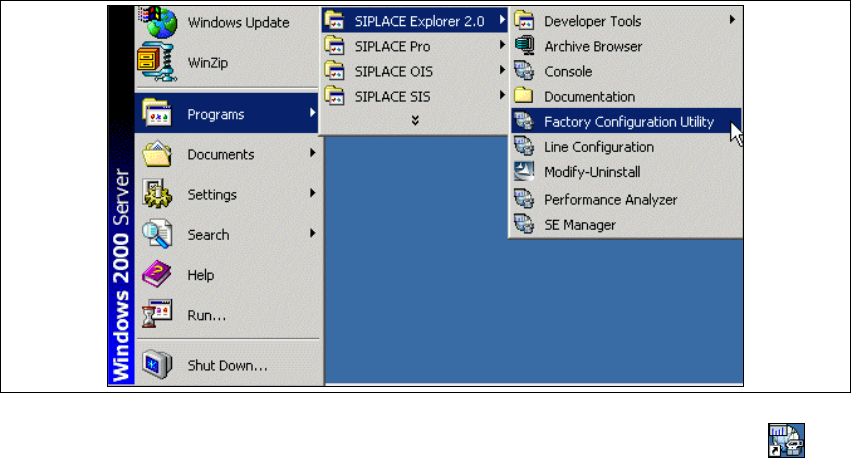
Starten Sie Factory Configuration Utility über das Windows-Menü Programme → SIPLACE
Explorer 2.0 → Factory Configuration Utility. 3
3
Abb. 3 - 27 Factory Configuration Utility Windows Start Menü
→ Oder klicken Sie auf Ihrem Desktop auf das Symbol Factory Configuration Utility .
3
Installations- und Konfigurationsanleitung SIPLACE Explorer 3 Installation des SIPLACE Explorer
Ausgabe 02/2005 DE 3.4 Installationsvorgang Tomcat 5.0
45
3.4 Installationsvorgang Tomcat 5.0
HINWEIS
Sie müssen über Windows 2000 Administrator-Rechte verfügen, um die Installation ausführen zu
können. 3
HINWEIS
Bevor Sie Tomcat 5.0 installieren können, müssen Sie alle Versionen < 5.0 von Tomcat unbedingt
deinstallieren. 3
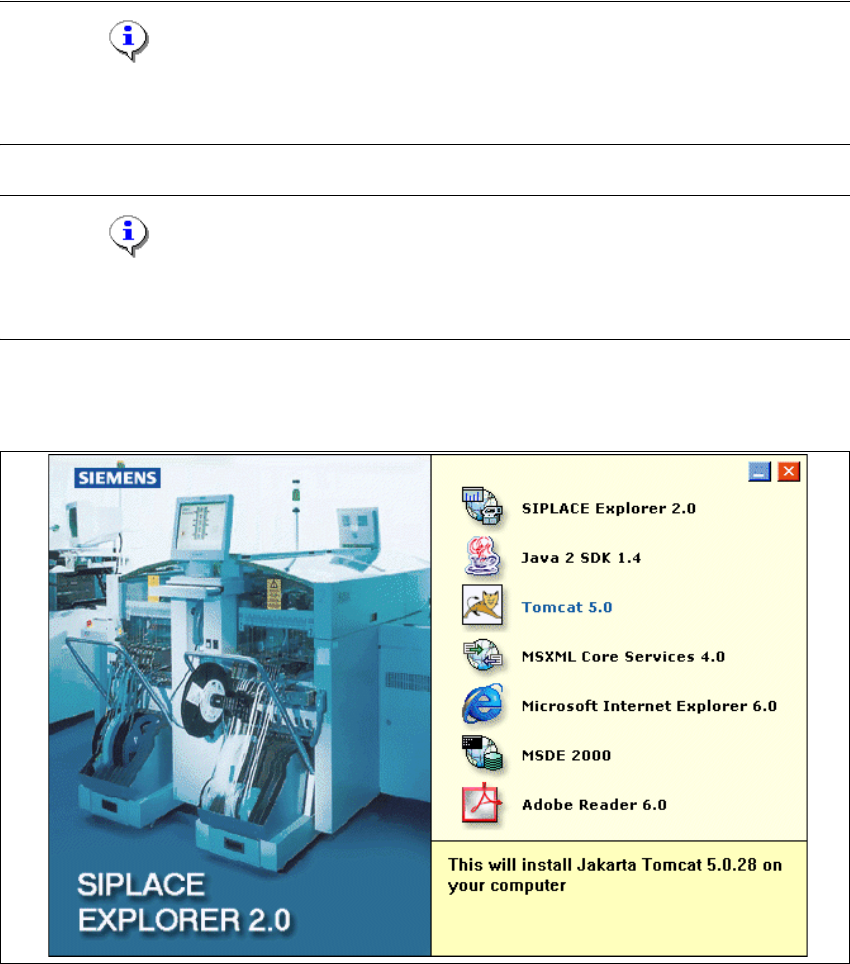
→ Legen Sie die SIPLACE Explorer CD in Ihr CD-Rom-Laufwerk ein. Es erscheint der Start
Screen.
3
Abb. 3 - 28 SIPLACE Explorer setup - Start Screen
→ Wählen Sie Tomcat 5.0 aus.