00193687-03.pdf - 第46页
3 Installation des SIPLACE Explorer Installati ons- und Konfigurationsanleitung SIPLACE Explor er 3.4 Installationsvorgang Tomcat 5.0 Ausgabe 02/2005 DE 46 → Die benutzergeführte Inst allati on von T omcat wird gestar te…
Installations- und Konfigurationsanleitung SIPLACE Explorer 3 Installation des SIPLACE Explorer
Ausgabe 02/2005 DE 3.4 Installationsvorgang Tomcat 5.0
45
3.4 Installationsvorgang Tomcat 5.0
HINWEIS
Sie müssen über Windows 2000 Administrator-Rechte verfügen, um die Installation ausführen zu
können. 3
HINWEIS
Bevor Sie Tomcat 5.0 installieren können, müssen Sie alle Versionen < 5.0 von Tomcat unbedingt
deinstallieren. 3
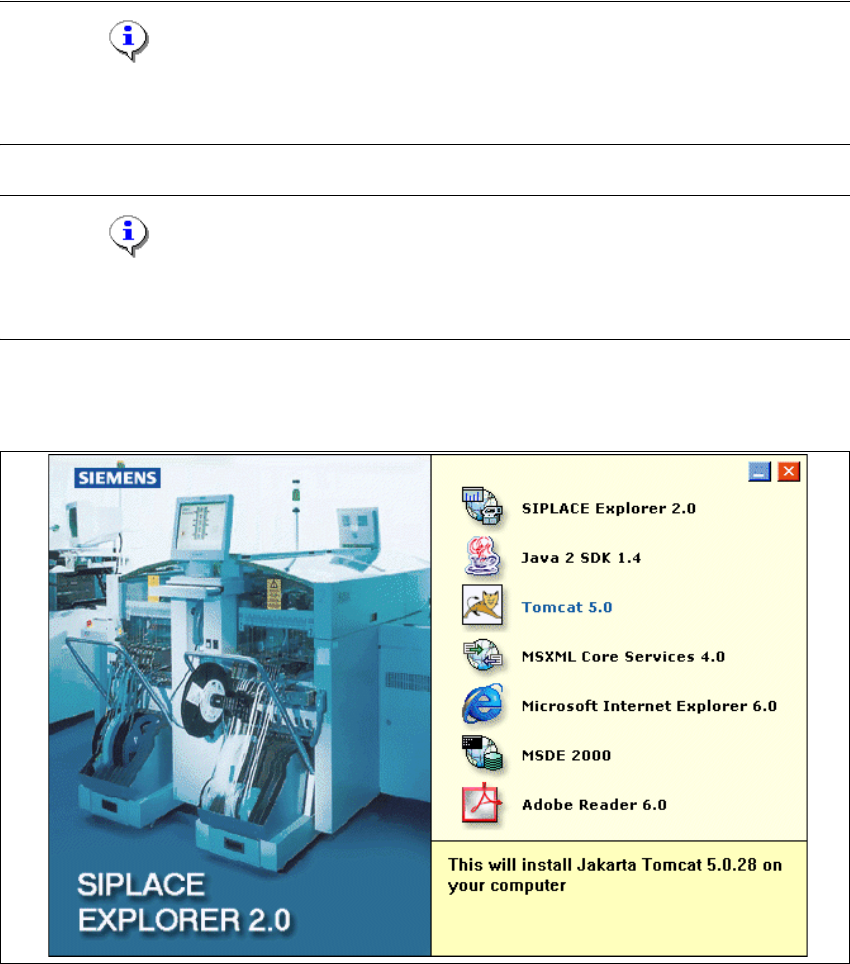
→ Legen Sie die SIPLACE Explorer CD in Ihr CD-Rom-Laufwerk ein. Es erscheint der Start
Screen.
3
Abb. 3 - 28 SIPLACE Explorer setup - Start Screen
→ Wählen Sie Tomcat 5.0 aus.
3 Installation des SIPLACE Explorer Installations- und Konfigurationsanleitung SIPLACE Explorer
3.4 Installationsvorgang Tomcat 5.0 Ausgabe 02/2005 DE
46
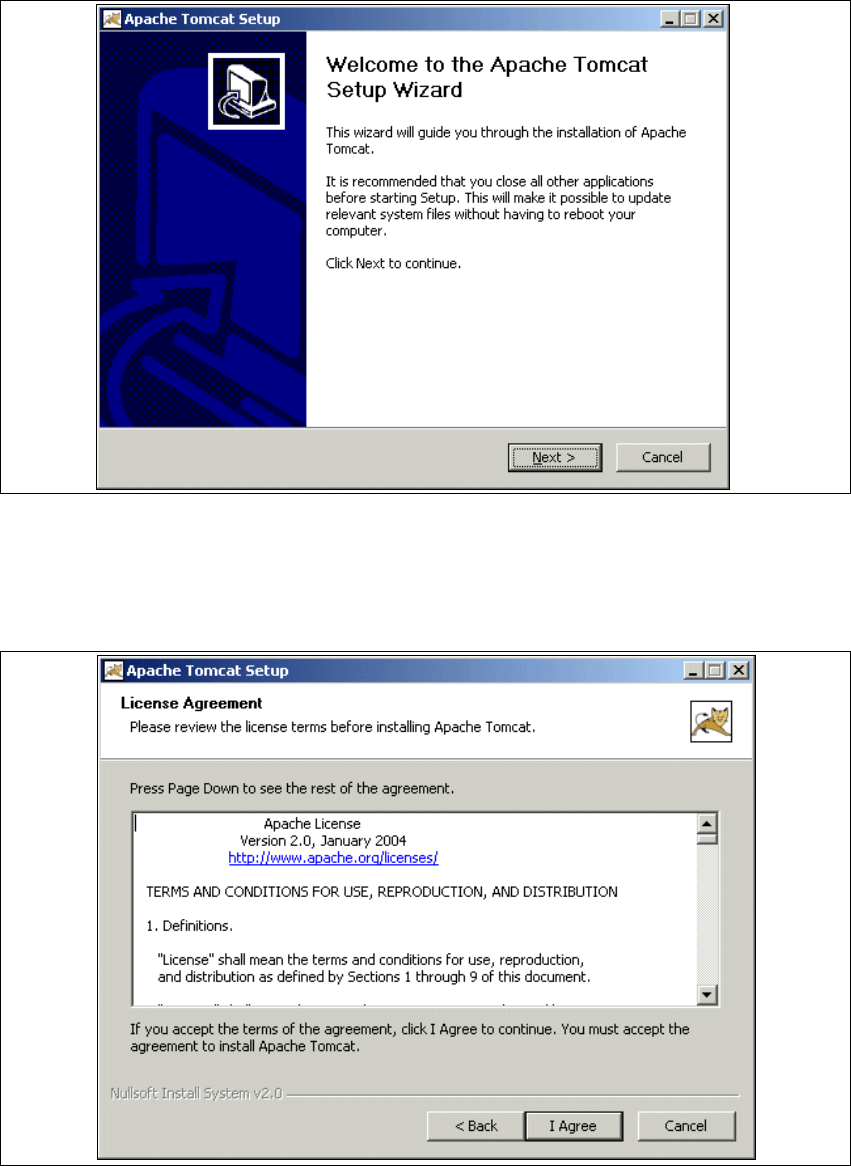
→ Die benutzergeführte Installation von Tomcat wird gestartet.
3
Abb. 3 - 29 Apache Tomcat Setup - Welcome Screen
→ Beenden Sie alle anderen Programme und klicken Sie dann auf Next (Weiter).
→ Lesen Sie die Lizenzbestimmungen. Wenn Sie zustimmen, I Agree anklicken, ansonsten
Cancel. Wenn Sie Cancel anklicken, wird die Installation beendet.
3
Abb. 3 - 30 Apache Tomcat Setup - Lizenzvereinbarungen
Installations- und Konfigurationsanleitung SIPLACE Explorer 3 Installation des SIPLACE Explorer
Ausgabe 02/2005 DE 3.4 Installationsvorgang Tomcat 5.0
47
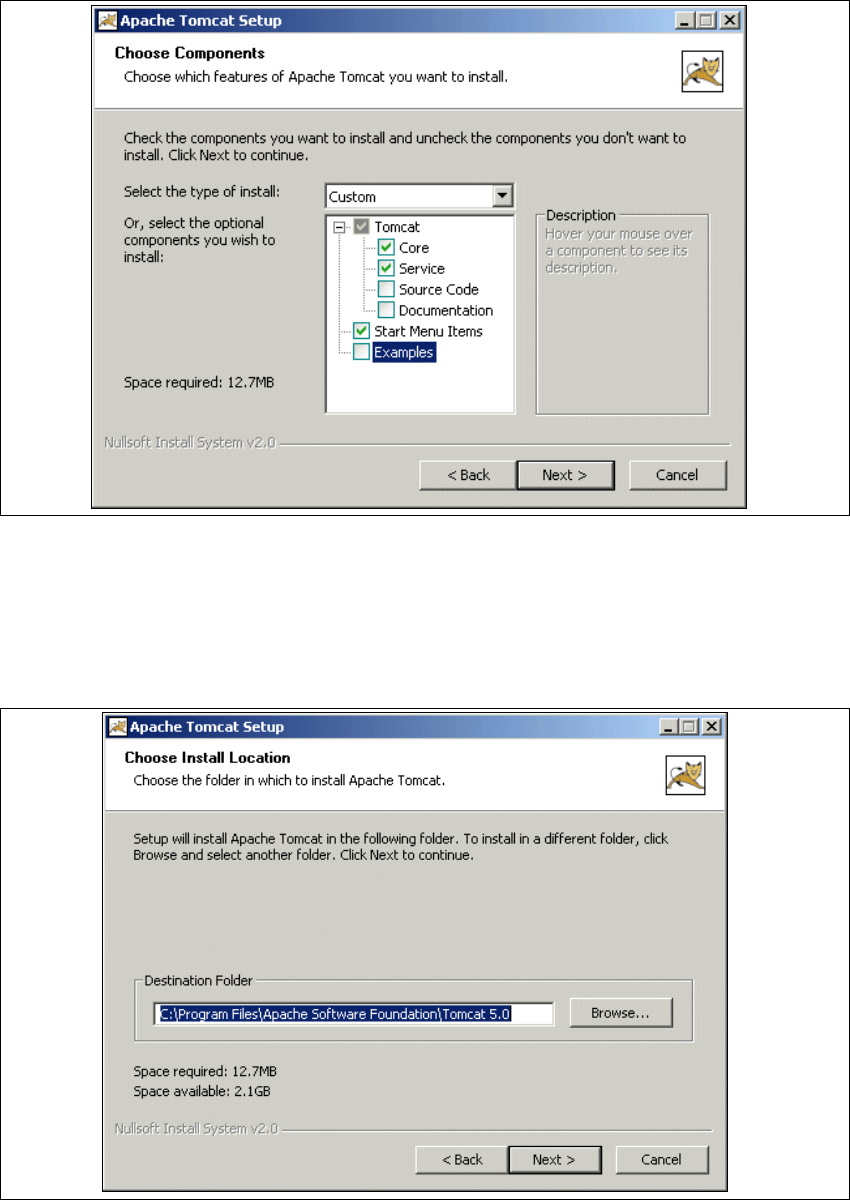
→ Wählen Sie jetzt die Komponenten aus, die Sie installieren möchten.
3
Abb. 3 - 31 Apache Tomcat Setup - Auswahl der Komponenten
→ Wählen Sie als Installationstyp Custom aus.
→ Klicken Sie unter Tomcat die Optionen Core und Service an. Klicken Sie dann auf Next
(Weiter).
→ Geben Sie jetzt den Ordner an, in dem Sie die Anwendung installieren möchten.
3
Abb. 3 - 32 Apache Tomcat Setup - Zielordner wählen