00197190-03_VD_SIPLACE_Pro_10_1_SP1_DE_EN.pdf - 第33页
SIPLAC E Pro V10. 1 SP1 / Softwar e Version Desc ripti on Ausgabe 02/2013 Edit ion 33 5.11 SIPLACE LED Pairi ng – Enhanceme nts in SIPLA CE Pro Following enhanc em ents have be en perf ormed f or SIPL ACE LED P airing in…
SIPLACE Pro V10.1 SP1 / Software Version Description Ausgabe 02/2013 Edition
32
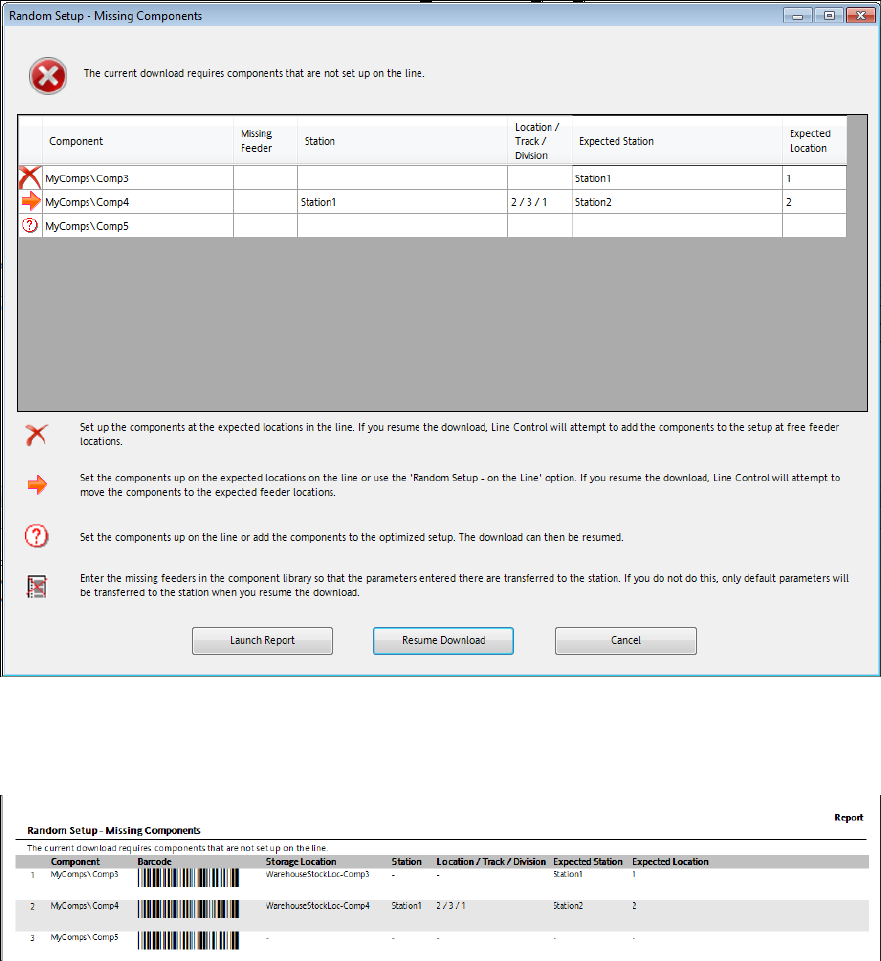
Figure 4-18: Missing components – creating a report
► Click on the Launch Report button.
The following report is displayed for the missing components:
Figure 4-19: Missing components - report
Additionally, the barcode and the storage location are displayed in the report. If no values are
assigned to Storage Location, Station and Location/Track/Division, these three columns will not
be displayed.
► Click on the Resume Download button.
The dialog is displayed again and now only contains the Comp5 component that has to be manually
set-up before the download is repeated one more time.
5.10.2 Support of Station-Wise Download
As of this SIPLACE Pro version, the station-wise download is supported combined with Random
Setup. Detailed information can be found in the SIPLACE Random Setup User Manual.
SIPLACE Pro V10.1 SP1 / Software Version Description Ausgabe 02/2013 Edition
33
5.11 SIPLACE LED Pairing – Enhancements in SIPLACE Pro
Following enhancements have been performed for SIPLACE LED Pairing in SIPLACE Pro.
– The functionality of SIPLACE LED Pairing Controller is supported.
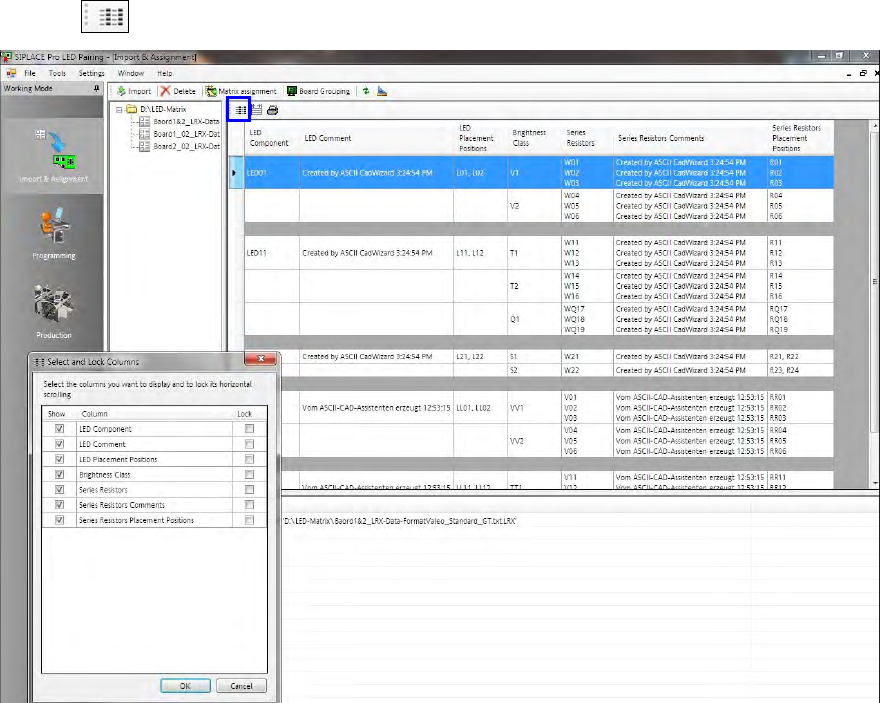
– Depending on the configuration, the comments to the LED components can be displayed.
Furthermore, the corresponding series resistors are displayed in separate rows.
– With the button, a dialog is opened in which you can set the columns to be displayed.
Figure 4-20: SIPLACE LED Pairing – displaying columns
SIPLACE Pro V10.1 SP1 / Software Version Description Ausgabe 02/2013 Edition
34
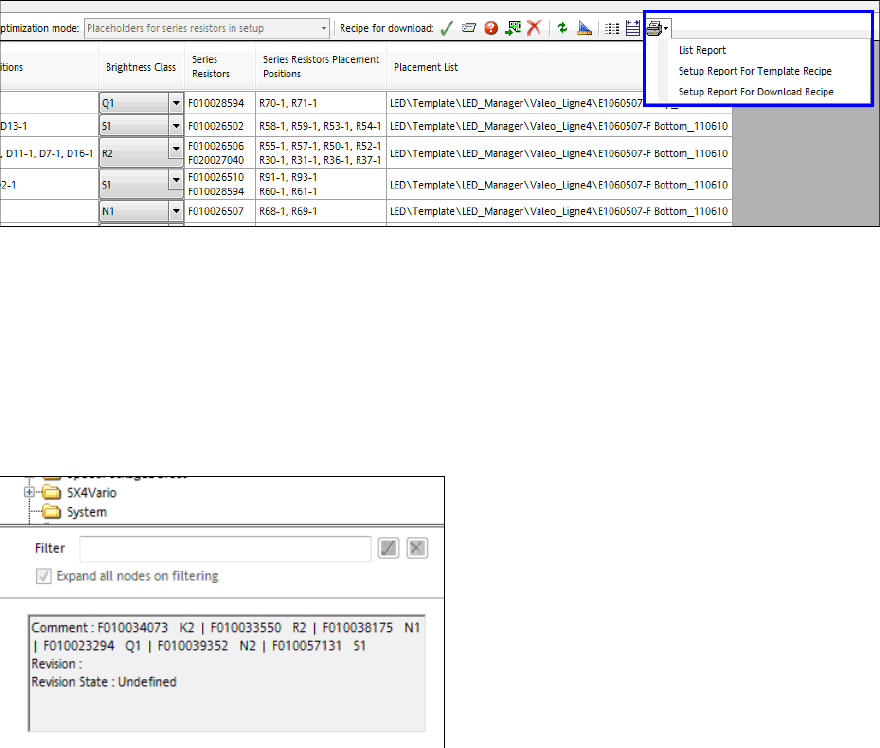
– The setup report can be started either in SIPLACE Pro Desk or in the Production view in
SIPLACE LED Pairing, as well.
Figure 4-21: Starting setup report
– Multiple recipes can be simultaneously selected to be deleted in the Production view in
SIPLACE LED Pairing.
– If a recipe is prepared to be downloaded, a new setup will be created. If the brightness class is
changed afterwards and a second recipe is prepared to be downloaded, the first created recipe
will be used as template, to avoid unnecessary changes.
– In SIPLACE Pro Desk, the selected brightness class is displayed as a comment to the recipes
and boards that have been created for download.
Figure 4-22: Brightness class as comment