00197190-03_VD_SIPLACE_Pro_10_1_SP1_DE_EN.pdf - 第43页
SIPLAC E Pro V10. 1 SP1 / Softwar e Version Desc ripti on Ausgabe 02/2013 Edit ion 43 Figure 4- 30 : Job Communality t ab The Components and Job s views ar e pro vided in the right win dow for the an alysis . Various op …
SIPLACE Pro V10.1 SP1 / Software Version Description Ausgabe 02/2013 Edition
42
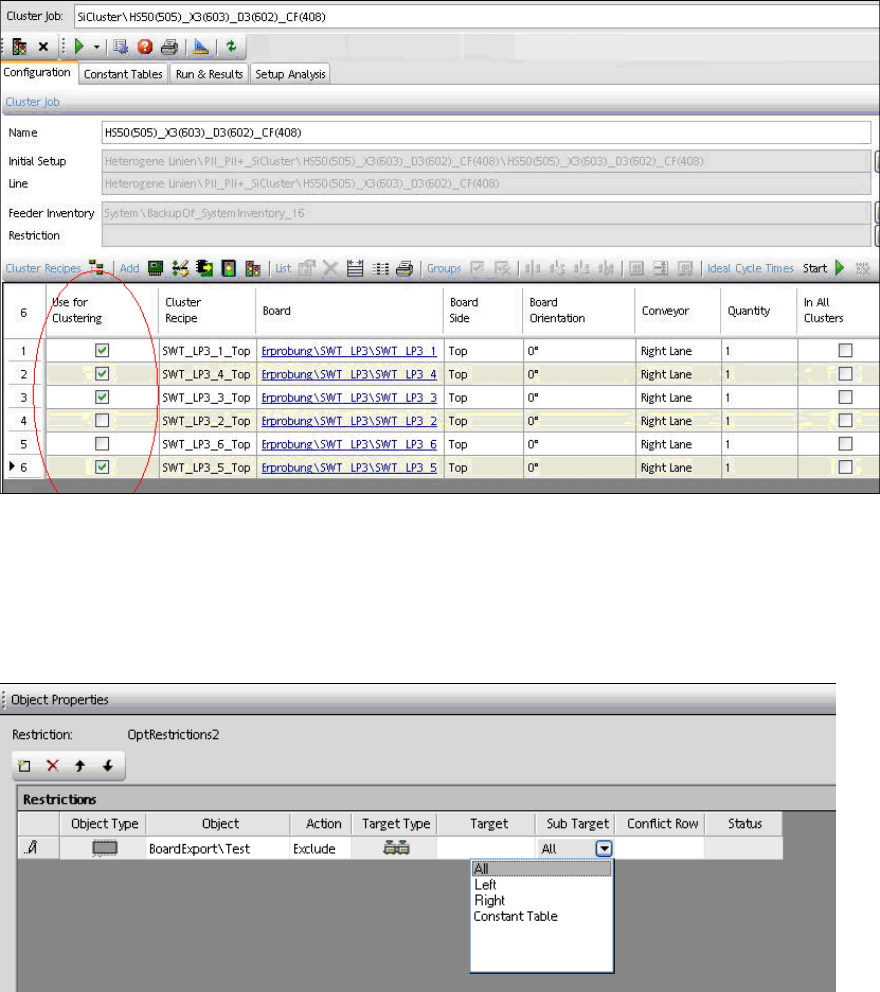
Figure 4-28: Selecting recipes for cluster job
● Creating restriction objects and assigning them to a cluster job
Certain (i.e. expensive) components should not be set-up on constant tables to avoid that they
get used up. Such components can be excluded from constant tables in a restriction object
(under Sub Target – Constant Table) in the Restriction Editor of SIPLACE Pro Desk.
Components can also be explicitly bound to a constant table.
Figure 4-29: Creating restriction object
Thereafter, the restriction object can be assigned to a cluster job.
● In the Run & Results tab, the new Placement with quantity column is available for the
number of placed components.
● The analysis for component communality has been adjusted and improved.
– For each recipe that is marked in the left window, a separate column is displayed in the
right window.
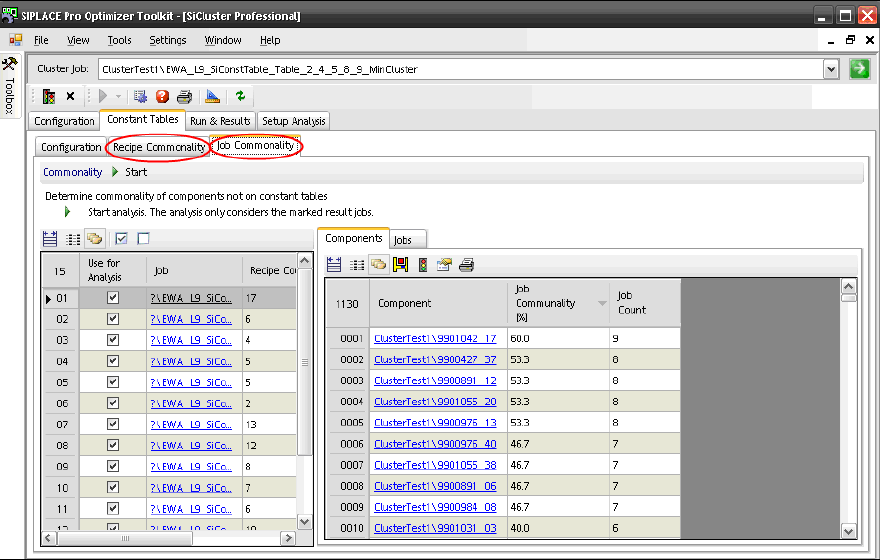
– New Job Communality tab.
SIPLACE Pro V10.1 SP1 / Software Version Description Ausgabe 02/2013 Edition
43
Figure 4-30: Job Communality tab
The Components and Jobs views are provided in the right window for the analysis.
Various options can be regarded for the analysis by using the buttons in the tool bar of
these views.
Components
– Include constant tables.
– Display a separate column for each marked job in the left window.
– Display job columns with job name instead of numbers.
Jobs
– Compare the combination of the jobs that are selected in the left window. The number
of components which are common for these jobs but are not set-up on constant tables
is displayed.
– Optionally, the components which are already set-up on constant tables may be
included. Thus, a higher number of components with communality is displayed.
– Display a minimum number of components that are common for the jobs. Default value:
2. With this value, compared results with 2 or less common components will not be
displayed.
– By double-clicking on a row or selecting the magnifying glass in the tool bar, a new
window is opened in which a list is displayed with the components that are common in
the compared jobs.
5.14 Displaying Precedence Rules – Enhancements
The "Precedence Finder" program has been enhanced in the SIPLACE Pro Optimizer Toolkit as
follows:
– Using a filtered list of the precedence rules for nozzles in the Precedence Finder
– 3D view of the precedence rules in SIPLACE Pro Desk
SIPLACE Pro V10.1 SP1 / Software Version Description Ausgabe 02/2013 Edition
44
5.14.1 Creating Filtered List of Precedence Rules for Nozzles
With the Precedence Finder in the Optimizer Toolkit you can search for potential nozzle collisions.
For this, the Precedence Finder uses all nozzles that are assigned to the component shapes.
However, as only particular nozzles can be used in the line, it is possible to create a corresponding
filtered list as of this SIPLACE Pro version. Thus, the check for a potential nozzle collision will be
restricted to the nozzles which may be used in the production.
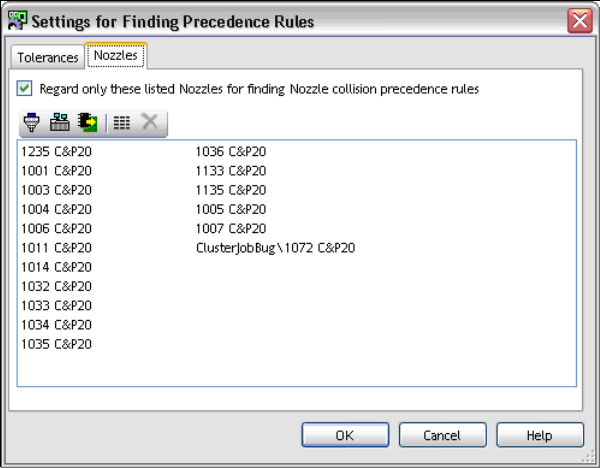
For this, the new Nozzles tab is available under Settings in the Precedence Finder. The hitherto
existing settings are available in the Tolerances tab.
Figure 4-31: Precedence Finder – Nozzles tab
A nozzle list can be created with the tool bar icons in the Nozzles tab.
► Select the nozzles for the list.
If the nozzle icon is selected, a dialog with all nozzles will open. Multiple nozzles can be
selected and confirmed with OK. The selected nozzles will be added to the list.
If the setup icon is selected, a dialog with all setups will open. Multiple setups can be selected
and confirmed with OK. The nozzles which are used on the placement heads and in the nozzle
changers in the selected setups will be added to the list.
If the recipe icon is selected, a dialog with all recipes will open. A recipe can be selected and
confirmed with OK. The nozzles which are used in the recipe will be added to the list.
If the list icon is selected, all selected nozzles will be displayed. Nozzles can be deleted from
the list with the delete icon.
► Tag the Regard only these listed Nozzles for finding Nozzle collision precedence rules
setting to enable the function.
If the function is enabled, a red nozzle will be displayed at the bottom of the main menu in the
Precedence Editor.
► Click on OK to save the list.
► Start the search run in the Precedence Editor.
Only the nozzles that are contained in the list and for which potential nozzle collisions are found will
be displayed.