00197190-03_VD_SIPLACE_Pro_10_1_SP1_DE_EN.pdf - 第47页
SIPLAC E Pro V10. 1 SP1 / Softwar e Version Desc ripti on Ausgabe 02/2013 Edit ion 47 5.15 Replacing / Removing Noz zle s in Setups wit h the Data Mainte nance Tool You can s earch f or setu ps with sp ecific nozzles u n…
SIPLACE Pro V10.1 SP1 / Software Version Description Ausgabe 02/2013 Edition
46
Precedence Finder
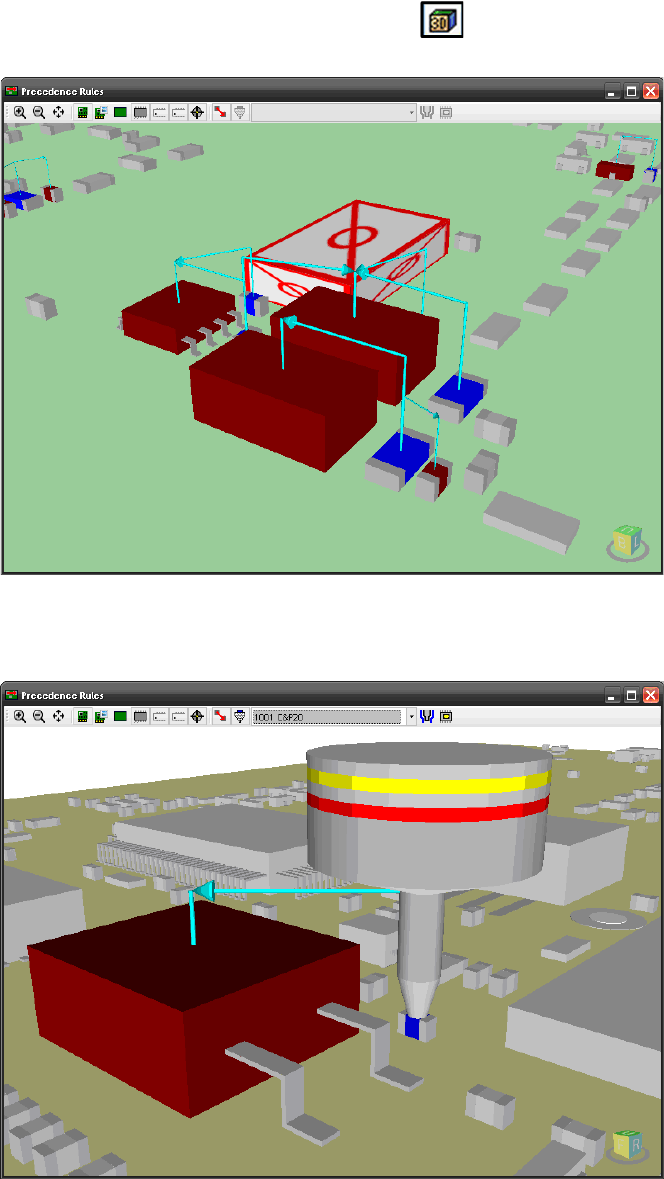
The 3D view of a board can be started with the icon in the tool bar of the main menu, too. The
3D view will be displayed in a separate window.
Figure 4-33: 3D view of the board in the Precedence Finder
If only a precedence rule of type "Nozzle collision" is selected in the main menu, the nozzle will
also be displayed.
Figure 4-34: 3D view of nozzle in the Precedence Finder
Optionally, settings can be made in the 3D window to display the tolerance radius for the nozzle
and the pick-up position in the 3D view.
SIPLACE Pro V10.1 SP1 / Software Version Description Ausgabe 02/2013 Edition
47
5.15 Replacing / Removing Nozzles in Setups with the Data
Maintenance Tool
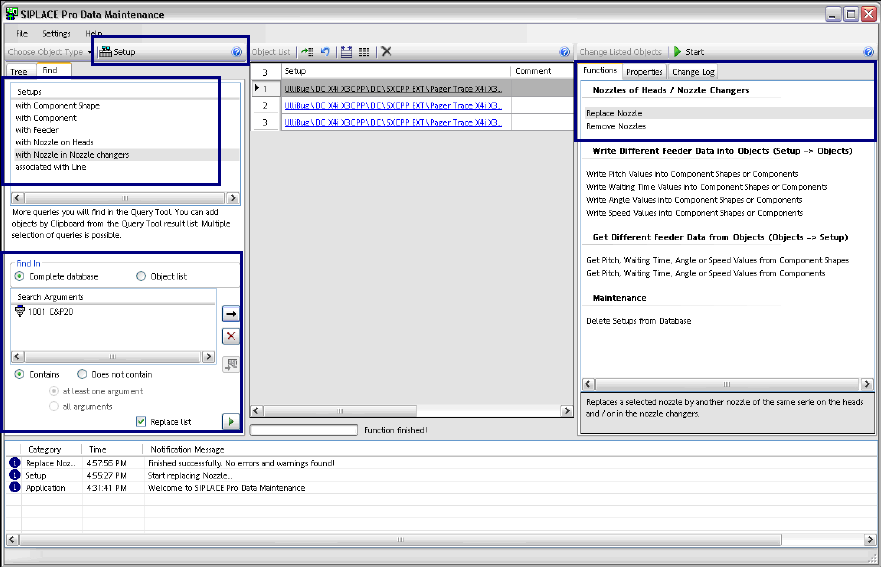
You can search for setups with specific nozzles under the Setup and Nozzles object types in the
Data Maintenance Tool. It is also possible to search for specific nozzles in setups.
Additionally, two new functions are available for the Setup object type:
– Replace Nozzle
– Remove Nozzles
With these functions, nozzles can be replaced in or removed from setups in the database.
Figure 4-35: Data Maintenance – Setup object type
Searching Setups with Nozzles
If the Setup object type is selected in the tool bar, it is possible to search for either Setups with
Nozzle on Heads or Setups with Nozzle in Nozzle changer in the Find tab. The search run will
only be indirectly performed if a nozzle has to be replaced.
The nozzles have to be selected under Search Arguments.
After the search query has been started, all setups in which the selected nozzles are used will be
displayed in the Object List.
SIPLACE Pro V10.1 SP1 / Software Version Description Ausgabe 02/2013 Edition
48
Searching Nozzles in Setups
If the Nozzles object type is selected in the tool bar, it is possible to search for either Nozzles in
Setups on Heads or Nozzles in Setups in Nozzle changers in the Find tab. The search run will
only be indirectly performed if a nozzle has to be replaced.
The setups have to be selected under Search Arguments.
After the search query has been started, all nozzles that are used in the selected setups will be
displayed in the Object List.
Replacing Nozzles in Setup
After the Setup object type has been selected and the setups have been added to the Object List,
the Replace Nozzle function has to be selected in the Functions window.
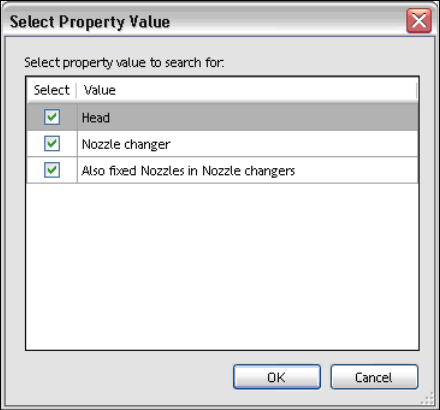
All nozzles that shall be replaced have to be tagged in the following dialog.
Figure 4-36: Selecting property value
In the subsequent dialogs, both the nozzle to be replaced and the substitute nozzle have to be
selected and confirmed.
Removing Nozzles from Setup
After the Setup object type has been selected and the setups have been added to the Object List,
the Remove Nozzles function has to be selected in the Functions window.
All nozzles that shall be removed have to be tagged in the Select Property Value dialog.
After confirmation, the selected nozzles do not exist in the selected setups anymore.