ISM-2000_OPE.pdf - 第18页
Software 3.1 rev_0 1 Edition 06/20 16 - Reproduction forbidden a Page 18 Storage Solut ions Soft ware Operating Manual Allows extracting a reel without opening a sessio n. The reel needs to be selected by using the check…
Software 3.1 rev_01 Edition 06/2016 - Reproduction forbidden
a
Page 17
Storage Solutions Software Operating Manual
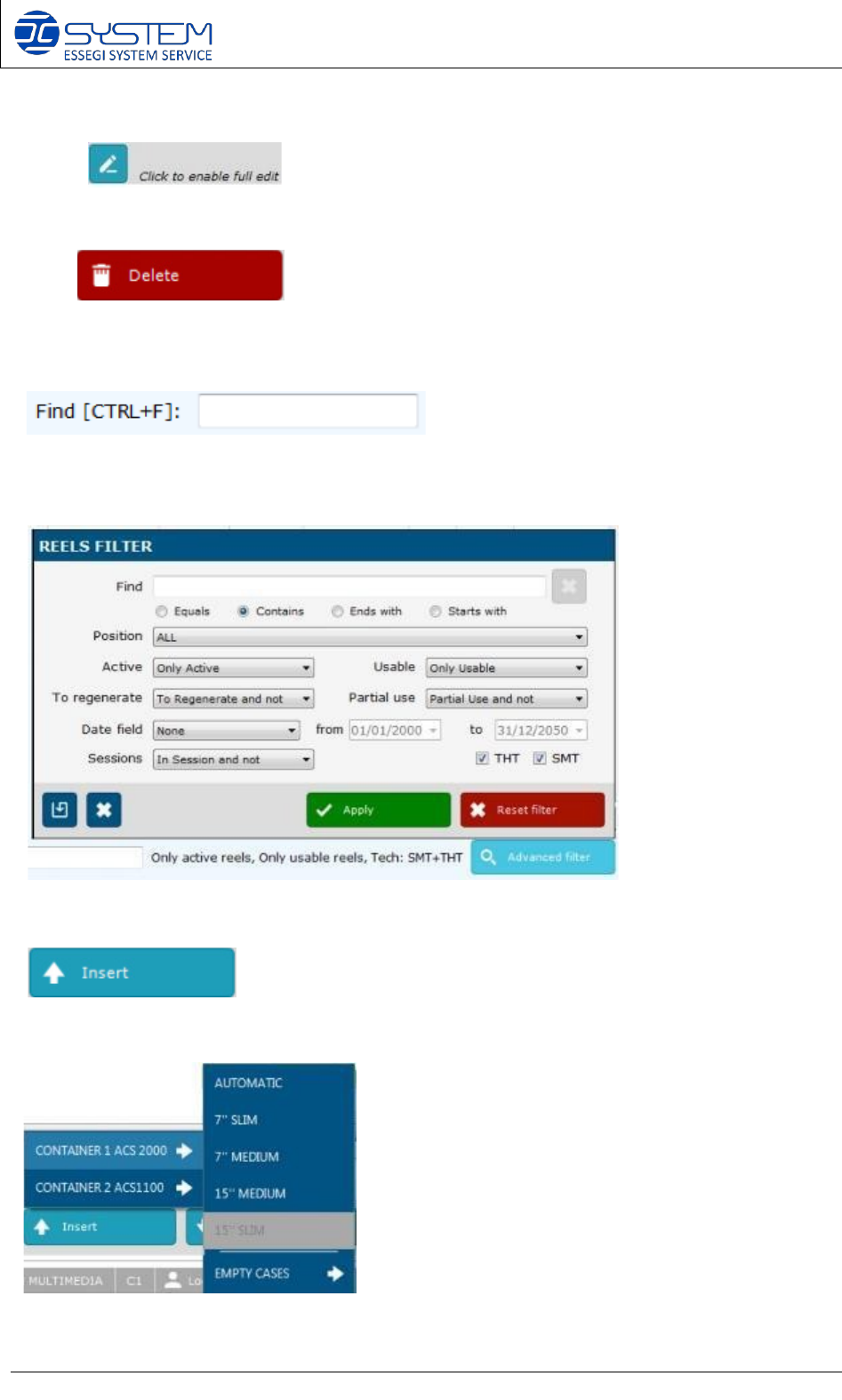
If you need to modify some details (e.g. Item code, quantity etc.), you have to click on this
button:
Allows to delete and existing reel.
Allows a quick search of reels existing on the database.
“Advanced filter”: it allows to make a specific search inside the database.
Allows to load the reel into the tower/towers. By pressing this button, you can select in which
container you want to insert the Unique IDs and also the EMPTY CASES.
Software 3.1 rev_01 Edition 06/2016 - Reproduction forbidden
a
Page 18
Storage Solutions Software Operating Manual
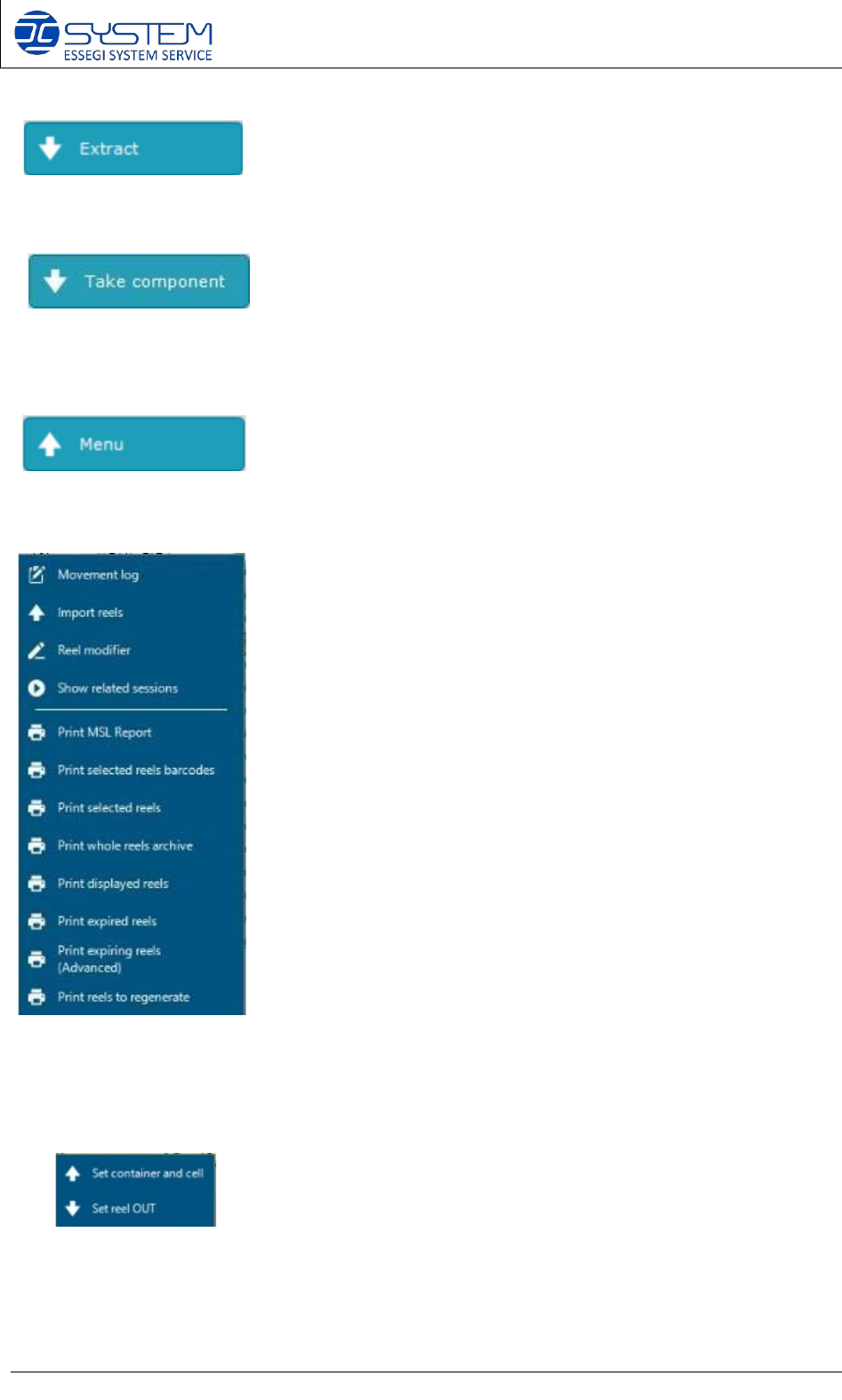
Allows extracting a reel without opening a session. The reel needs to be selected by using the
check box.
This button allows you to take only the quantity of components needed for the production without
reserving whole reel.
Allows to enter in the menu where we can find these following commands:
TRICKS / SHORTCUTS:
1. By making right-click on “Position” field of a Unique ID, the following window will be
displayed:
From this menu it is possible to force a Unique ID inside an ACS/ISM system or set it OUT.
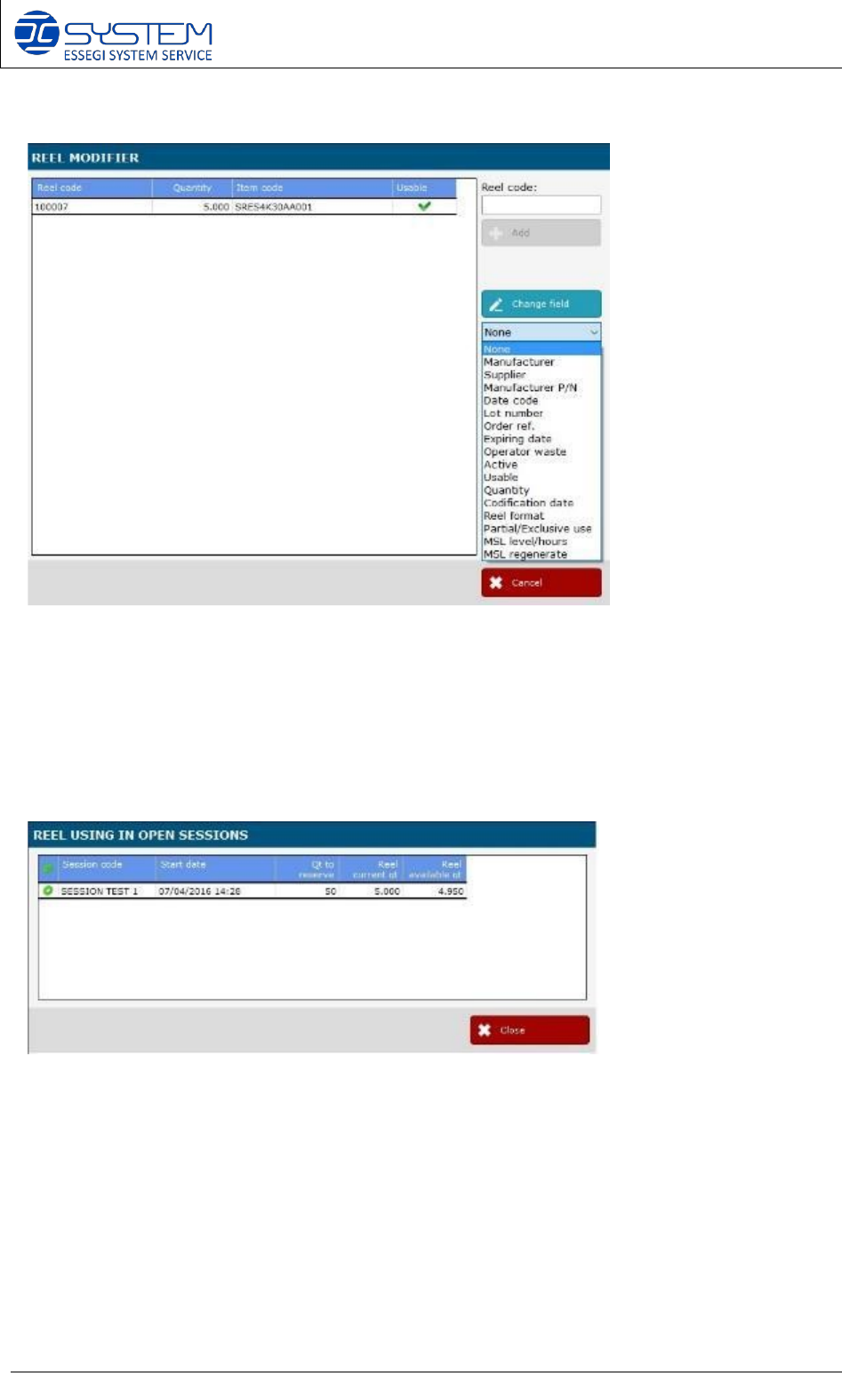
2. By making right-click on “Session” field of a Unique ID, the window of the “Show related
sessions” menu will be displayed.
Software 3.1 rev_01 Edition 06/2016 - Reproduction forbidden
a
Page 19
Storage Solutions Software Operating Manual
Reel modifier
In the menu, the reel modifier is a useful tool to modify more reels at the same time. Into the
field “Reel code”, you can scan the codes of the reels to modify and then select in the drop menu
the required action (e.g. to regenerate the MSL) and then select the required option (e.g. in case
of “regenerate MSL”, you have to select “Set MSL remaining time to 0” or “Reset MSL”) or type
an information (e.g. in case of “Order ref., you have to write the number of the reference of the
order and it will be inserted in all selected reels)
Show related sessions.
If you select a reel and then press “Show related sessions”, a new window will show you the
details about the session and how many components it will take from the reel.