ISM-2000_OPE.pdf - 第8页
Software 3.1 rev_0 1 Edition 06/20 16 - Reproduction forbidden a Page 8 Storage Solut ions Soft ware Operating Manual The column “ Tech ” shows a new sign regarding the technology: blue poin t for SMT and y ellow point f…
Software 3.1 rev_01 Edition 06/2016 - Reproduction forbidden
a
Page 7
Storage Solutions Software Operating Manual
4. Customer internal P/Ns management: Items (F2)
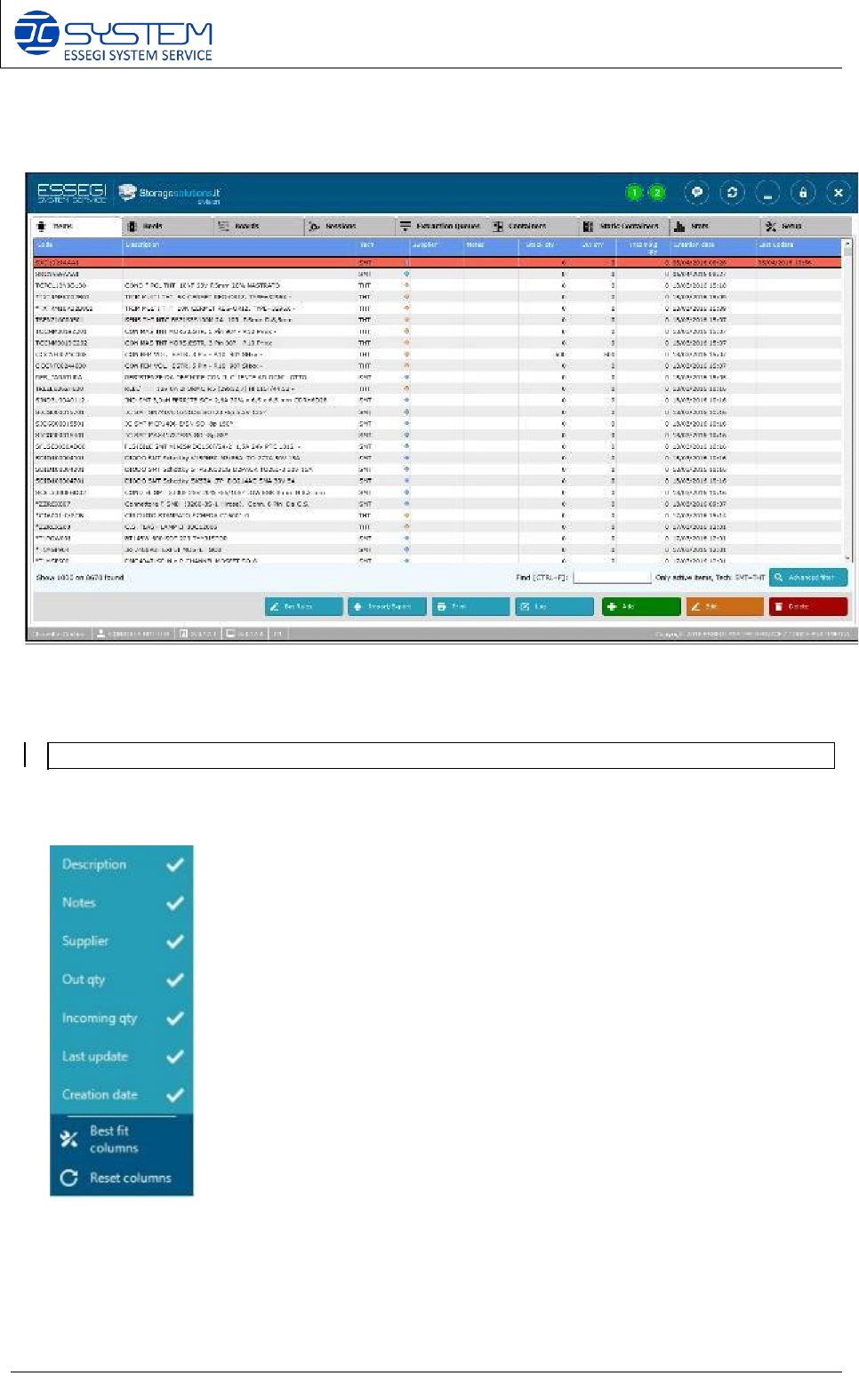
This window displays all customer internal P/Ns (Items)
Legend color rows:
Item refers to the type of component (customer P/Ns) that is inserted into the warehouse. For
each item is shown:
• Code: customer internal P/N code (max 30 digits; ASCII only)
• Description
• Tech (SMT or THT)
• Supplier: brand of the supplier of the components
• Stock qty: quantity of components in stock
• Out qty: quantity of components out from Storage Solutions systems
• Incoming qty: quantity of ordered components
• Creation date: date on which it is formally registered
• Last Update: date on which it is updated
• Notes: information required for the production
NOTE: to modify the type of information displayed, make right click on the header and select
from the following menu the fields you want to visualize in this window.
Row with item quantity below minimum stock level.
Software 3.1 rev_01 Edition 06/2016 - Reproduction forbidden
a
Page 8
Storage Solutions Software Operating Manual
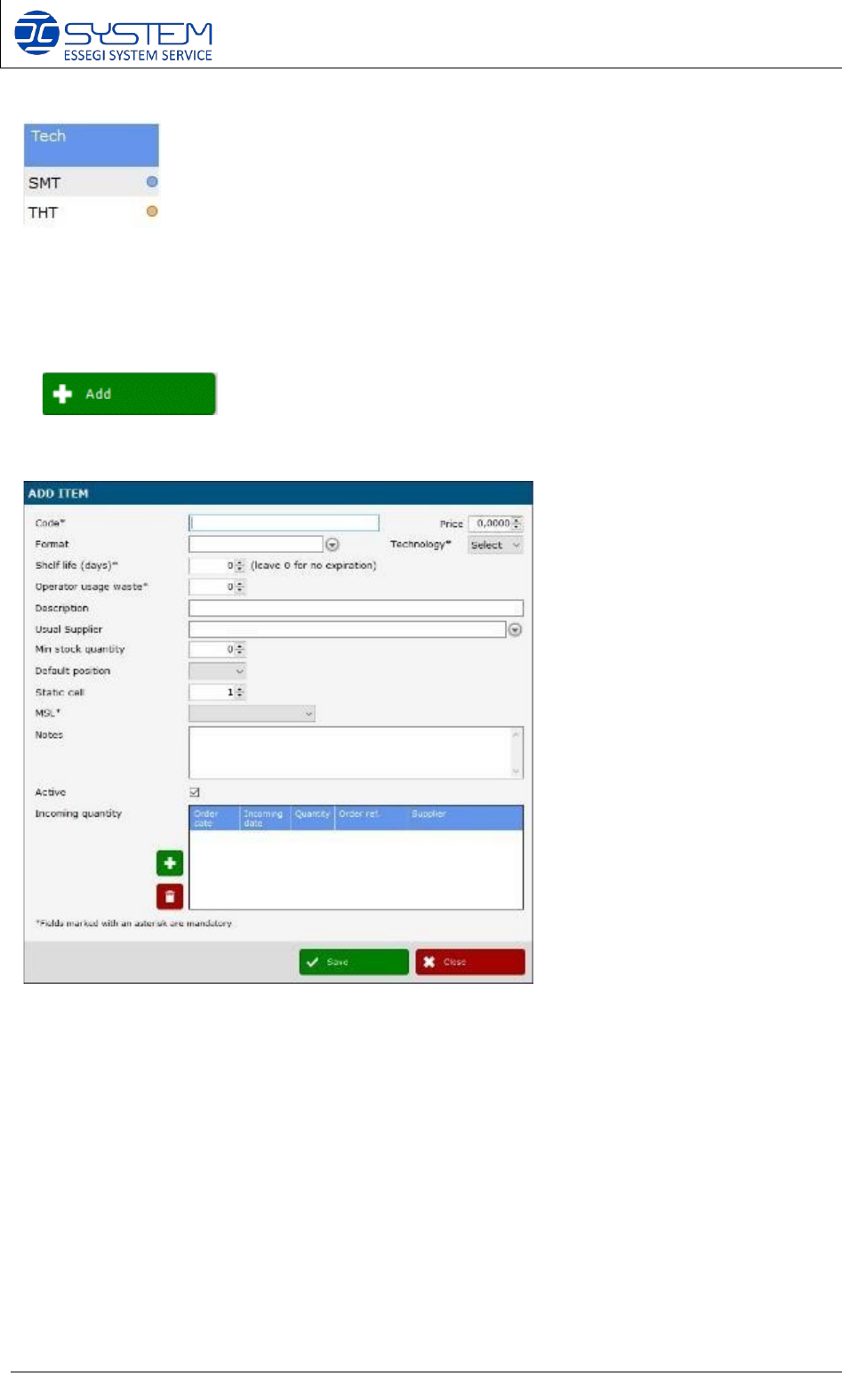
The column “Tech” shows a new sign regarding the technology: blue point for SMT and yellow
point for THT components. These signs make the search of a determined technology easier.
Follows a description of the buttons (and related functions) available for this window:
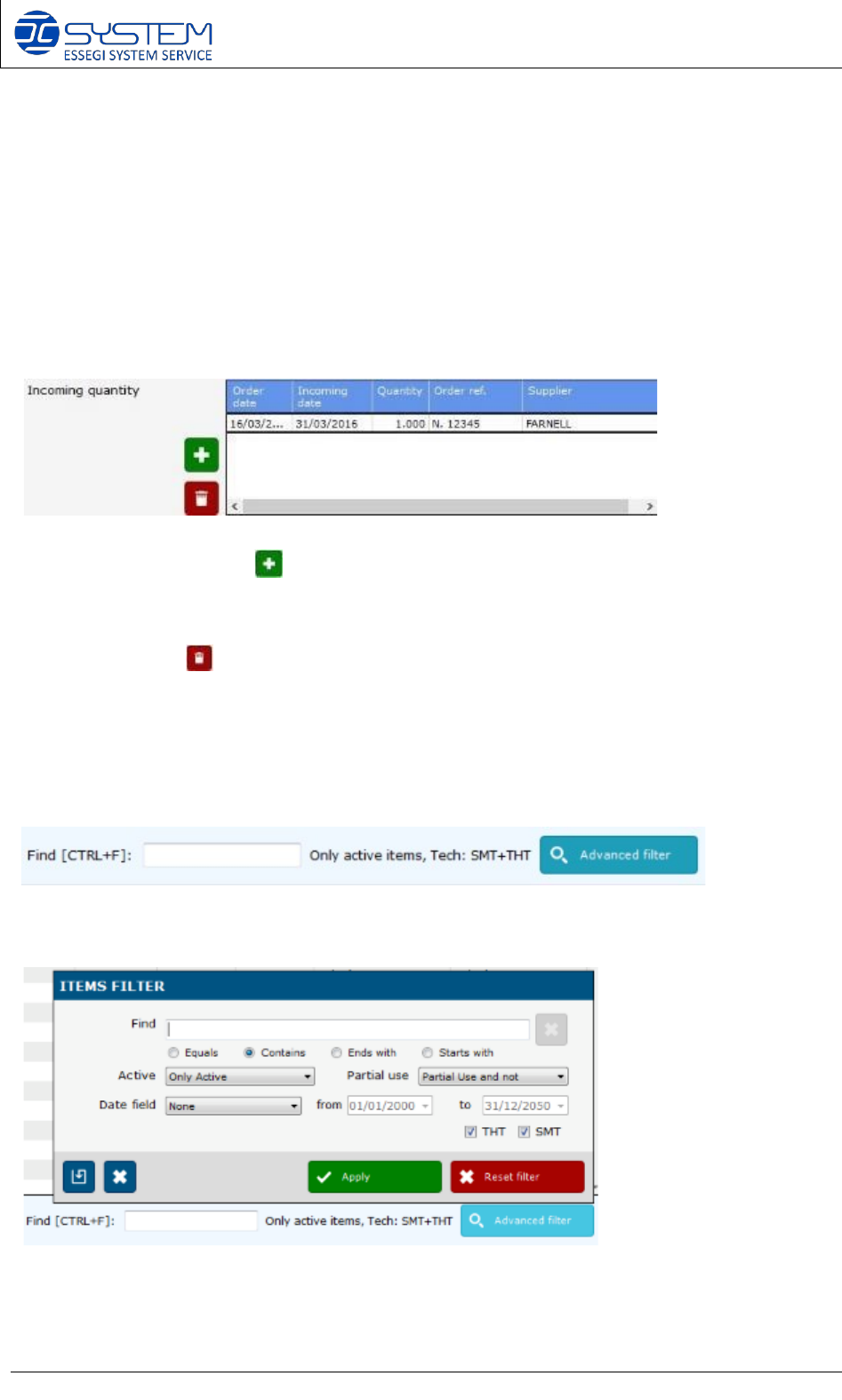
It allows adding a new item. When pressed a new windows opens where it is possible to insert
the details of the new item:
Code: code assigned to the component type. (i.e.100NF or 123456, S02.0345, etc...).
Price: you can indicate the price of the item.
Technology: SMT or THT (THT is available only with THT module installed).
Format: usual format of the package (ex: REEL 7” H8, BOX, STICK, etc…).
Shelf life (days): maximum number of days allowed inside the stock. After this period the item will be
consider expired.
Operator usage waste: it indicates a theoretical amount of components that are lost during each session in which
the component is used. This is a fix number depending on the scratch factor during feeder set-up. This value will
be proposed during codification of new Unique ID in the Reels page.
Description: component type description. (example: Ceramic Capacitor 100NF smd 0805 X7R).
Software 3.1 rev_01 Edition 06/2016 - Reproduction forbidden
a
Page 9
Storage Solutions Software Operating Manual
Usual Supplier: usual supplier of the component.
Min stock quantity: it indicates the minimum amount of the item, after which the software indicates that I have
to order the component by underlined it in red and/or creating a report.
Default position: with External Storage Management option activated, will give the possibility to pre-
assign a default position to this type of component.
Static cell: it identifies the position of the item inside the default position (example A/1).
MSL: indicates the MSL of the component.
Notes: you can write any note regarding the component.
Active: if checked, indicates that the program considers valid the item for productions. If not flagged, this item,
and all relative IDs (reels, sticks, trays, etc..), will not be consider.
Incoming quantity: using the button, it is possible to indicate the information about the order ref.
about this item. This quantity will be shown in the “Incoming qty” column. When you generate a report
regarding the items (e.g. “Print Selected items”), you will able to see the current quantity and the
incoming quantity: this info is very useful to keep a traceability about a quantity already ordered but not
yet arrived. With the button, you can delete the information.
In this area, an operator can see if a missing item has been ordered: you can see the number of the
order reference, when items
have been ordered, when they will arrive, the quantity and the name of supplier.
On the page ITEMS, you can find these followings buttons:
Find: It allows a quick search inside the database.
Advanced filter: it allows to make a specific search inside the database.