ISM-2000_OPE.pdf - 第20页
Software 3.1 rev_0 1 Edition 06/20 16 - Reproduction forbidden a Page 20 Storage Solut ions Soft ware Operating Manual 6. B OM management: Boards (F4) On this window is display ed the list of printed circuit boards (BOM …
Software 3.1 rev_01 Edition 06/2016 - Reproduction forbidden
a
Page 19
Storage Solutions Software Operating Manual
Reel modifier
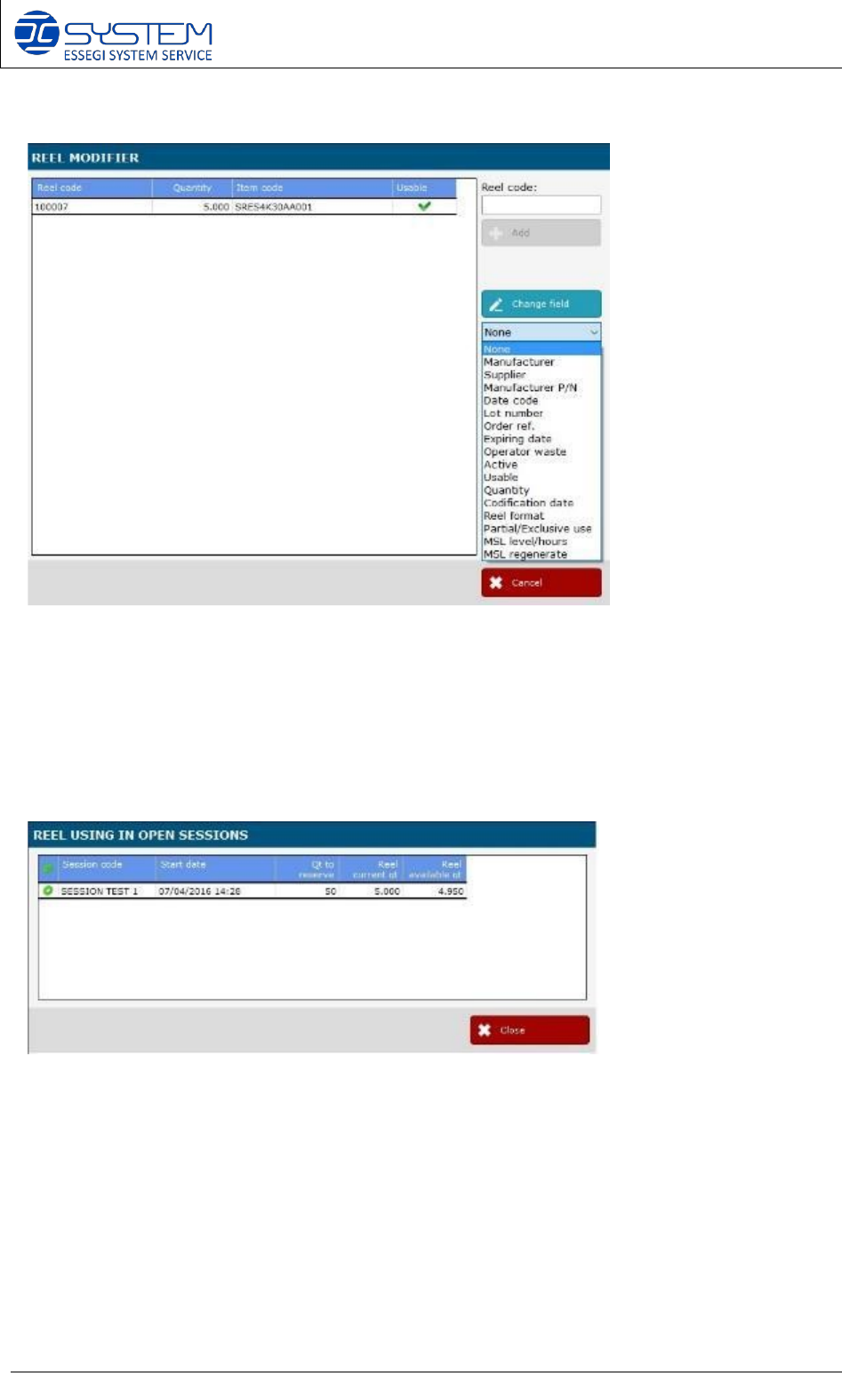
In the menu, the reel modifier is a useful tool to modify more reels at the same time. Into the
field “Reel code”, you can scan the codes of the reels to modify and then select in the drop menu
the required action (e.g. to regenerate the MSL) and then select the required option (e.g. in case
of “regenerate MSL”, you have to select “Set MSL remaining time to 0” or “Reset MSL”) or type
an information (e.g. in case of “Order ref., you have to write the number of the reference of the
order and it will be inserted in all selected reels)
Show related sessions.
If you select a reel and then press “Show related sessions”, a new window will show you the
details about the session and how many components it will take from the reel.
Software 3.1 rev_01 Edition 06/2016 - Reproduction forbidden
a
Page 20
Storage Solutions Software Operating Manual
6. BOM management: Boards (F4)
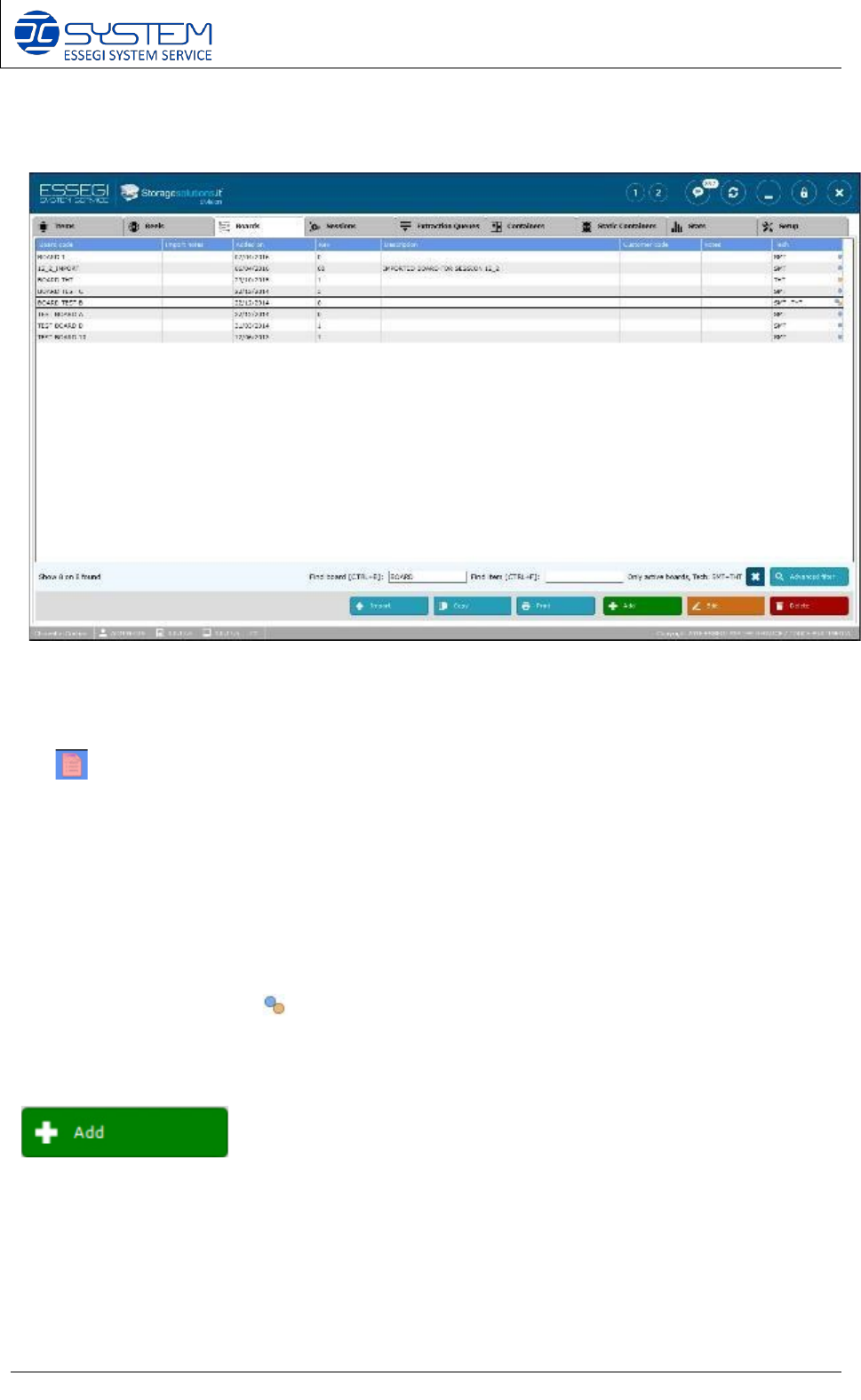
On this window is displayed the list of printed circuit boards (BOM) saved inside the data base.
For each BOM is shown:
• Board Code
• this icon indicates that there are some problems in the item imported for this BOM (only
when automatic import is activated). Click on the symbol to have a report of the errors
• Added on: date of generation of this BOM
• Rev: revision
• Description
• Customer Code
• Notes: when you import sessions using an automatic import, the software will create
automatically a board and in the “Description column”, there will be shown the name of
the session.
• Tech: technology (SMT / THT / SMT+THT). If a BOM has items with both technologies,
you will see both points
Follows a description of the buttons (and related functions) available for this window:
It adds a new board to the database. When you press this button, a new window will be opened
to create a new board.
Software 3.1 rev_01 Edition 06/2016 - Reproduction forbidden
a
Page 21
Storage Solutions Software Operating Manual
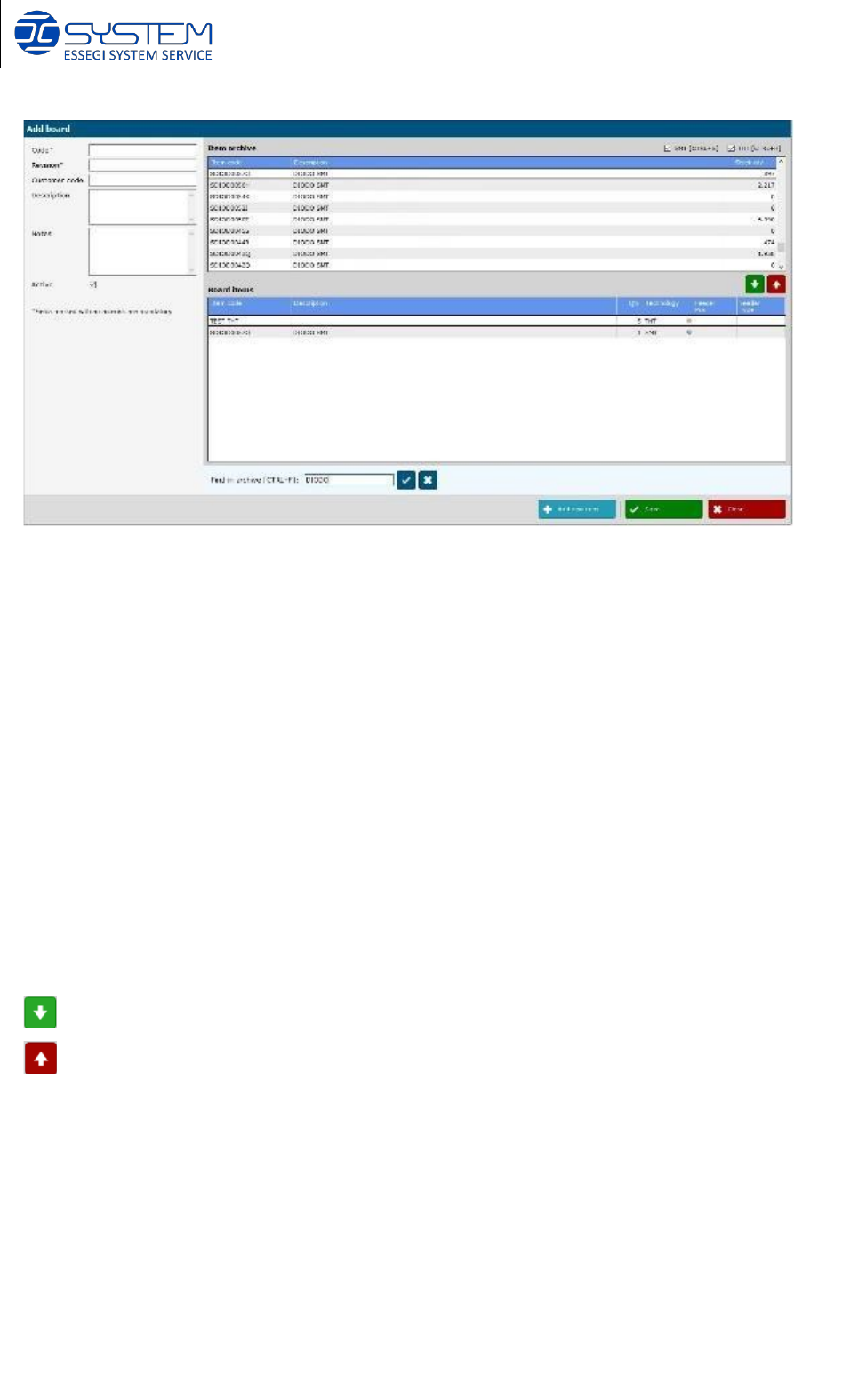
In the “Item archive” area, you can see all items to add to the new BOM: if you need to create a
BOM with only items with a defined technology, you can select the desired checkbox on the top
right. With the column “Stock qty”, it is possible to check how many components are in stock. On
the “Board Items” area, you can find all details of the board.
Code: insert the assigned board code (*=mandatory field)
Revision: insert the revision of the board (*=mandatory field)
Customer code: insert the customer code
Description: insert the description
Notes: insert the notes
Active: when marked, the board is active. Unmark to deactivate this board
Items archive: shows the items archive which can be inserted in the board.
Board items: it is possible to add the items that need to be used on this board:
To select an item from the field “Item archive
”
to be added to the board, use the following buttons:
(CTRL+A). To insert the item in the field Boards items
(CTRL+R). To remove the item from the field Boards items
Note: if you want to have two reels of the same component, you have to repeat the item as many times as many
reels you want to use for this BOM. Example: if the P&P optimization of the BOM require 2 reels of item
COMPONENT TEST 46, you have to add 2 times this component