00194675-04_SiplaceProInstall_eng.pdf - 第42页
4 Installation of SIPLACE Pro and possible Setup Types Installation manual SIPLACE Pro Edition 01/2007 US 42

Installation manual SIPLACE Pro 4 Installation of SIPLACE Pro and possible Setup Types
Edition 01/2007 US
41
4.3 Steps to perform after installation
Note
After a new installation or reinitialization of the database, it is necessary to import the standard
shape library in SIPLACE Pro desk go to Tools-->Import-->Standard Shape Library... This step
is required anyway for you to use SIPLACE Pro and it ensures that data is available to be used
for reporting. 4
4 Installation of SIPLACE Pro and possible Setup Types Installation manual SIPLACE Pro
Edition 01/2007 US
42
Installation manual SIPLACE Pro 5 Installation of SIPLACE Pro Language Pack
Edition 01/2007 US
43
5 Installation of SIPLACE Pro Language Pack
First of all you have to make sure that SIPLACE Pro is installed. Be sure that the installed version
of SIPLACE Pro matches the version of the language pack. Check the readme files on the lan-
guage pack CD for related version information. In the next step the language pack can be in-
stalled. Follow the instructions listed below precisely to install the language pack successfully. 5
5.1 Starting installation - first steps
Step 1
Æ Insert the Language Pack CD in the CD-Rom drive. The installation should start automatically.
Æ If not, go to Windows Explorer and double click on the Update.exe located in the root directory
on the installation CD.
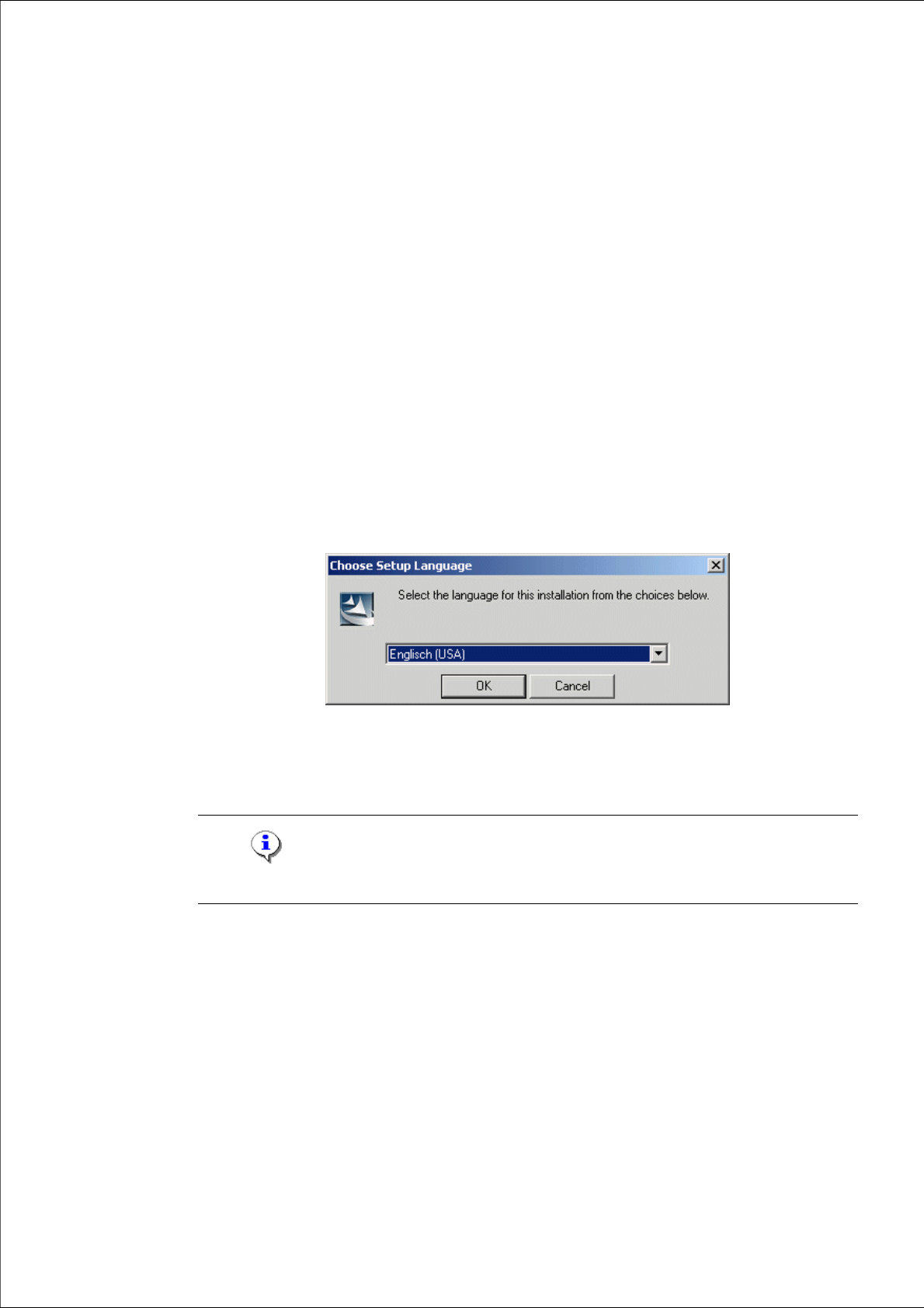
This starts the user-controlled installation of SIPLACE Pro; you are prompted to select the in-
stallation language.
Fig. 5 - 1 "Choose Setup Language" dialog box
Æ Select the language which is to be used during the installation.
Æ Click OK.
Note
This decision only relates to the language used during the installation routine! 5
The data is loaded and then you are presented with a welcome message. 5