00194675-04_SiplaceProInstall_eng.pdf - 第46页
5 Installation of SIPLACE Pro Language Pack Installation manual SIPLACE Pro Edition 01/2007 US 46 Æ Open the Control Panel (S tart -> Settings -> Control Pa nel ). Æ Doubel-Click on Add or Remove Programs . Æ Selec…
Installation manual SIPLACE Pro 5 Installation of SIPLACE Pro Language Pack
Edition 01/2007 US
45
Æ Click Next.
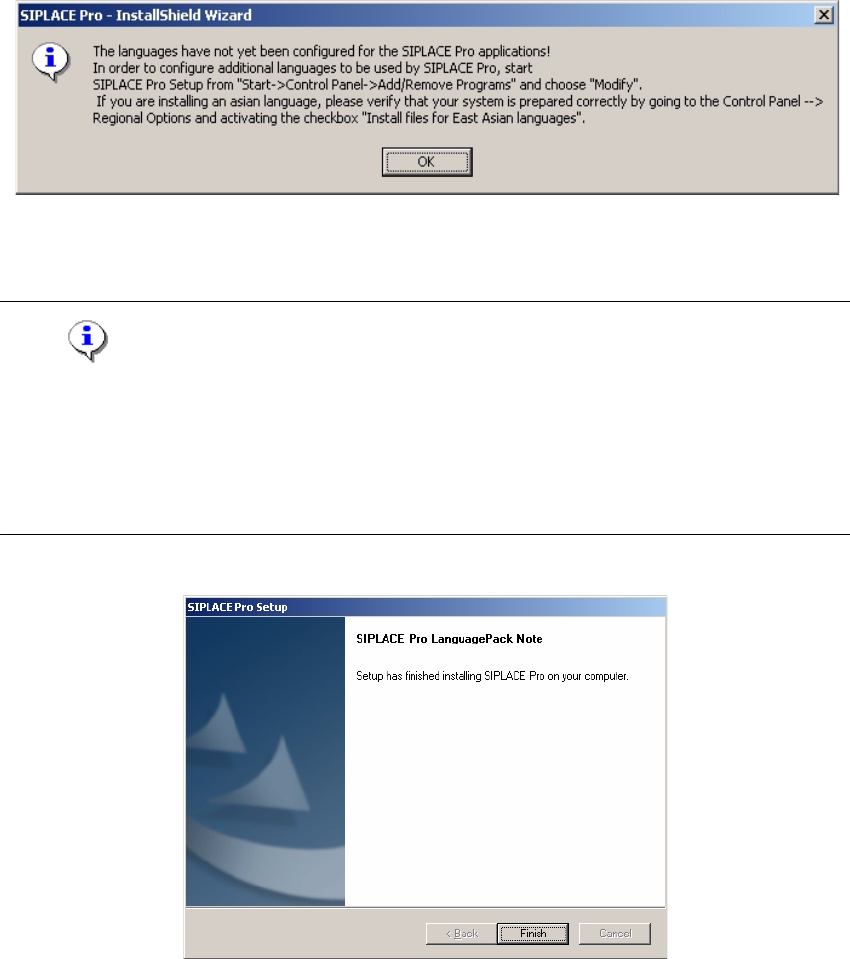
Now you see a message that tells you to run SIPLACE Pro Setup from the Control Panel.
5
Fig. 5 - 4 SIPLACE Pro Language Pack Note
Æ Click OK.
Note
When performing the "Modify" installation of SIPLACE Pro, it will be checked for each selected
language if the operating system is prepared to support that language. If not, you will receive an
appropriate error message. In this case go to the Control Panel, Regional and Language settings,
and verify that the necessary language resources are selected. If you are prompted to do so, re-
boot the computer. 5
5
Fig. 5 - 5 Finish Language Pack Note
Æ Click Finish.
Step 2
Now the SIPLACE Pro Language Patch is successfully installed. Next steps describe the modifi-
cation of the language settings in SIPLACE Pro. 5
5 Installation of SIPLACE Pro Language Pack Installation manual SIPLACE Pro
Edition 01/2007 US
46
Æ Open the Control Panel (Start -> Settings -> Control Panel).
Æ Doubel-Click on Add or Remove Programs.
Æ Select SIPLACE Pro and click on the Change/Remove button.
Æ Setup starts.
Æ In the Welcome window you must choose Modify or this won’t work!
Æ Click Next.
5
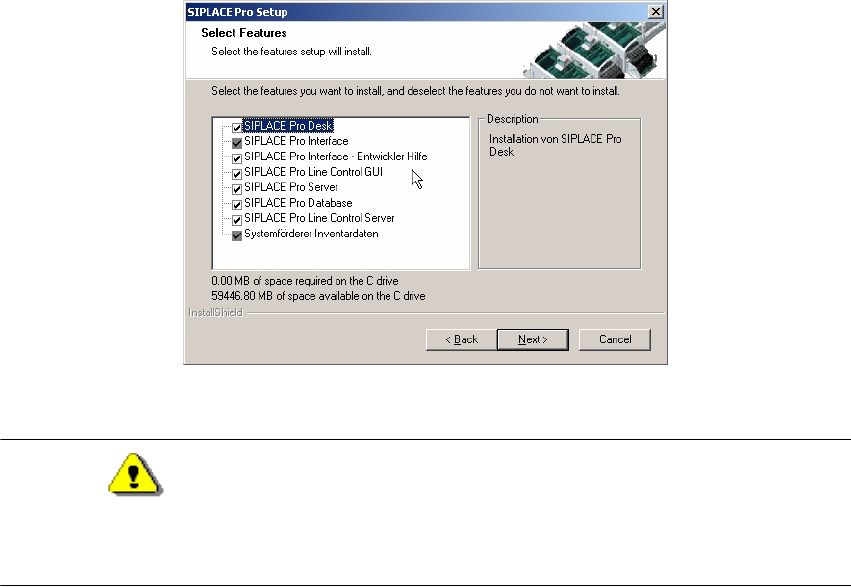
Fig. 5 - 6 SIPLACE Pro - Select Features Dialog
Attention
Do not change anything in the next dialog, except you want also to change the configuration of
SIPLACE Pro which is present on this computer. 5
Æ Click Next.
Installation manual SIPLACE Pro 5 Installation of SIPLACE Pro Language Pack
Edition 01/2007 US
47
5
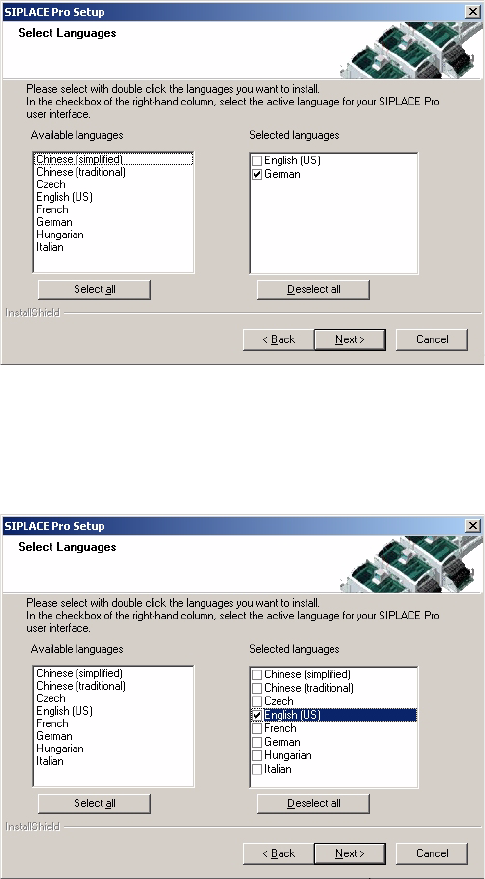
Fig. 5 - 7 SIPLACE Pro - Select Languages Dialog
Æ From the list of available languages in the "Select Languages" dialog, select the language(s)
you want to be available for SIPLACE Pro.
5
Fig. 5 - 8 SIPLACE Pro - Select Languages Dialog
Æ Proceed through the remaining steps as described in Chapter 4 "Installation of SIPLACE Pro
and possible Setup Types".
Step 3
When setup has completed, you will have English, German and the language(s) you selected
available in the SIPLACE Pro applications. In SIPLACE Pro Desk you could check if all installed
languages are available. 5