00194675-04_SiplaceProInstall_eng.pdf - 第54页
7 Troubleshooting Installation manual SIPLACE Pro Edition 01/2007 US 54 . 7 Fig. 7 - 3 Conflicting applications Cause: 7 The service Li neControlServe r could not be stopped. 7 Solution: 7 Please proceed as follows: 7 Æ …
Installation manual SIPLACE Pro 7 Troubleshooting
Edition 01/2007 US
53
Cause: 7
The new SIPLACE Pro installation conflicts with old SIPLACE Pro installations. 7
Solution: 7
The SIPLACE Pro setup may not be installed in parallel with SIPLACE Pro V1.4 or earlier ver-
sions. This check is performed by looking in the registry. 7
If SIPLACE Pro setup detects old installations and if you are absolutely sure you have uninstalled
the old version of SIPLACE Pro and SIPLACE C Pro, please proceed as follows: 7
Æ Make sure that you have manually removed any remnants of this old installation from the pro-
gram folder except for the database!
Æ Delete the registry entries under HKEY_LOCAL_MACHINE\SOFTWARE\Siemens
SIPLACE which relate to the error message of the current setup (like that shown above).
7.1.4 Remote installation with Windows XP clients
Error description: 7
If you are logged on to the server via remote desktop connection and start the installation following
message will be shown. 7
1607: Installation of Install Shield Scripting not possible 7
Solution: 7
Æ Copy the complete content from the Setup CD to the server to be able to start the installation.
7.1.5 Conflicting applications
Error description: 7
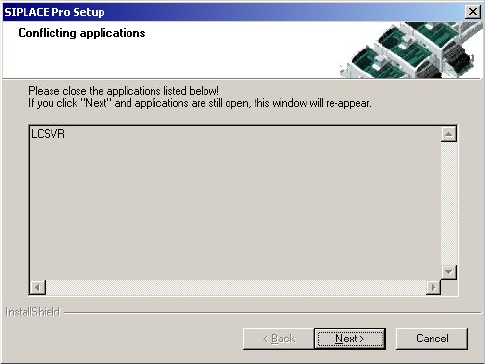
The installation displays in the dialog "Conflicting applications" the file LCSVR.exe which does not
dissapear even after pressing the Next button 7
7 Troubleshooting Installation manual SIPLACE Pro
Edition 01/2007 US
54
. 7
Fig. 7 - 3 Conflicting applications
Cause: 7
The service LineControlServer could not be stopped. 7
Solution: 7
Please proceed as follows: 7
Æ (1) Press the Next button several times. Sometimes the applications simply need time to close.
As soon as the application is terminated, the installation will continue.
Æ (2) Check if the LCGUI is running on another client. If yes, please stop and try to continue the
installation by pressing the Next button again.
Æ (3) Open Sevices from the start menu (Start/Settings/System Control/Administration/Services.
Locate the line for the "LineControlServer". If the status is "started", try to stop the service by
context menu. After that try to continue the installation by pressing the button Next.
Æ (4) If the Service cannot be "stopped", the service could not be stopped as requested. Please
restart your computer.
7.1.6 Cannot add Logins
Error description: 7
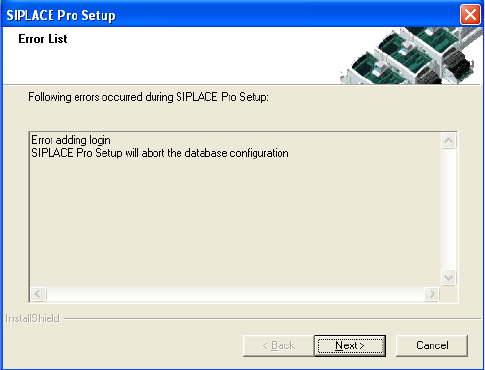
The installation displays in the dialog "Cannot add Logins, need to run Repair Security". 7
Installation manual SIPLACE Pro 7 Troubleshooting
Edition 01/2007 US
55
7
Cause: 7
When a database is restored but the repair security script hasn’t completed successfully. 7
Solution: 7
Click on Next. Setup will return the database to it’s state at the beginning of the Installation. The
database administrator should start the Query Analyser (or equivalent) and run the script
RepairSecurity.tsq, which can be found in the SIPLACE pro Installation directory in the folder
DBSkripts. Now restart Setup.exe. The database should now be processed correctly. 7
7.1.7 Lack of memory
Error description: 7
SQL security patch (Service Pack 1) lacks memory and therefore fails to install. 7
Cause: 7
If .NET Framework 1.1 (Service Pack 1) has been installed first, it needs too much memory. 7
Solution: 7
Uninstall .NET Framework 1.1 (Service Pack 1). Then install the Security Patch, followed by .NET
Framework 1.1 again. 7
7.2 After installation
7.2.1 Database in single user mode after installation of SIPLACE Pro
Error description: 7
After the installation, the database is in single user mode and SIPLACE Pro can not be started 7