00194675-04_SiplaceProInstall_eng.pdf - 第59页
Installation manual SIPLACE Pro 8 Uninstalling Edition 01/2007 US 59 8 Uninst alling 8.1 Uninst alling the sof tware Uninstalling SIPLACE Pro deletes all SIPLACE Pr o software component s fr om the system except for the …

7 Troubleshooting Installation manual SIPLACE Pro
Edition 01/2007 US
58
Note
Make sure that you log in using an account with administrator rights. 7
7.2.3 Uninstallation of previous version of SIPLACE Pro "hangs" during upgrade
installation
Error Description: 7
It is possible in rare cases that the uninstallation of the previous version of SIPLACE Pro does not
end while running an upgrade installation (e.g. from V2.1 SP2 to V3.2). 7
If the progress message "Uninstalling previous version of SIPLACE Pro (this may take some min-
utes) ..." is displayed for an unusual amount of time, it is likely that you are experiencing the prob-
lem described here. 7
Check: 7
Open the task manager and watch all processes named "IDriver" and "msiexec". 7
- As long as any of these processes shows any change in the memory or cpu usage, everything
is normal and you simply need to be more patient… 7
- If none of these processes shows any activity, the problem described is at work. Please follow
the steps described as workaround below. 7
Workaround: 7
Æ Log off from the system.
You will see message boxes saying that applications cannot be stopped - choose the option
"stop now" in each case.
Æ Log on again.
Æ Go to "Start/Settings/Control Panel/Add/Remove Programs" and run the installation of the pre-
vious version of SIPLACE Pro from this point. Select option "Remove all" and this way uninstall
explicitly the old version of SIPLACE Pro.
Æ Start the installation of the new version of SIPLACE Pro like you did originally. The installation
should run without further problems now, as the old version of SIPLACE Pro has uninstalled
already

Installation manual SIPLACE Pro 8 Uninstalling
Edition 01/2007 US
59
8 Uninstalling
8.1 Uninstalling the software
Uninstalling SIPLACE Pro deletes all SIPLACE Pro software components from the system except
for the SIPLACE Pro Database. 8
The SIPLACE Pro Database is not automatically uninstalled in order to prevent possible data loss.8
Step 1
Uninstall SIPLACE Pro via the Control Panel. 8
You require the uninstall window in Windows for uninstalling. 8
Æ Click Start in the Windows start menu.
Æ Click Settings.
Æ Click Control Panel.
Æ Double-click Add / Remove Programs.
A list appears with the names of the software packages installed on the computer. 8
Æ Select SIPLACE Pro.
Æ Click the Change/Remove components button.
Æ Select Remove to remove all installed features.
Æ In the "Confirm File Deletion" dialog box, click OK if you wish to proceed or Cancel if you wish
to cancel the uninstall process.
Æ Click Next to continue.
Æ In the "Confirm Uninstall" dialog box, click OK if you wish to proceed or Cancel if you wish to
cancel the uninstall process.
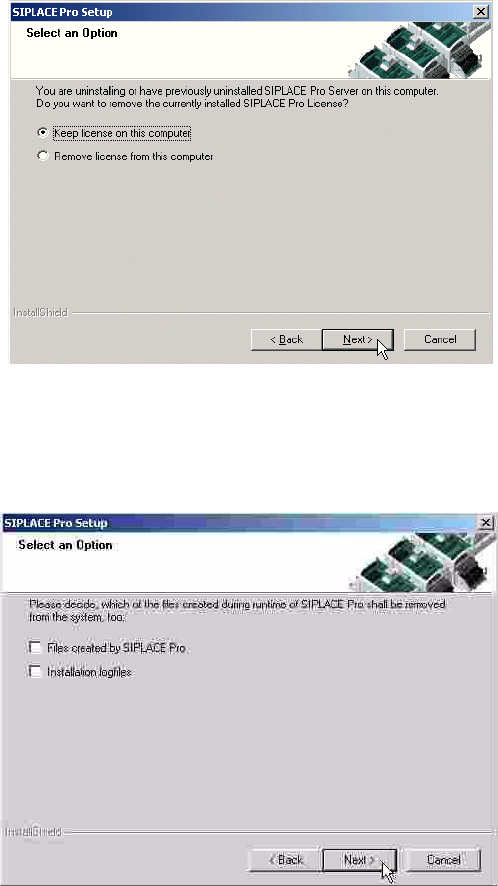
Æ In the license dialog box you could choose if you want to keep the license on this computer for
future installations or if you want to remove the license from this computer.
8 Uninstalling Installation manual SIPLACE Pro
Edition 01/2007 US
60
8
Abb. 8 - 1 Licence options
Æ Choose Keep... if you want to install a version later on or choose Remove... if you do not want
to install SIPLACE Pro ever again or if its expired.
Æ Click Next to continue.
Abb. 8 - 2 Saving options
Æ Choose Files created by SIPLACE Pro to be removed if you want to free up disk space on
this computer..
Choose Installation logfiles to be removed if you never plan to install SIPLACE Pro again on
this computer. If you want to keep the installation logfiles including the log from the uninstalla-
tion, make sure to leave the option Installation logfiles unchecked.
Æ If you do not plan to install SIPLACE Pro again on this computer, we recommend to choose
all options.
Æ Click Next and you get a summary of all components to be deleted.
Æ Click Next if you accept all the information entered so far.