00194675-04_SiplaceProInstall_eng.pdf - 第48页
5 Installation of SIPLACE Pro Language Pack Installation manual SIPLACE Pro Edition 01/2007 US 48 5 Fig. 5 - 9 SIPLACE Pro - Change Language Dia log Æ Y ou can switch to the other language(s) by opening: - the Desk and g…
Installation manual SIPLACE Pro 5 Installation of SIPLACE Pro Language Pack
Edition 01/2007 US
47
5
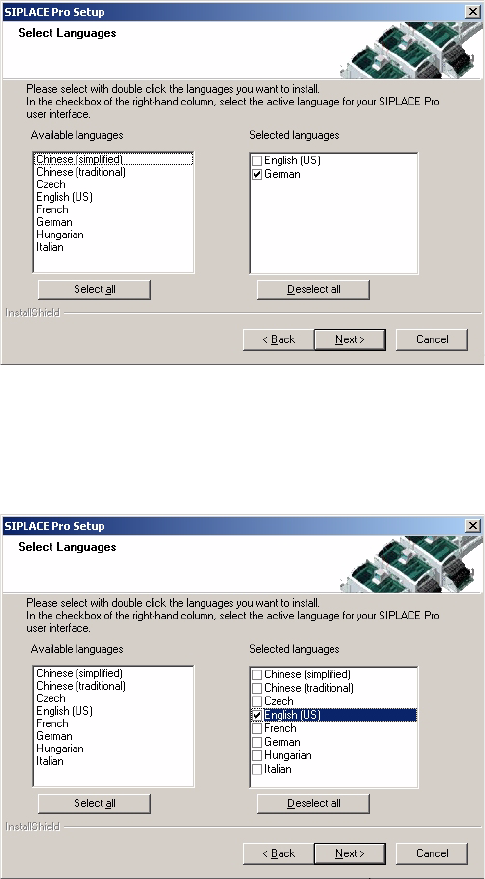
Fig. 5 - 7 SIPLACE Pro - Select Languages Dialog
Æ From the list of available languages in the "Select Languages" dialog, select the language(s)
you want to be available for SIPLACE Pro.
5
Fig. 5 - 8 SIPLACE Pro - Select Languages Dialog
Æ Proceed through the remaining steps as described in Chapter 4 "Installation of SIPLACE Pro
and possible Setup Types".
Step 3
When setup has completed, you will have English, German and the language(s) you selected
available in the SIPLACE Pro applications. In SIPLACE Pro Desk you could check if all installed
languages are available. 5
5 Installation of SIPLACE Pro Language Pack Installation manual SIPLACE Pro
Edition 01/2007 US
48
5
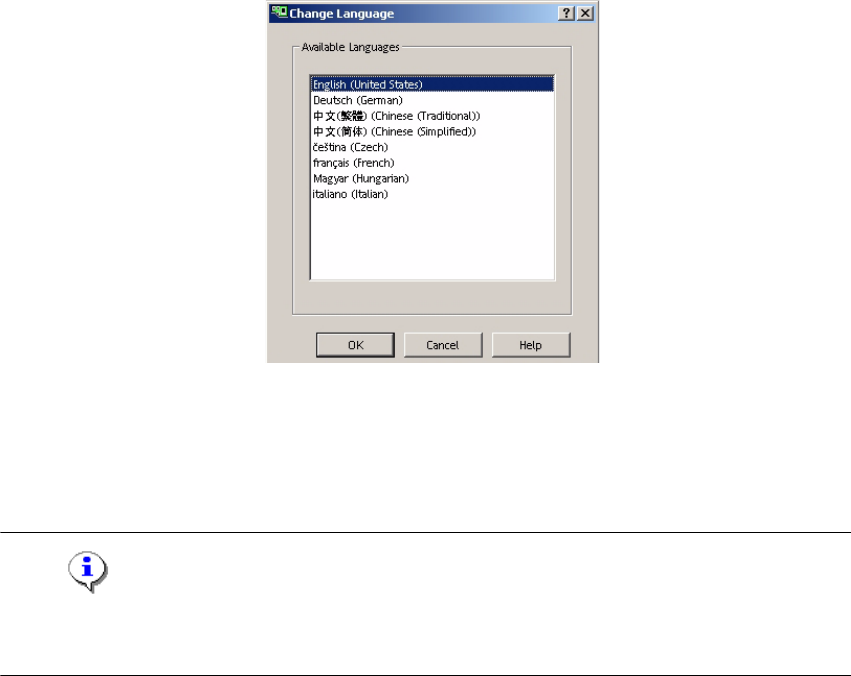
Fig. 5 - 9 SIPLACE Pro - Change Language Dialog
Æ You can switch to the other language(s) by opening:
- the Desk and going to Tools -> Change language or by opening
- the Line Control GUI and going to Options, Languages.
Note
Remember that it is necessary to restart the Desk or the Line Control GUI before the newly selec-
ted language is visible. 5
5
Installation manual SIPLACE Pro 6 Update
Edition 01/2007 US
49
6Update
Basically, follow the same procedure as for initial installation when making an update. Please refer
to chapter 4 in this regard. 6
Before you update from a SIPLACE Pro 1.x you must uninstall that old version. 6
If you have a SIPLACE Pro 2.x version, you are not required to uninstall the old version first, al-
though this is recommended. The database will be kept untouched by that uninstallation and will
be upgraded during the installation of SIPLACE Pro 3.2. 6
Note
Any update from lower to higher versions is possible provided that an upgrade script is available.
In case of problems, please note any messages and check the installation logfile in %temp% or
in the program folder. For more details please contact your service technician. 6
6