00197549-01_IM_TX150SS8_Win2008R2_en.pdf - 第12页
Installing Prim ergy TX 150 S8 with W indows S erver 20 08 R2 04/2014 Edit ion 12 Figure 3-2: Options when booting from ServerVi ew DVD ► Ensure that the firs t option Server View Ins tallation Manager is sel ected and p…
Installing Primergy TX150 S8 with Windows Server 2008 R2 04/2014 Edition
11
3 Installation of Windows Server 2008 R2
The following chapter describes the whole installation process of Windows Server 2008 R2 on the
TX150 S8 Server using the delivered media from Fujitsu.
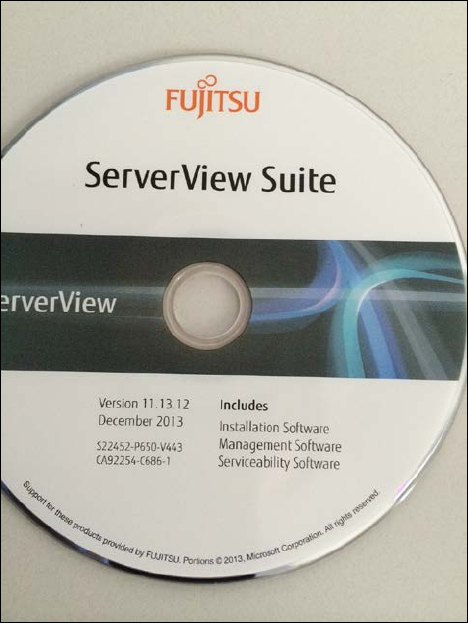
First, you will need the ServerView DVD that is displayed in the following figure.
Figure 3-1: Serverview DVD containing the guided installation (version might be updated)
► Start the server and immediately insert the ServerView DVD.
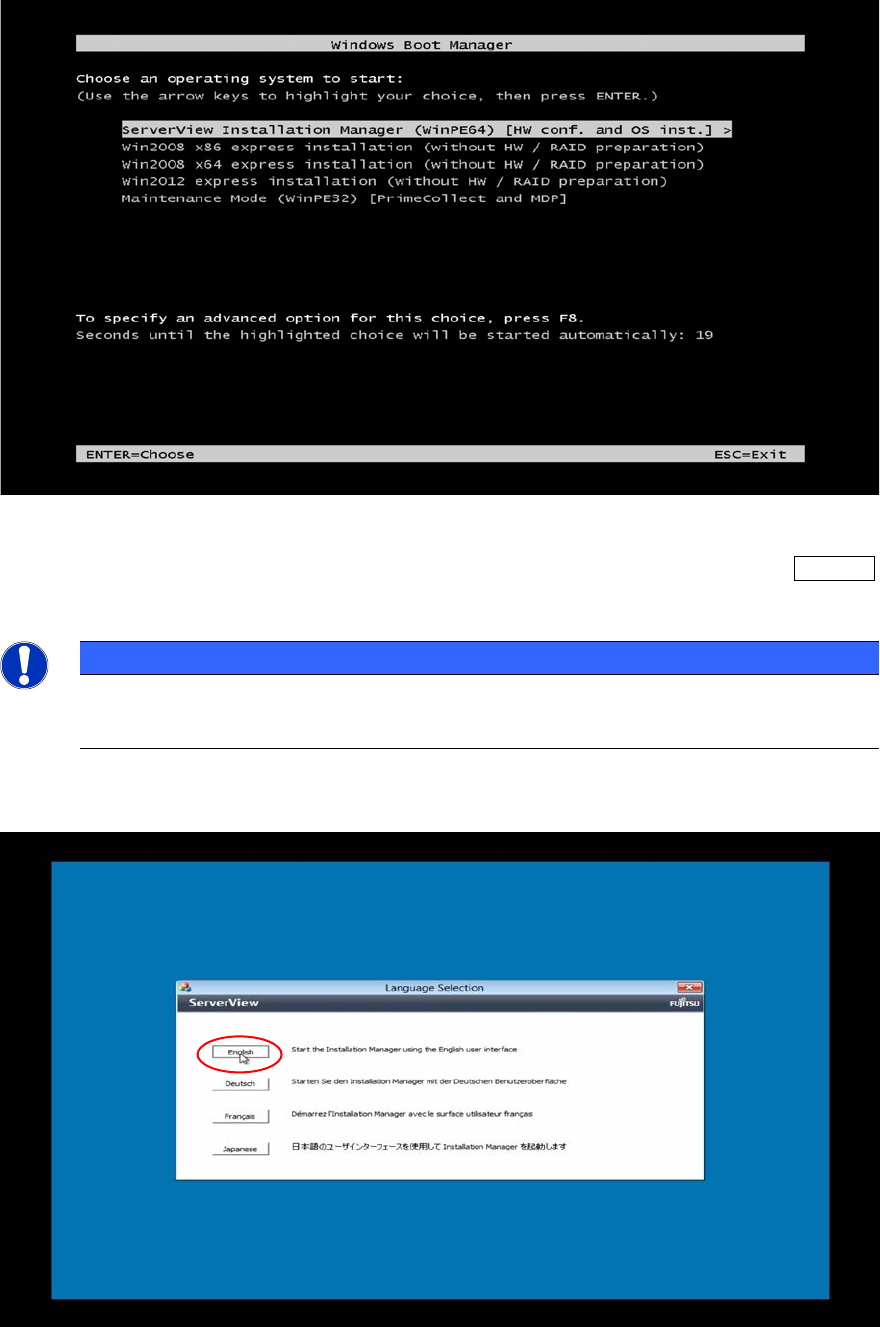
After the system has started from the DVD, the following options appear for a short time.
Installing Primergy TX150 S8 with Windows Server 2008 R2 04/2014 Edition
12
Figure 3-2: Options when booting from ServerView DVD
► Ensure that the first option ServerView Installation Manager is selected and press the ENTER
key.
NOTICE
The boot options will only be displayed a couple of seconds
If you don't press a key within about 15 seconds, the boot options menu will be skipped.
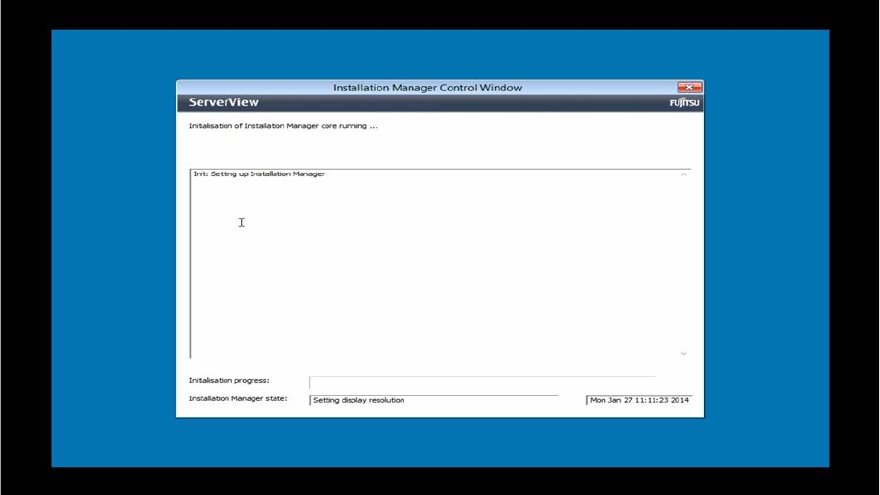
The boot process might take some time. After that, the language selection should be displayed.
Figure 3-3: ServerView language selection
► Select the language you understand by clicking on the appropriate language button.
Installing Primergy TX150 S8 with Windows Server 2008 R2 04/2014 Edition
13
This selection will only affect the language of the guided installation (not the language of the
Operating System to install). In this manual, English is used.
After you have selected the language, the Installation Manager will initialize. This may take about 2
minutes.
Figure 3-4: Initializing Installation Manager – part 1
After initialization, the Regional and Language Settings screen appears.