00197549-01_IM_TX150SS8_Win2008R2_en.pdf - 第26页
Installing Prim ergy TX 150 S8 with W indows S erver 20 08 R2 04/2014 Edit ion 26 Fig ure 3- 19 : In stall ation M anager asking for I nstallation Manager DVD ► Insert the Install ation Man ager DV D again an d click the…
Installing Primergy TX150 S8 with Windows Server 2008 R2 04/2014 Edition
25
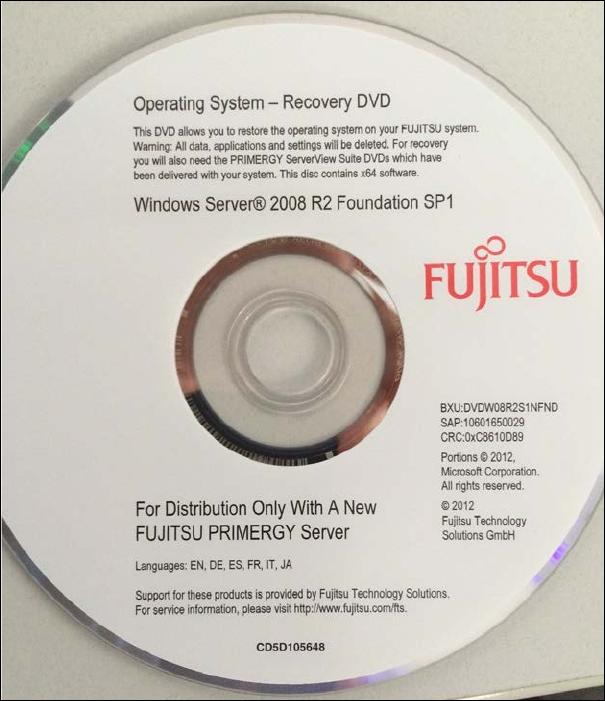
The installation media should look like this:
Figure 3-18: White Operating System Installation Media for TX150 (description might differ a bit, depending on the
Operating System version)
The Installation Manager continues preparing the installation.
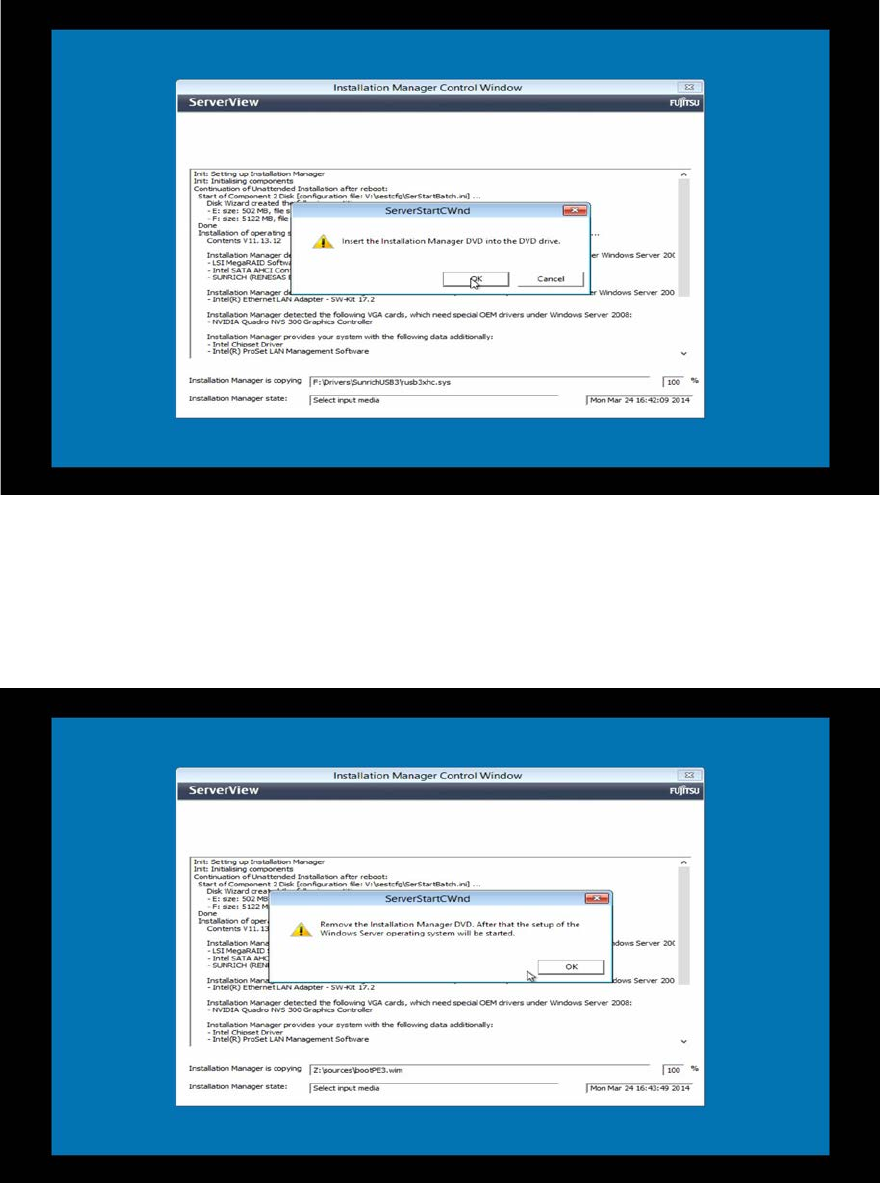
After a short time, the Installation Manager may ask for the Installation Manager DVD again as
shown in the following picture.
Installing Primergy TX150 S8 with Windows Server 2008 R2 04/2014 Edition
26
Figure 3-19: Installation Manager asking for Installation Manager DVD
► Insert the Installation Manager DVD again and click the button OK.
The Installation Manager will continue. After a short time, the Installation Manager will ask to
remove the DVD as shown in the following picture.
Figure 3-20: Installation Manager asking to remove Installation Manager DVD
► Remove the Installation Manager DVD and click the OK button.
Installing Primergy TX150 S8 with Windows Server 2008 R2 04/2014 Edition
27
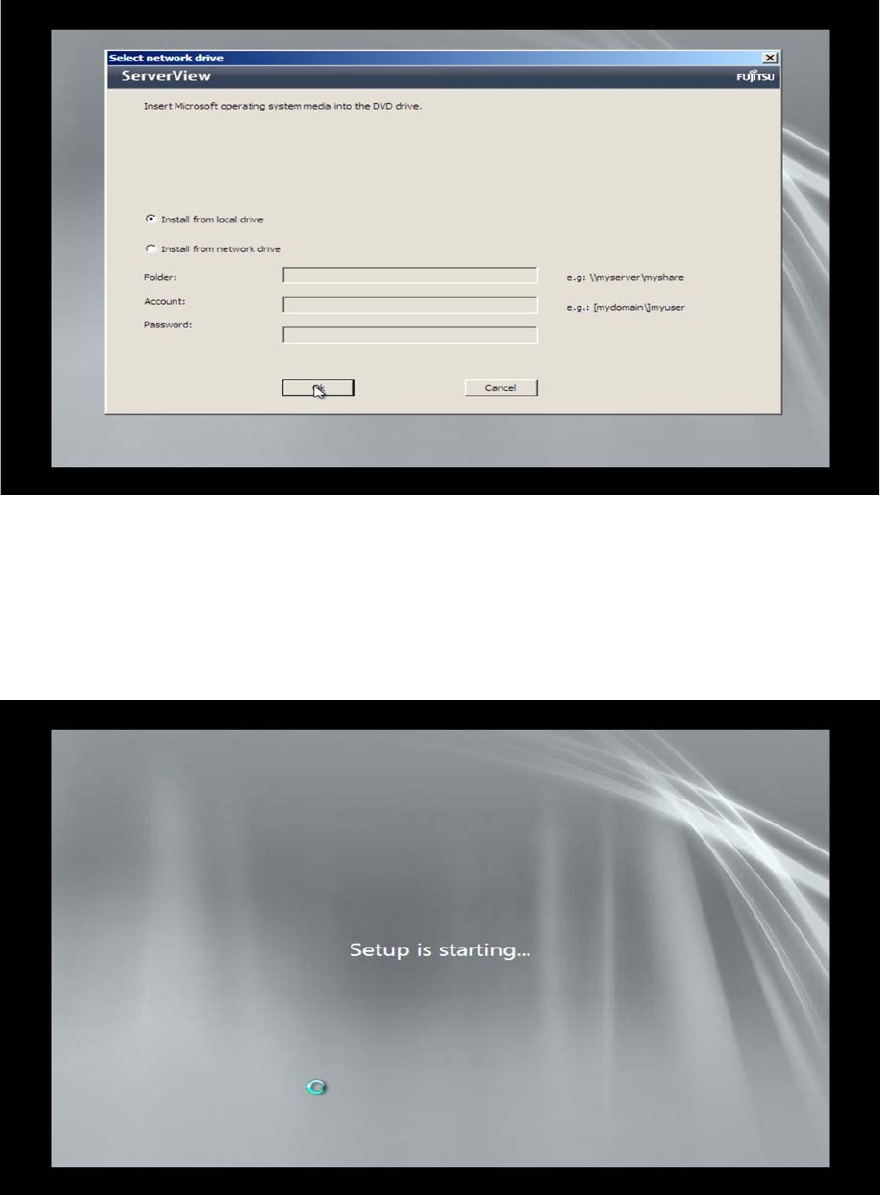
The Installation Manager will reboot. After a while, it may ask for the Operating System DVD again
as shown in the following picture.
Figure 3-21: Installation Manager asking for the Operating System DVD again
► Insert the Operating System DVD again as before and click the OK button.
The Installation Manager will start installing the Operating System.
The whole preparation process, including Windows Setup, will take some time.
Figure 3-22: Starting Windows Setup