00197549-01_IM_TX150SS8_Win2008R2_en.pdf - 第28页
Installing Prim ergy TX 150 S8 with W indows S erver 20 08 R2 04/2014 Edit ion 28 Figure 3- 23 : Running W indows Setup During prep aration, the Ins tallation Manager m a y reboot the s ystem . After prepar ation, t he I…
Installing Primergy TX150 S8 with Windows Server 2008 R2 04/2014 Edition
27
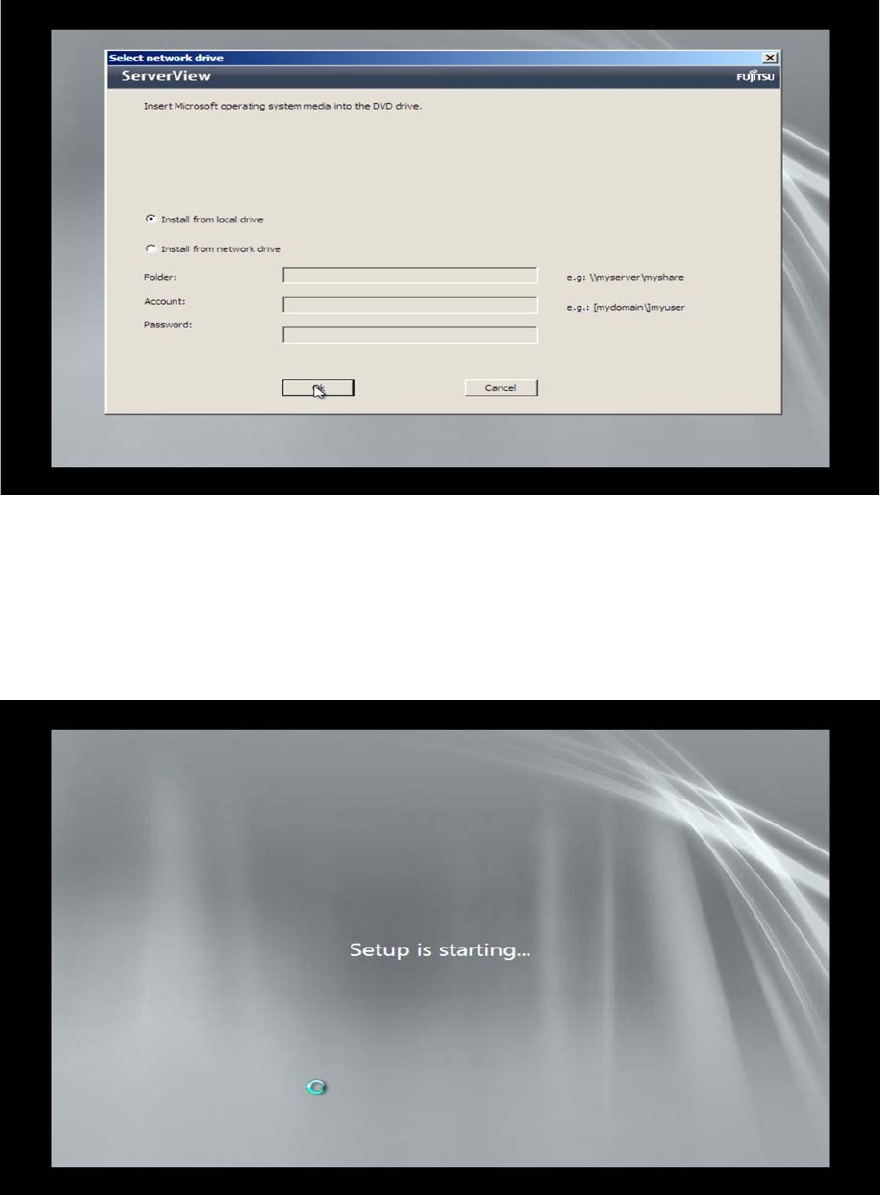
The Installation Manager will reboot. After a while, it may ask for the Operating System DVD again
as shown in the following picture.
Figure 3-21: Installation Manager asking for the Operating System DVD again
► Insert the Operating System DVD again as before and click the OK button.
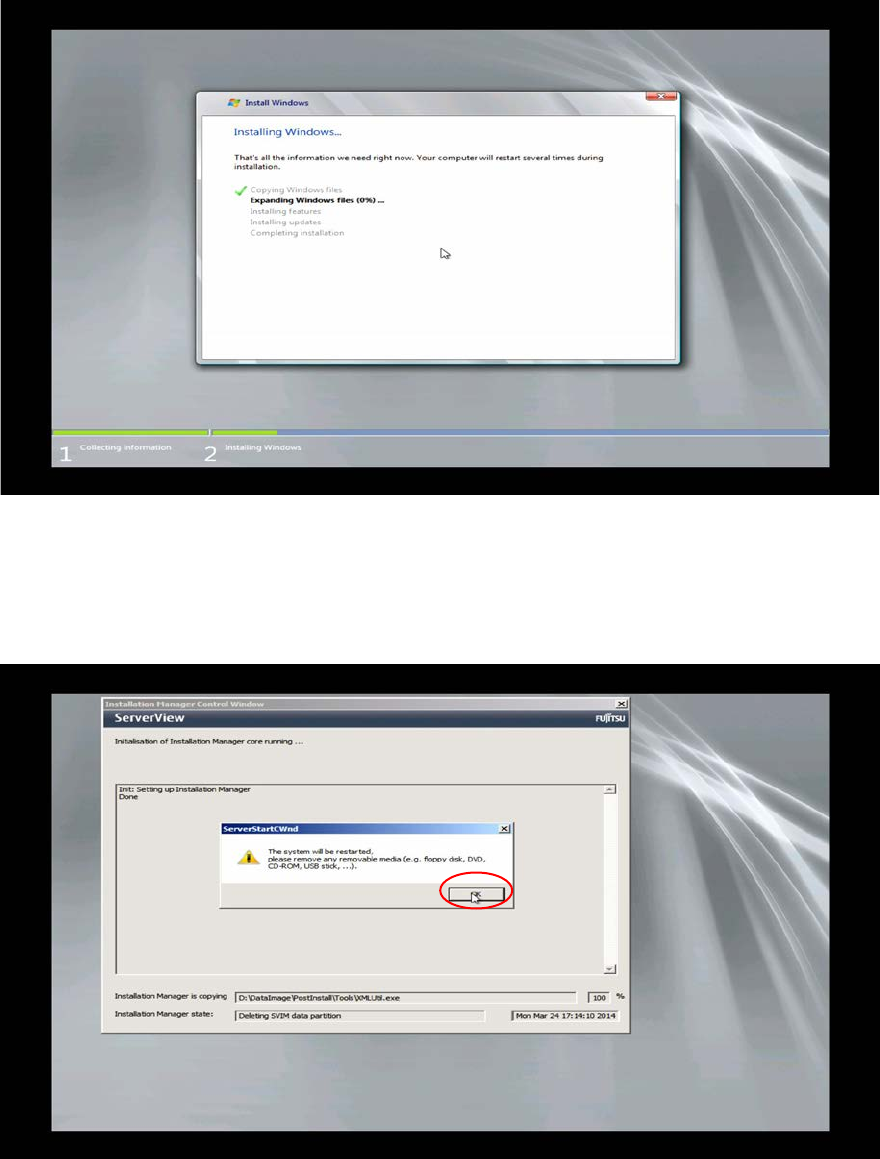
The Installation Manager will start installing the Operating System.
The whole preparation process, including Windows Setup, will take some time.
Figure 3-22: Starting Windows Setup
Installing Primergy TX150 S8 with Windows Server 2008 R2 04/2014 Edition
28
Figure 3-23: Running Windows Setup
During preparation, the Installation Manager may reboot the system.
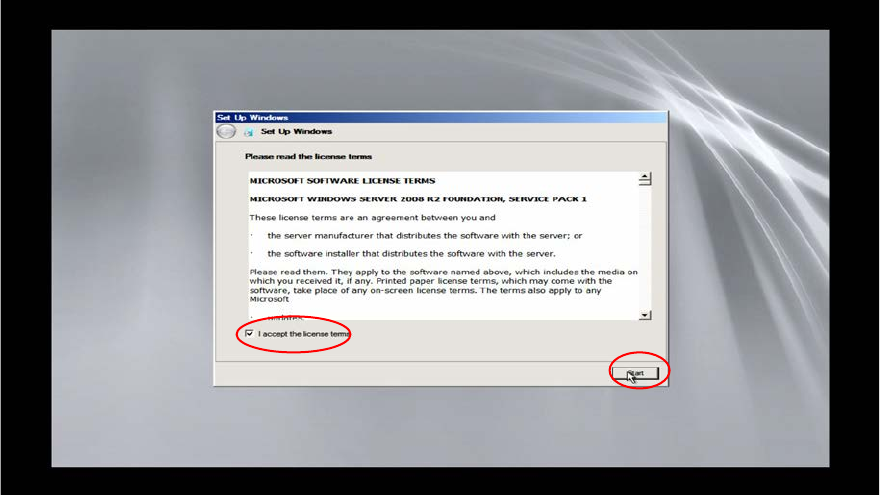
After preparation, the Installation Manager prompts you to remove the DVD.
Figure 3-24: Installation Manager is prompting to remove the ServerView DVD
► Remove the DVD from the drive and click the OK button.
The setup will reboot the computer and continue.
► Wait until the setup is completed. This may take some time and may take a couple of reboots.
Installing Primergy TX150 S8 with Windows Server 2008 R2 04/2014 Edition
29
After the main part of the Windows Setup is completed, the following screen will appear.
Figure 3-25: Windows Setup waiting to agree the license terms
► Click the checkbox besides I Accept the license terms.
► Wait while Windows finalizes.