00197549-01_IM_TX150SS8_Win2008R2_en.pdf - 第33页
Installing Prim ergy TX 150 S8 with W indows S erver 20 08 R2 04/2014 Edit ion 33 The Progr ams and F eature windo w opens. Figure 4-3: Uninstalling AI S – picture #1 ► Right - click on the AI S Conn ect entr y and sel e…
Installing Primergy TX150 S8 with Windows Server 2008 R2 04/2014 Edition
32
4 Additional Finishing Steps
4.1 Uninstalling Fujitsu Automated Immune System (AIS)
Since the features of the Fujitsu Automated Immune System (AIS) are not used, it should be
uninstalled.
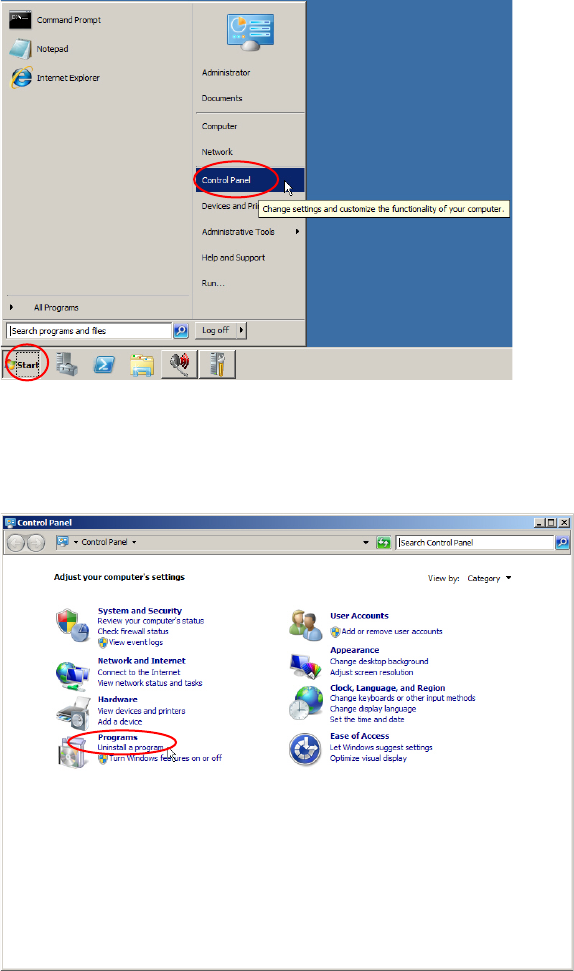
Figure 4-1: Opening Control Panel
► Click on Start – Control Panel.
The Control Panel appears.
Figure 4-2: Control Panel – clicking on "Uninstall a program"
► Click on Uninstall a program.
Installing Primergy TX150 S8 with Windows Server 2008 R2 04/2014 Edition
33
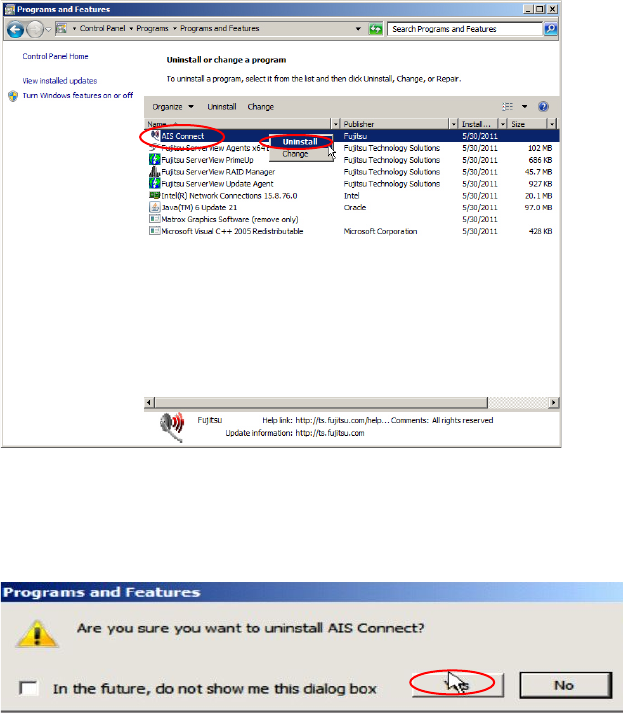
The Programs and Feature window opens.
Figure 4-3: Uninstalling AIS – picture #1
► Right-click on the AIS Connect entry and select Uninstall.
The following window appears.
Figure 4-4: Uninstalling AIS – selecting Uninstall option
► Click Yes to uninstall.
After a couple of seconds, the tool is uninstalled.
Installing Primergy TX150 S8 with Windows Server 2008 R2 04/2014 Edition
34
4.2 Changing DVD Drive Letter
To be ready for additional partitions and other new drives, it is recommended to change the letter of
the DVD drive.
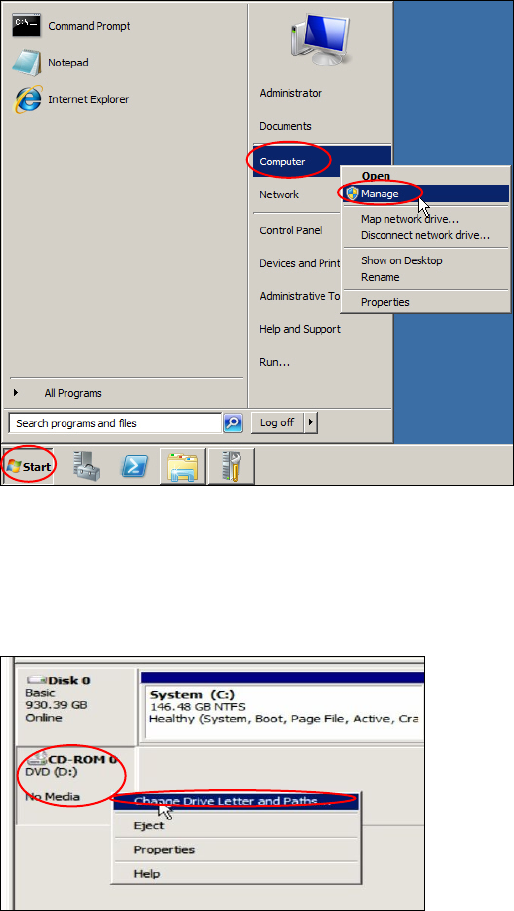
Figure 4-5: Starting Computer Management
► Click on Start.
► Right-click on Computer and select Manage.
The Server Manager opens.
Figure 4-6: Server Manager – Changing DVD drive letter
► On the left side, select Storage – Disk Management.
► Right-click on the DVD drive in the lower middle of the window and select Change Drive Letter
and Paths….